
OpenVPN blocked? Why it happens and what actually works
How networks detect and block OpenVPN, the fixes worth trying in order, and what to do when no OpenVPN trick gets through.
By the VPNBaron team · Updated 28 September 2026 · 3 min read
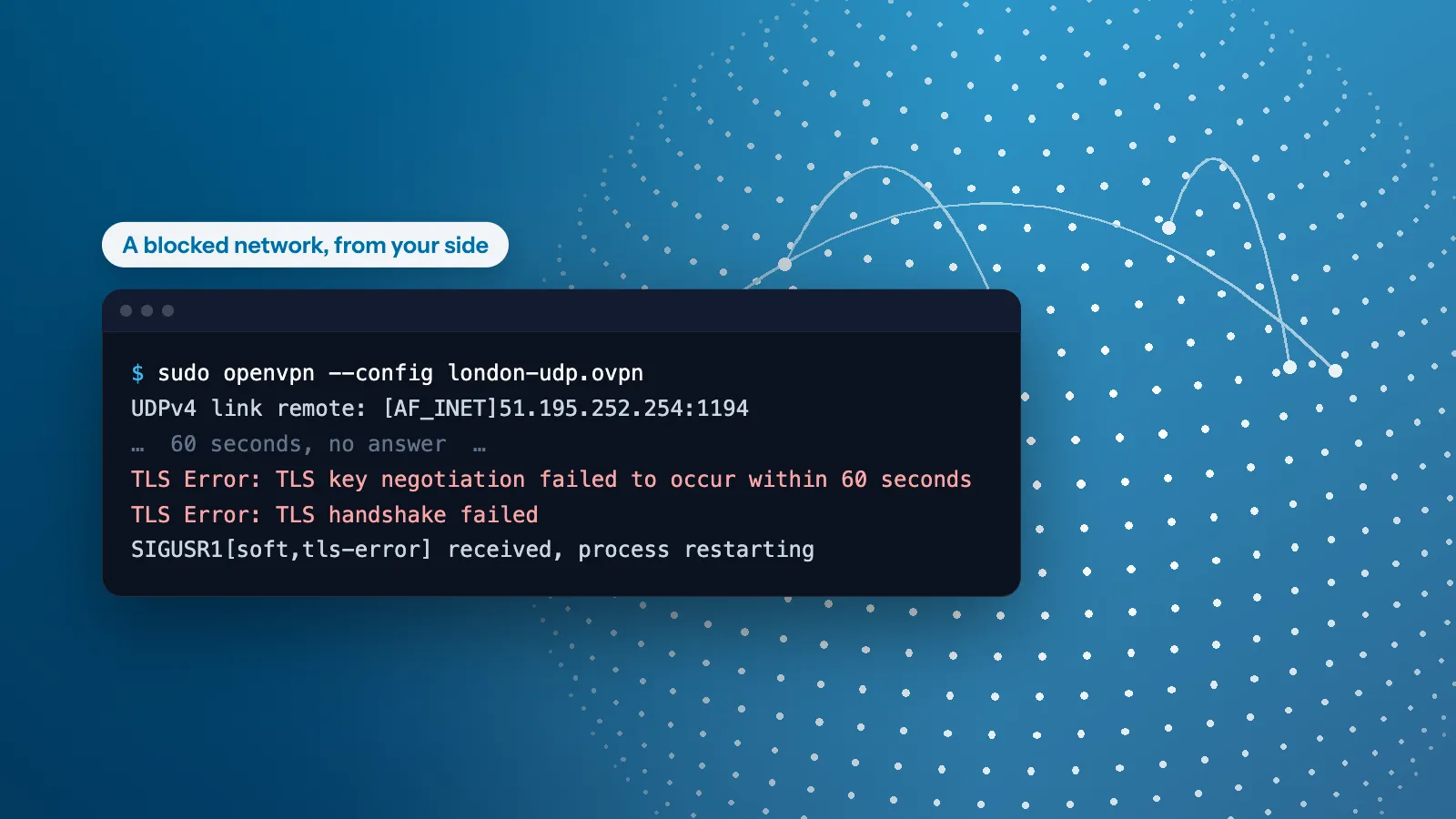
OpenVPN works at home, then you sit down in a hotel lobby, a campus library or an office and it connects forever without connecting. That’s rarely a broken client. It’s the network blocking OpenVPN, and depending on how it blocks, some fixes work and some are a waste of an afternoon. Here they are, in the order worth trying.
First, confirm it’s actually a block
- The same config connects fine on another network (your phone’s hotspot is the quickest test)
- The client log stalls at the TLS handshake (
TLS Error: TLS key negotiation failedor an endlessConnecting...) - Other internet traffic on the network works normally
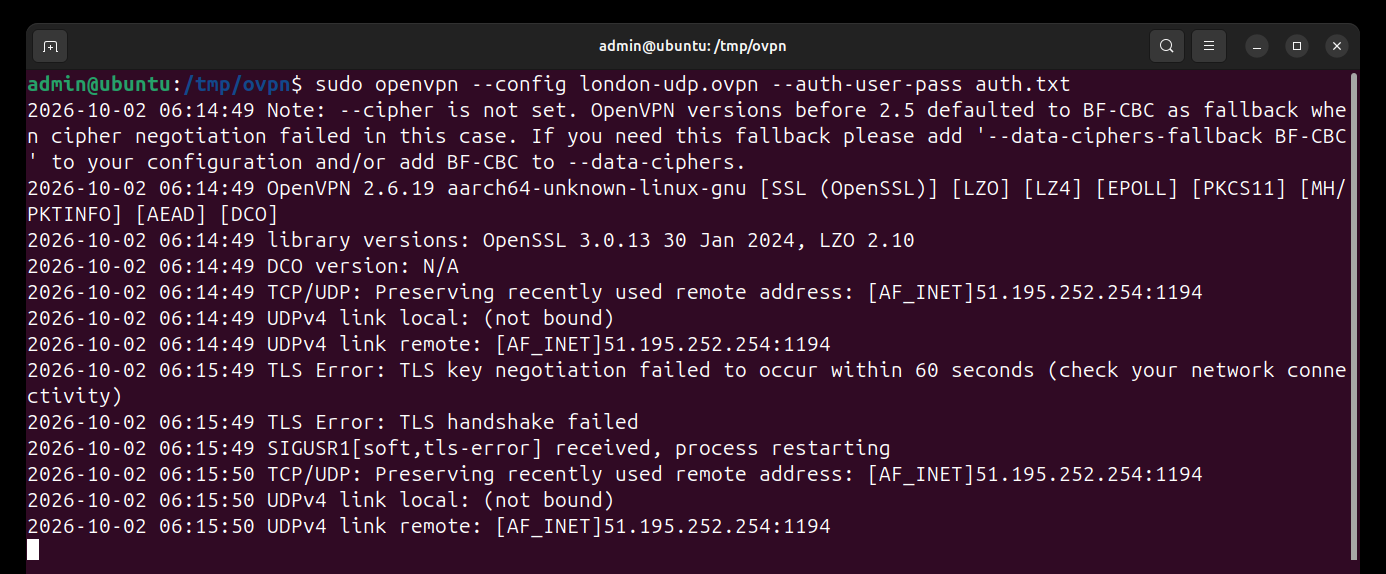
If all three are true, keep reading. If OpenVPN fails everywhere, your problem is the setup, not a block: see the Windows, macOS, iOS or Android guides.
Fix 1: Complete the captive portal
On hotel and airport Wi-Fi, nothing tunnels until you open a browser and accept the network’s terms page. Half of “blocked VPN” reports are just this. Open a normal website first, sign in to the portal, then start OpenVPN.
Fix 2: Switch from UDP to TCP
The crudest blocks just kill OpenVPN’s default port (UDP 1194) or unfamiliar UDP in general. The counter is a TCP config: it slides past simple port filters.
Every server on your OpenVPN page offers both downloads, UDP and TCP. Grab the TCP one, import it, retry. Expect somewhat lower speeds on TCP; that’s the toll.
Fix 3: Try another server
Some networks blocklist specific hostnames or IP ranges rather than the protocol. A different location from the OpenVPN page sidesteps a stale blocklist entry in seconds.
The honest part: when no OpenVPN trick works
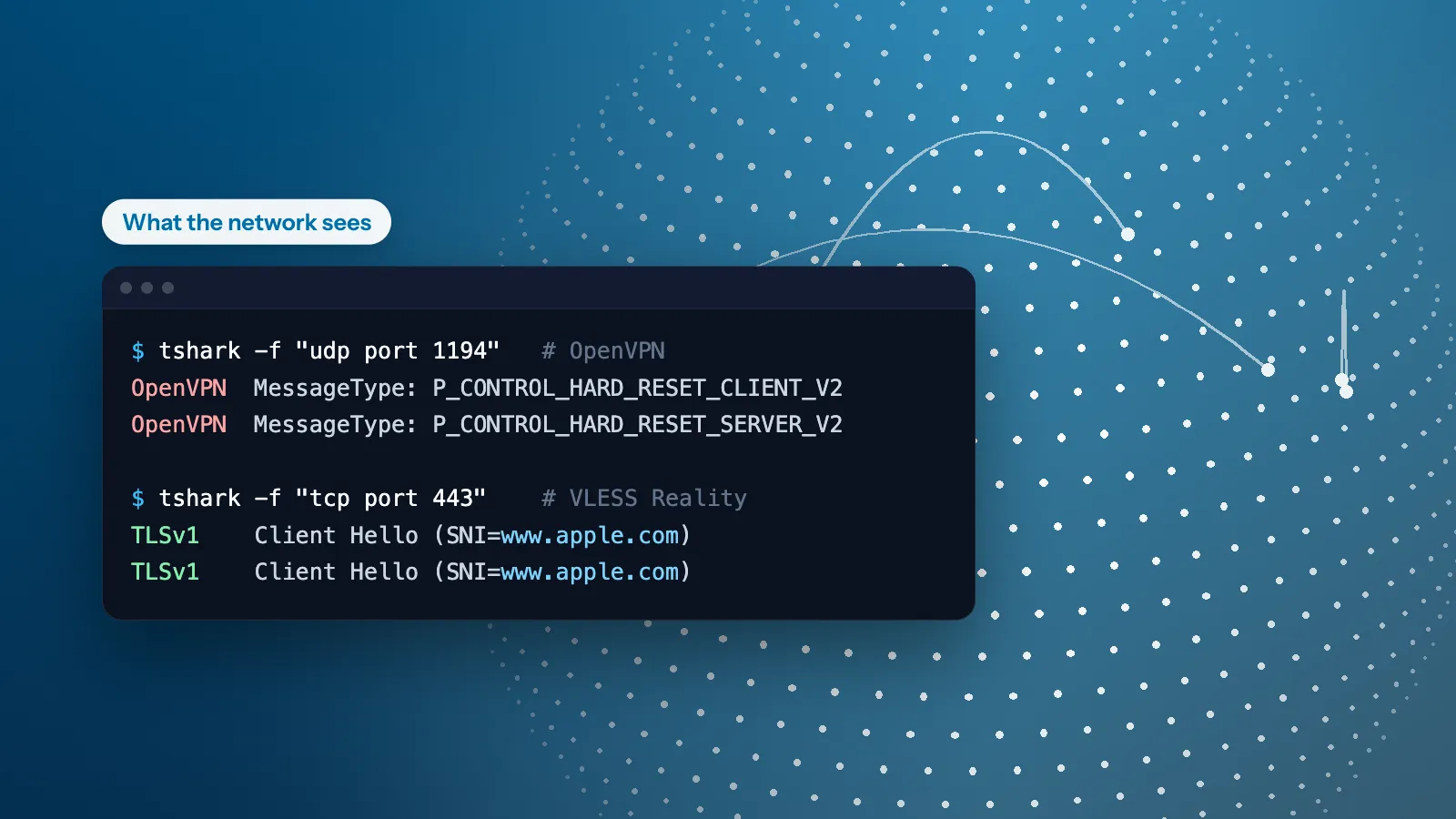
If TCP 443 still won’t connect, you’ve met deep packet inspection. DPI doesn’t care about ports: OpenVPN’s handshake has a recognisable TLS-inside-TLS pattern, and inspection equipment fingerprints it on any port (here’s how that works).
The classic DIY counters, stunnel and obfsproxy wrappers, are fiddly to run and increasingly fingerprinted themselves. The answer today isn’t to disguise OpenVPN harder; it’s to use protocols designed to be indistinguishable from normal traffic:
- VLESS Reality presents the genuine TLS handshake of a real website over TCP 443. SNI inspection, TLS fingerprinting and even active probing come back clean.
- Hysteria2 rides QUIC, so it resembles ordinary HTTP/3, with speed that survives lossy hotel Wi-Fi.
The easy way out
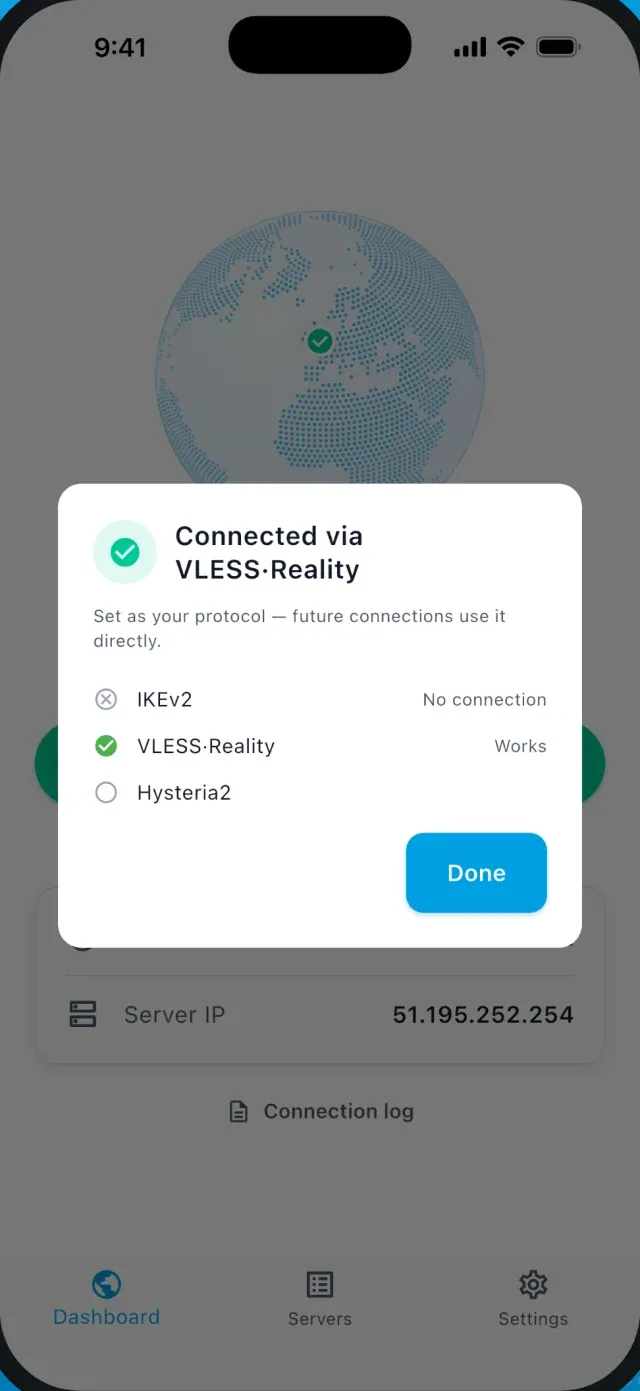
VPNBaron ships all of the above in one subscription: OpenVPN for when it’s welcome, and VLESS Reality and Hysteria2 for when it isn’t. In the VPNBaron app, Baron Pathfinder runs this whole ladder automatically: it tests routes and connects through whatever the network allows, so a blocked lobby Wi-Fi costs you one reconnect instead of an evening of config surgery. Prefer your own client? The same stealth protocols import into V2Box or Hiddify.
VPNBaron
Stop patching OpenVPN on hostile networks
One subscription carries OpenVPN for the open networks and Reality and Hysteria2 for the ones that fight, with Baron Pathfinder switching automatically. Try it on the network that’s blocking you now.
More in Censorship & stealth·Related: Stealth VPN