
Skip to content

OpenVPN Setup on Android

This guide will walk you through setting up a VPN connection on your Android device using the OpenVPN Connect client.

When to use OpenVPN

OpenVPN is a versatile and highly secure protocol. It’s an excellent choice if you need to connect to a specific server that requires it or if you’re having trouble with other protocols. For the simplest experience, we recommend the official VPNBaron app for Android: no config files needed, and Baron Pathfinder picks the best protocol automatically.
Setup Guide

  1. Download Your Configuration File On your Android device, log in at vpnbaron.com and open the Servers page, then switch to the OpenVPN tab. Each server row has two download links: UDP and TCP. Download the UDP config for the fastest speeds, or the TCP config if you’re on a network that blocks UDP (TCP works through most restrictive firewalls).

  2. Download the OpenVPN Connect App Install the official OpenVPN Connect app from the Google Play Store.

    Install OpenVPN Connect on Google Play

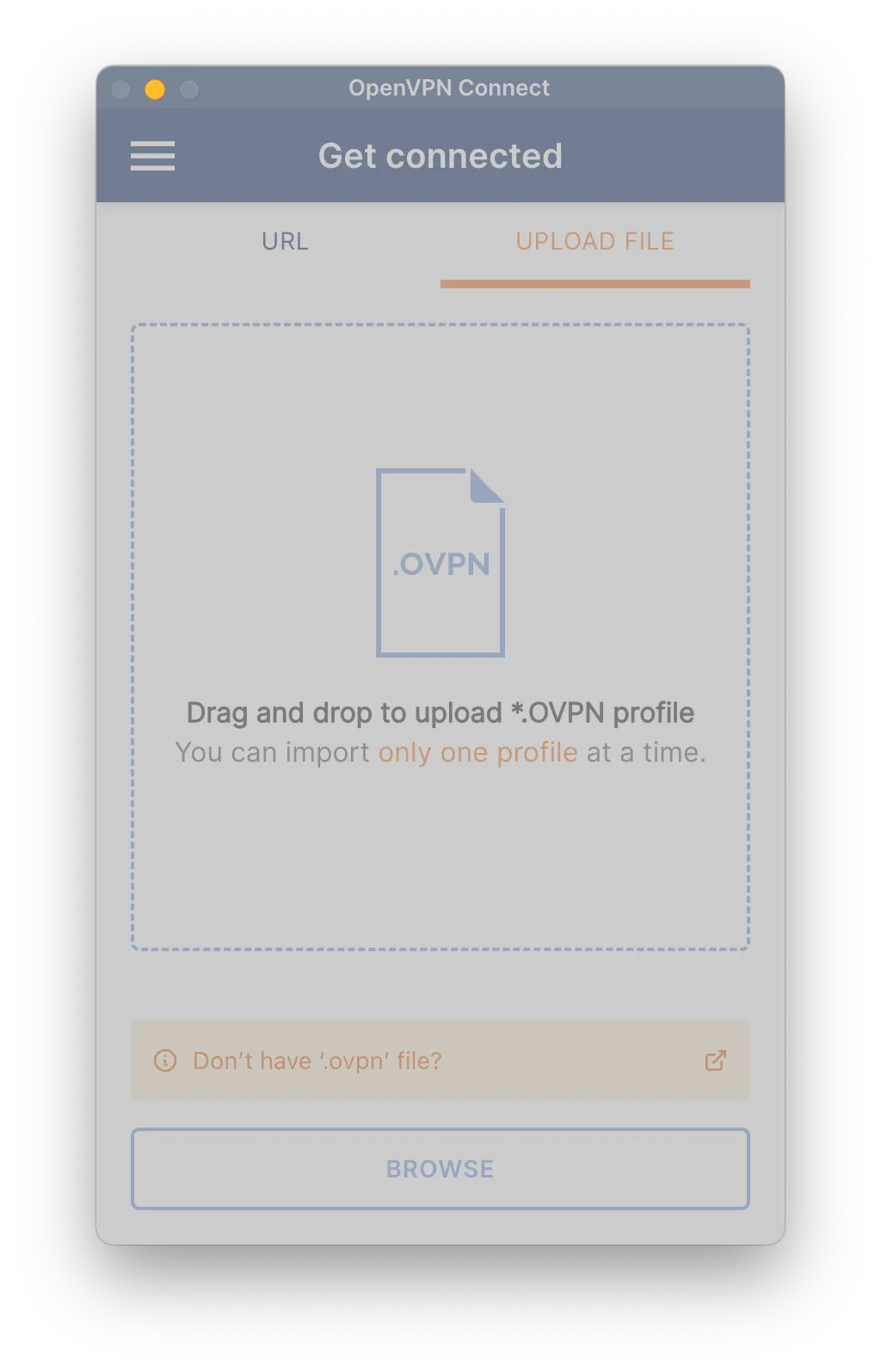
  3. Import the Configuration File Launch the OpenVPN Connect app. Tap the orange ”+” button to add a new profile. Select the “File” tab and navigate to the .ovpn file you downloaded in Step 1.

    Upload the .ovpn file to OpenVPN Connect

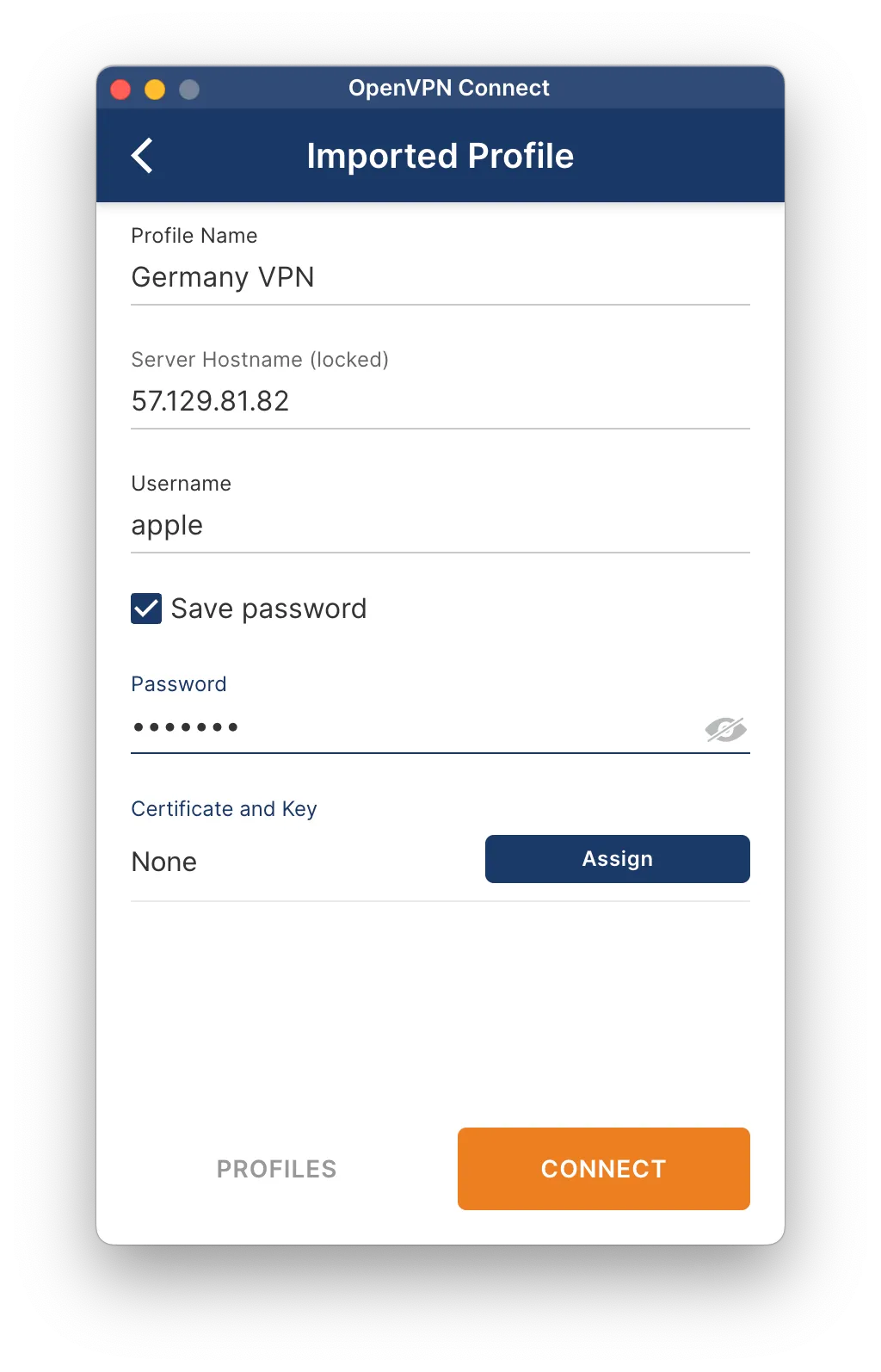
  4. Enter Your Credentials After importing, the profile will appear in the app. Enter your VPN username and password. You’ll find them at the top of the same Servers page, with copy and reveal buttons. These VPN credentials are separate from your website login. We recommend checking the box to save your password for convenience.

    Enter VPN username and password

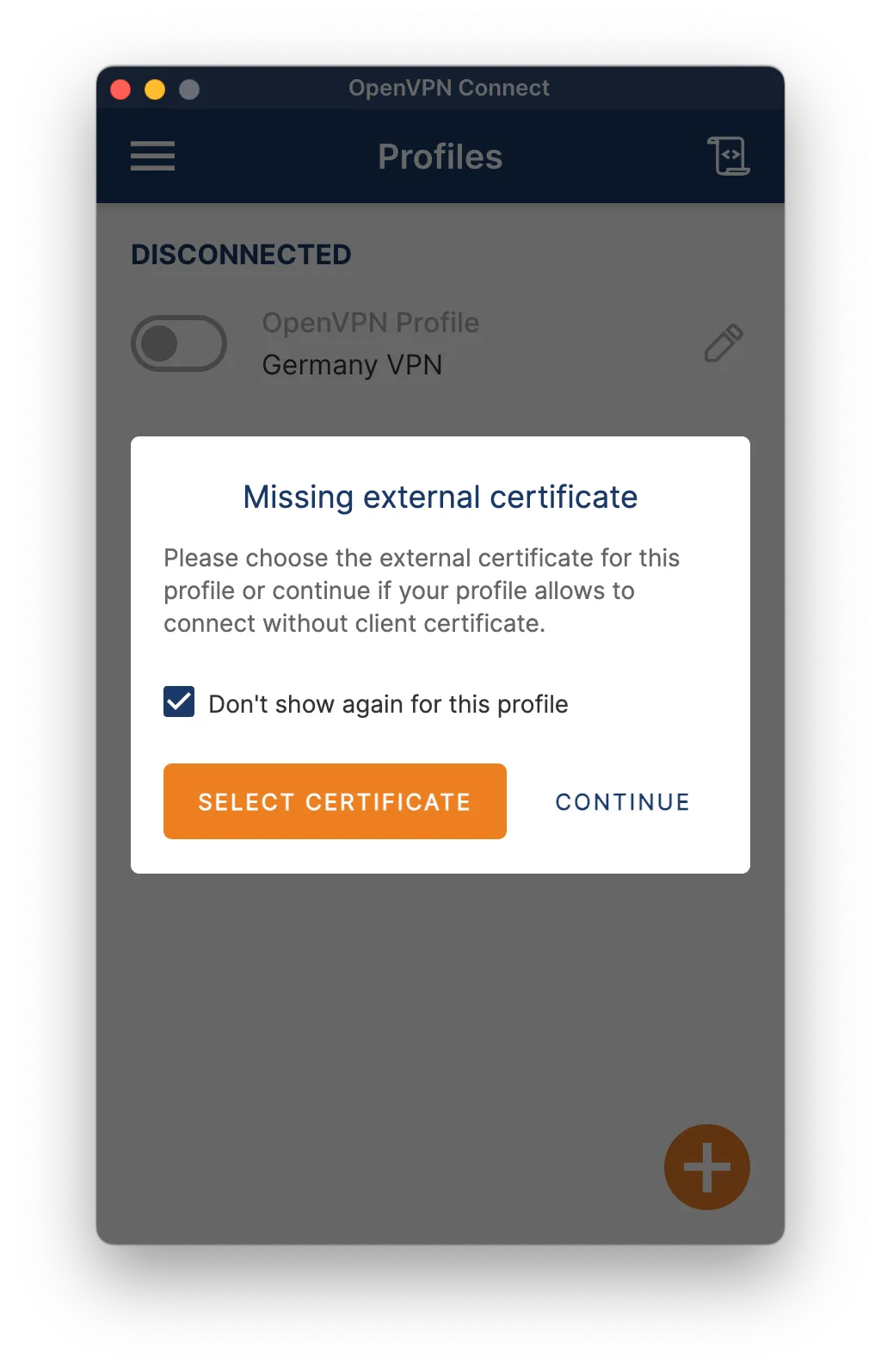
  5. Connect to the VPN Tap the toggle switch next to the profile name to connect. You may be asked to grant permission for the app to create a VPN connection. Tap “OK” to approve.

    Click Continue on the missing certificate warning

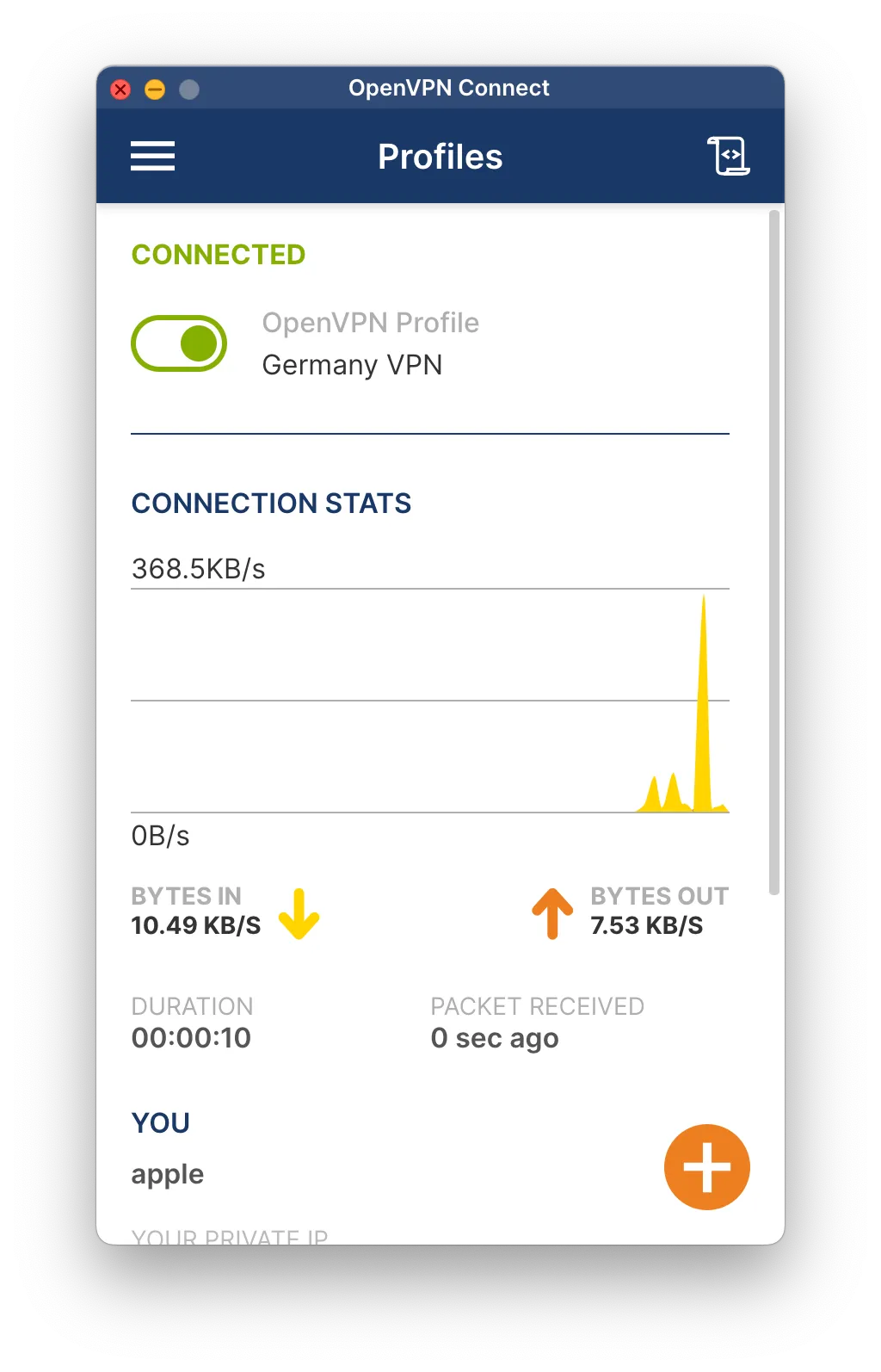
  6. Connected! You are now successfully connected to the VPN. You can manage your connection from within the OpenVPN Connect app.

    Successfully connected to VPN