

Kill switch built in
If the VPN connection drops, the app stops your traffic until the tunnel is back, so nothing leaks in between. Manage it in the app settings.
The native Windows app is the easiest way to use VPNBaron on your PC: download, sign in, one click to connect. No configuration files, no drivers to babysit.
Download the Installer
Run the Installer
Double-click the downloaded .exe and follow the short setup. If Windows SmartScreen asks, choose Run anyway; the installer is signed and comes directly from vpnbaron.com.
Launch and Sign In
Open VPNBaron and sign in: email and password, or continue with Google or Apple (the sign-in opens briefly in your browser and returns to the app).
Connect
Pick a location (or keep the suggested one) and click Connect. That’s the whole setup.
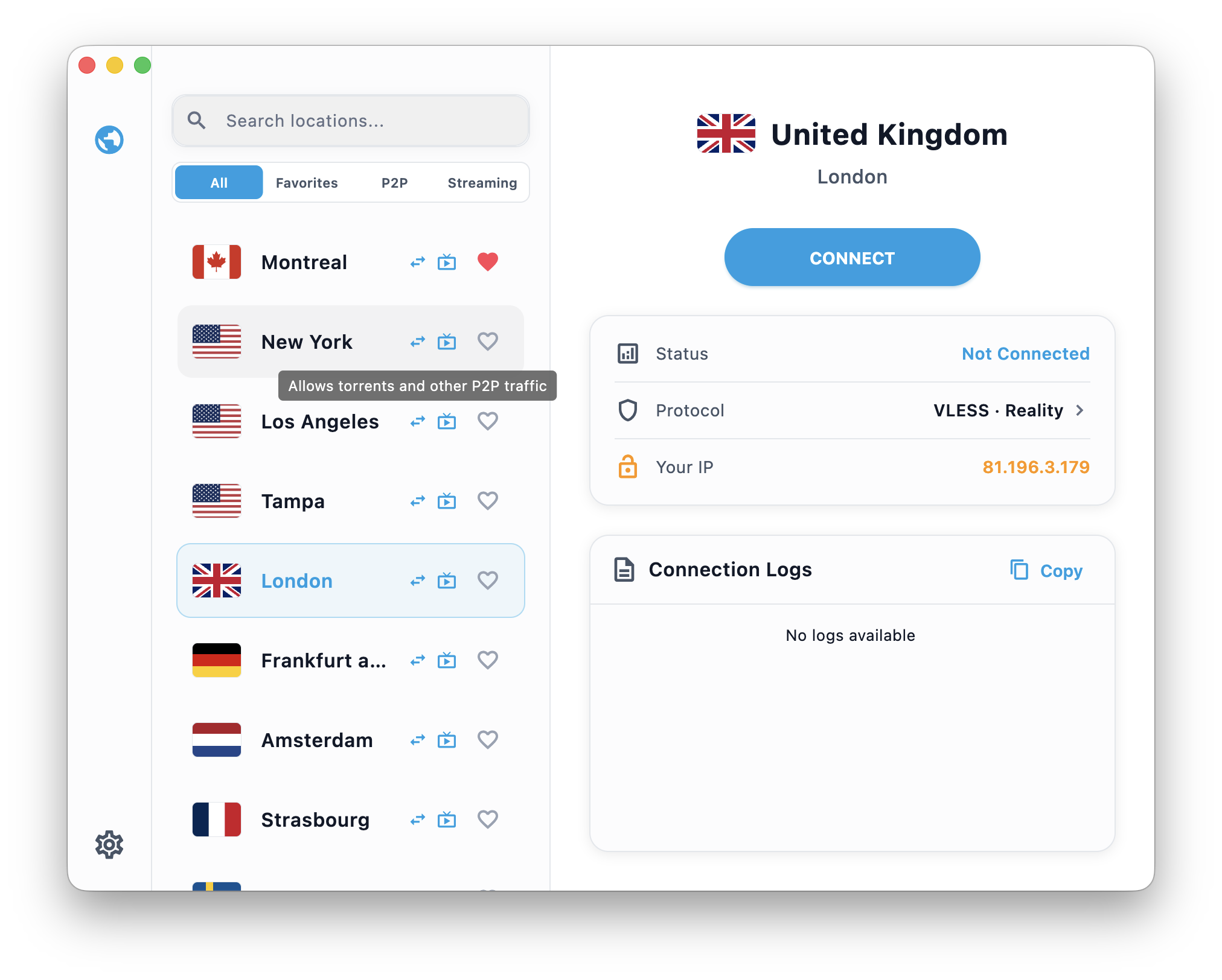
Once connected, the app shows your new IP and location:
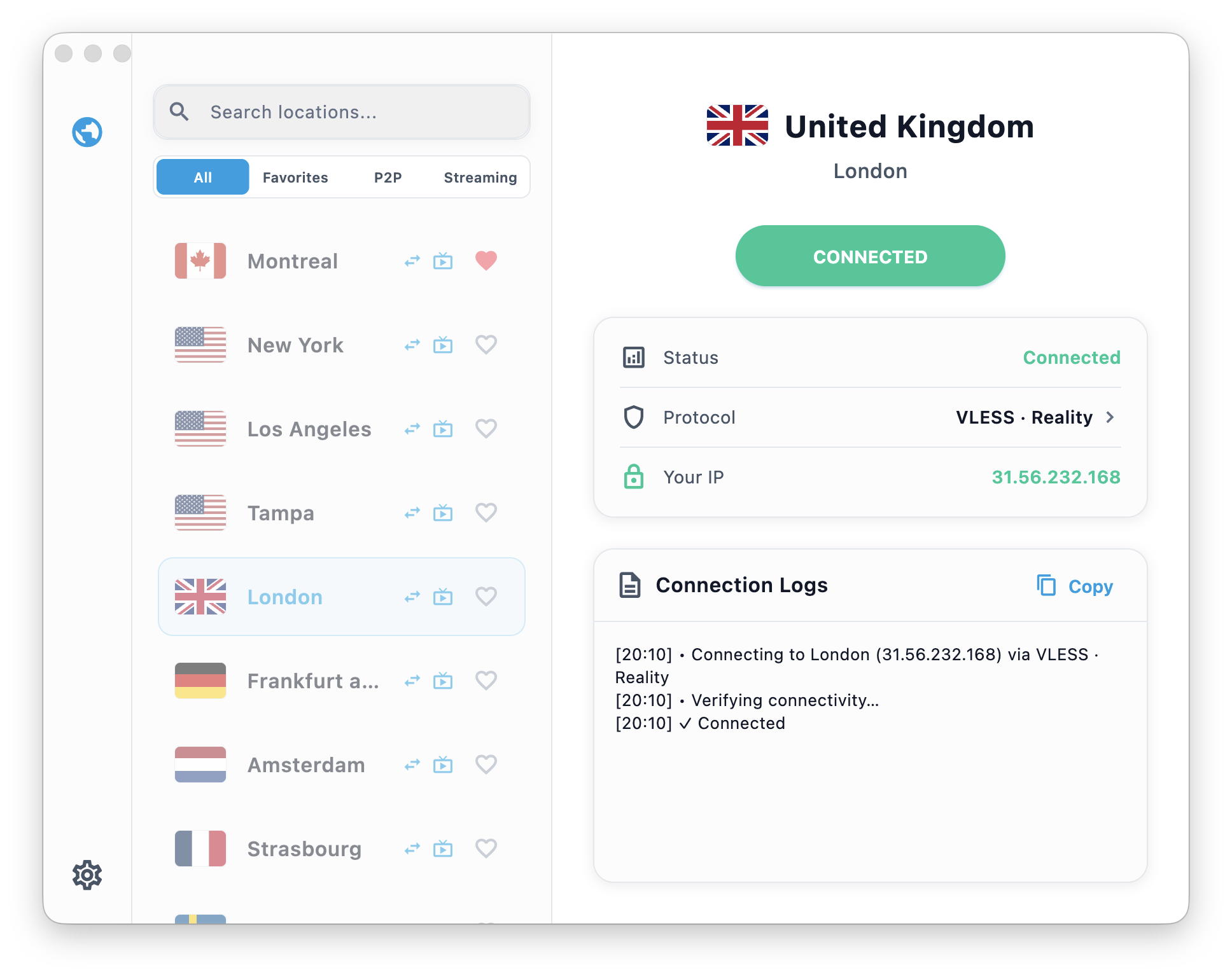
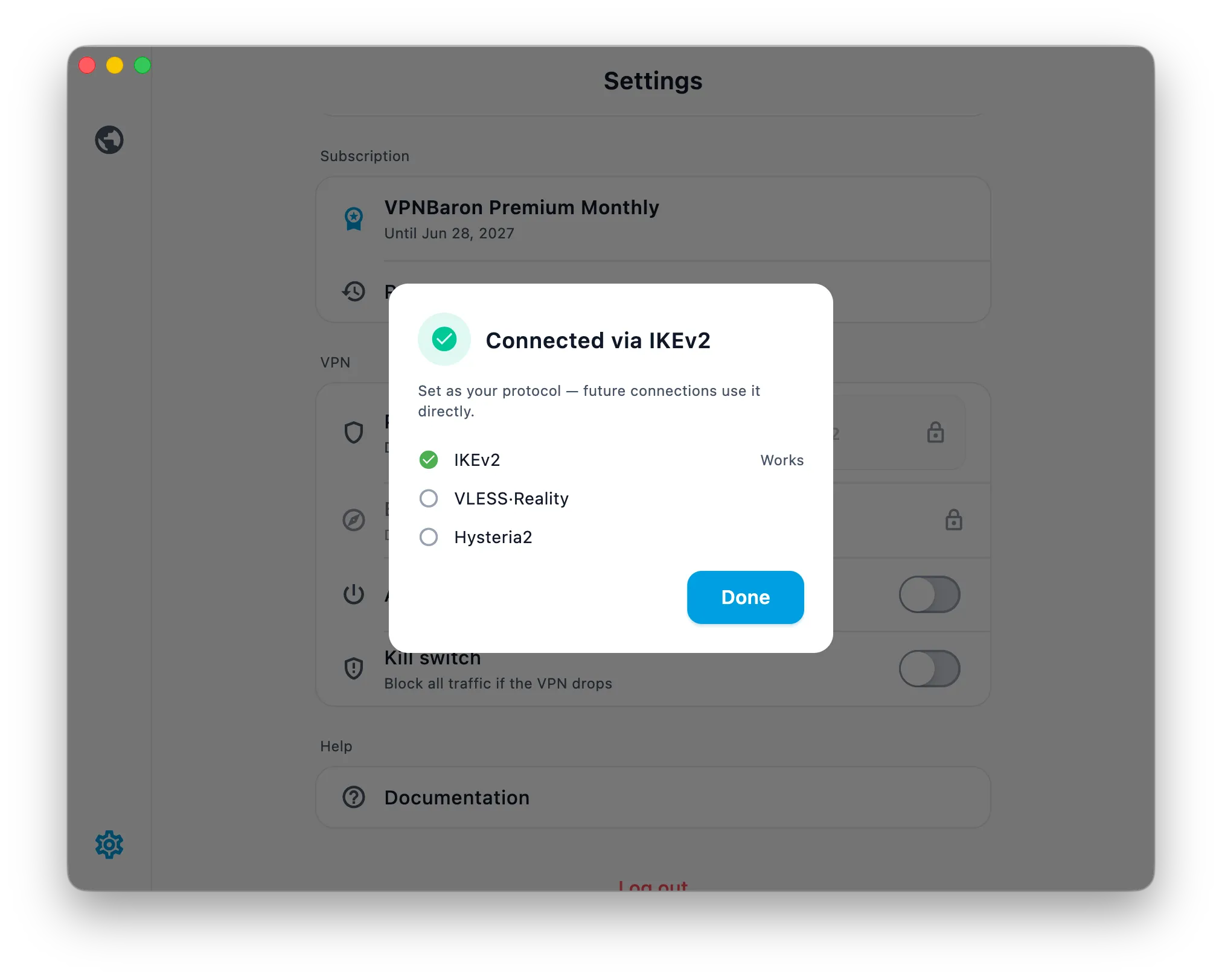
You never have to choose a protocol. Baron Pathfinder tests VPNBaron’s protocols (VLESS Reality, Hysteria2, IKEv2) on your current network and connects through the one that works best. On networks that block ordinary VPNs (hotels, offices, campuses), it falls back automatically to the stealth protocols, whose traffic looks like regular HTTPS.
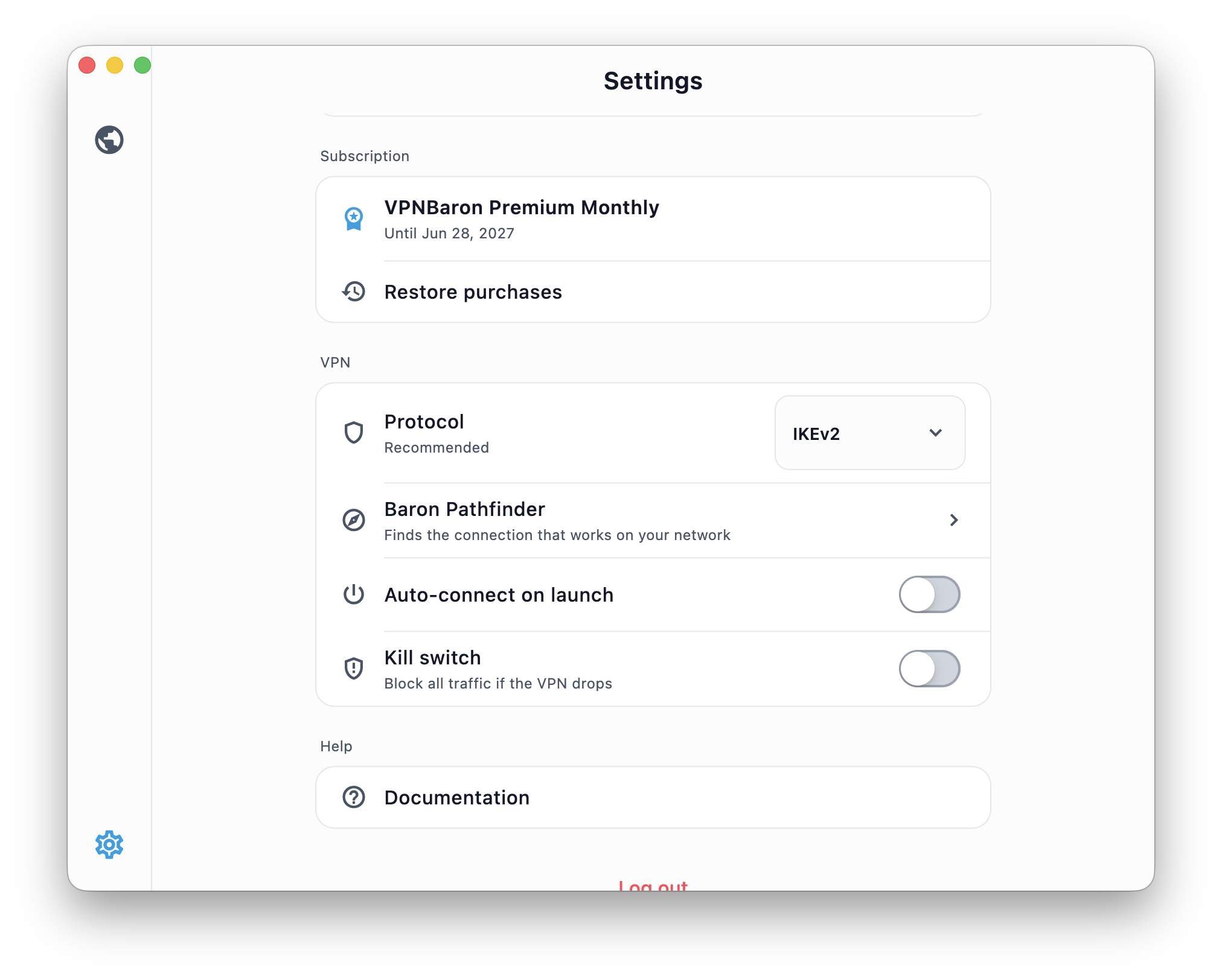
Kill switch built in
If the VPN connection drops, the app stops your traffic until the tunnel is back, so nothing leaks in between. Manage it in the app settings.
Alternative Setup Methods
The app is the recommended path, but manual configuration is fully supported: