

WireGuard on a MikroTik Router (RouterOS 7)
With WireGuard on your MikroTik router, every device on your network goes through VPNBaron, including TVs, consoles and other devices that can’t run a VPN app. You add the router as a device on vpnbaron.com, import its file on the router, then paste a few commands that send your network through the tunnel.
The screenshots are from WebFig, the router’s web page, on RouterOS 7.24. WinBox has the same menus.
Before you start
- A VPNBaron account with an active plan.
- A MikroTik router with RouterOS 7.12 or newer. To check, open System → Packages; to update, click Check For Updates there.
- The router’s admin password.
- The commands below are for MikroTik’s default setup, where devices get addresses like 192.168.88.x. If yours is different, see Your network isn’t 192.168.88.x first.
1. Add the router as a device
Log in at vpnbaron.com and open the WireGuard page. Under Add a device, type a name such as “Router”, and click Add device. The router counts as one of your 5 devices there.

2. Download the file for a server
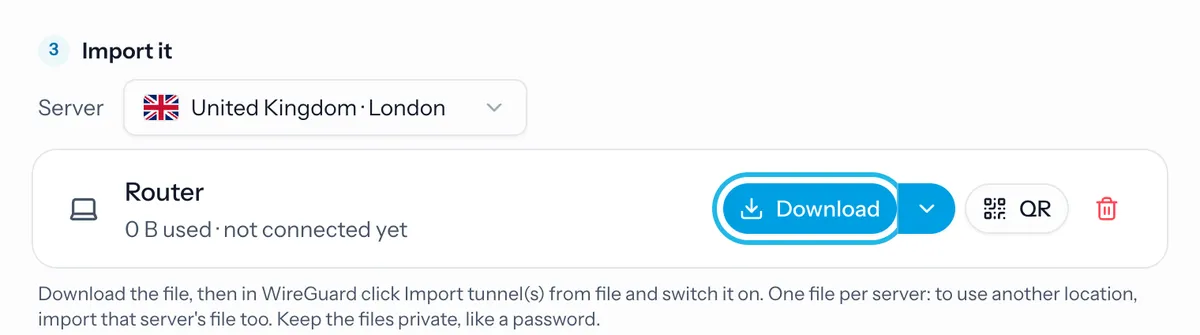
Under Import it, choose a server, then click Download next to Router. The file is named after the device and the server, such as router-london.conf.
3. Upload the file to the router
Open your router’s page in a browser, usually http://192.168.88.1, and log in. If it opens on Quick Set, click Advanced at the top.
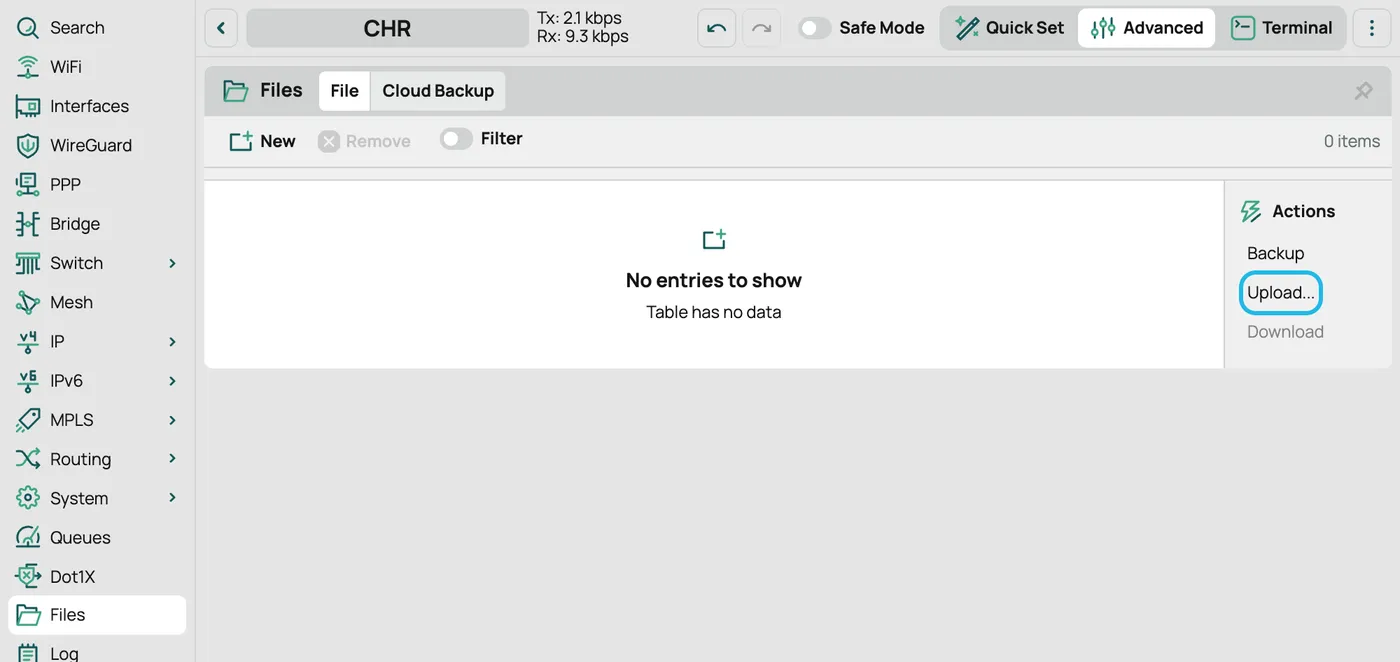
Click Files in the menu on the left, then Upload… on the right, and choose the file.
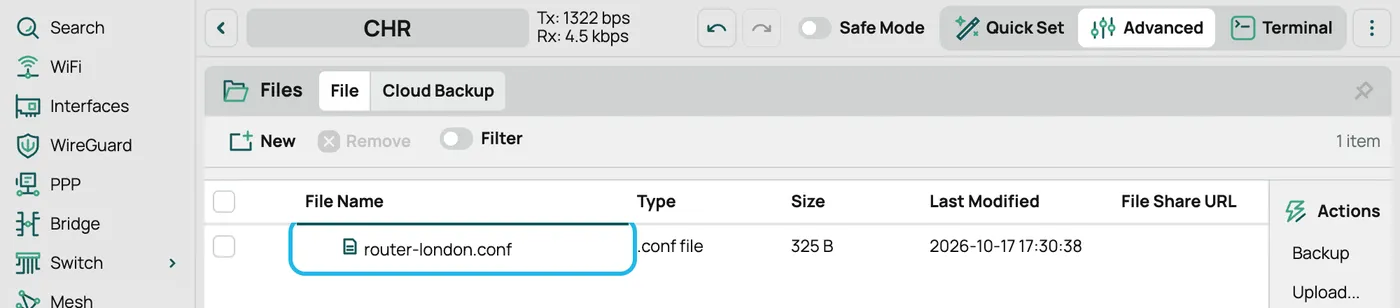
The file appears in the list.
4. Import it
Click WireGuard in the menu on the left, then WG Import on the right.
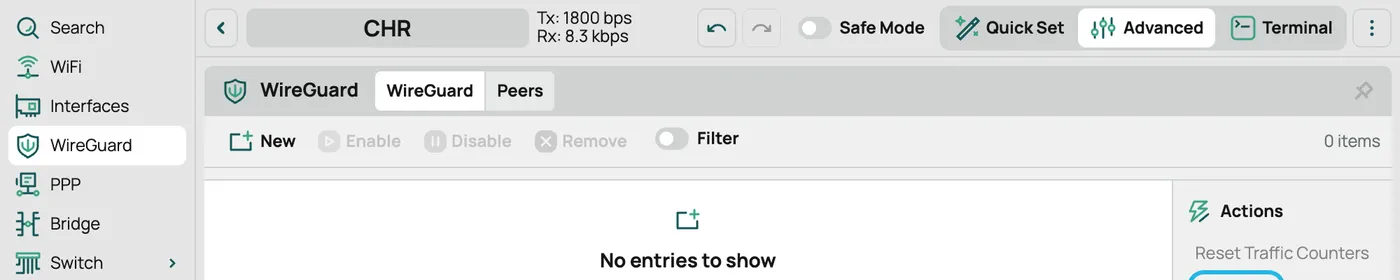
Open the File Name list, choose your file, and click WG Import.

A new WireGuard interface appears, named wg1 or similar. The import also adds the server and the tunnel’s address, but no traffic goes through it yet: step 6 does that.
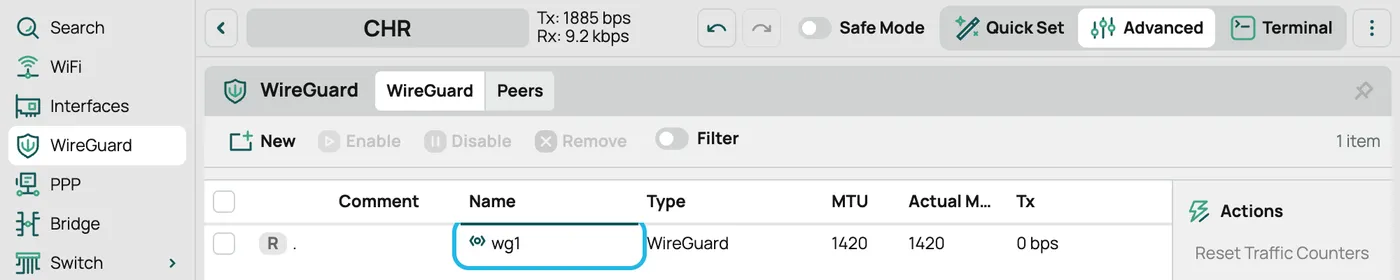
The router keeps what it needs, so you can now delete the file: in Files, tick it and click Remove.
5. Name it vpnbaron
Click the new interface to open it. Change its Name to vpnbaron and click OK. The commands in the next step use this name.
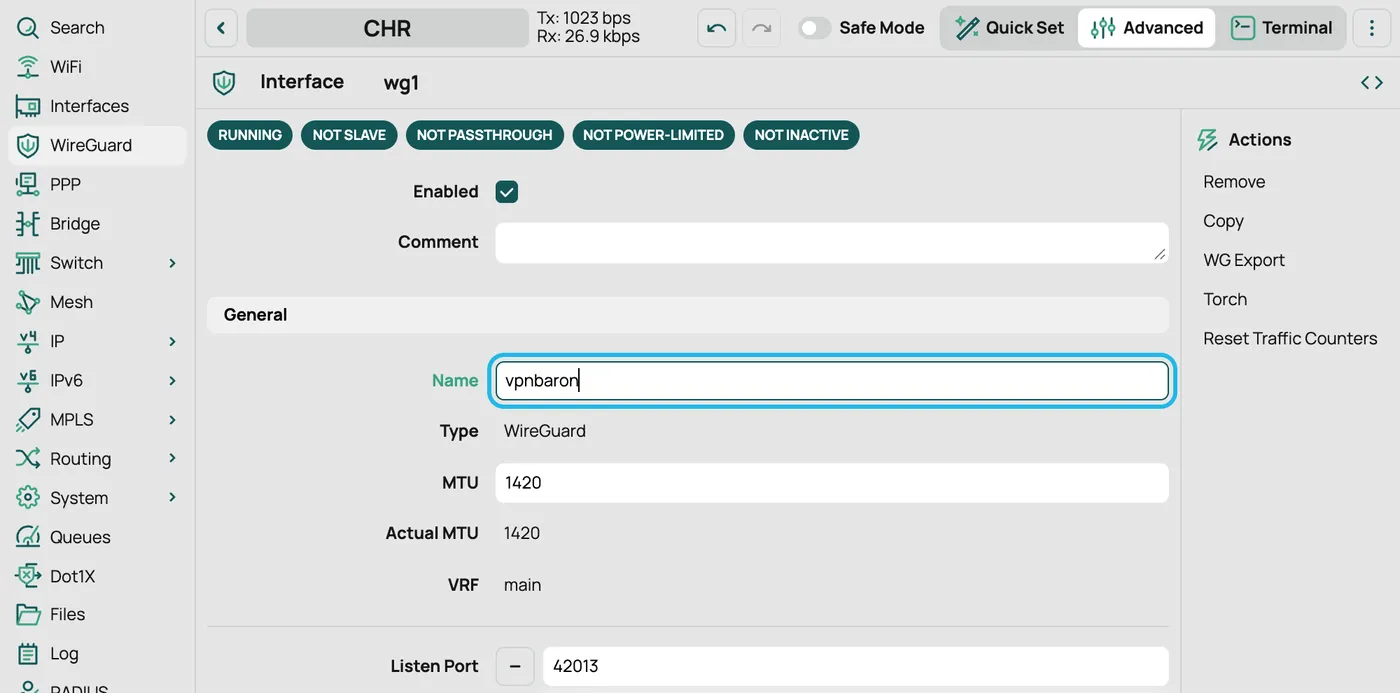
6. Send your network through it
Click Terminal at the top right. Copy all of these commands (the copy button is at the top right of the box), paste them into the Terminal, and press Enter if the last line is still waiting.
# Treat the tunnel as an internet connection (NAT and firewall)/interface/list/member add list=WAN interface=vpnbaron# Reach the server by its IP: DNS will only work through the tunnel/interface/wireguard/peers set [find interface=vpnbaron] endpoint-address=[:resolve [/interface/wireguard/peers get [find interface=vpnbaron] endpoint-address]]# Send everything from the local network through the tunnel/routing/table add name=vpnbaron fib/ip/route add dst-address=0.0.0.0/0 gateway=vpnbaron routing-table=vpnbaron comment="VPNBaron"/routing/rule add src-address=192.168.88.0/24 dst-address=192.168.88.0/24 action=lookup-only-in-table table=main comment="VPNBaron: local traffic stays local"/routing/rule add src-address=192.168.88.0/24 action=lookup-only-in-table table=vpnbaron comment="VPNBaron: local network through the tunnel"/ip/firewall/mangle add chain=forward protocol=tcp tcp-flags=syn out-interface=vpnbaron action=change-mss new-mss=clamp-to-pmtu comment="VPNBaron: fit TCP to the tunnel"# DNS through the tunnel, to VPNBaron's resolver/ip/route add dst-address=10.66.0.1/32 gateway=vpnbaron comment="VPNBaron DNS"/ip/dns set servers=10.66.0.1/ip/dhcp-client set [find] use-peer-dns=no/ip/dns/cache flushThe Terminal shows each command with no errors.
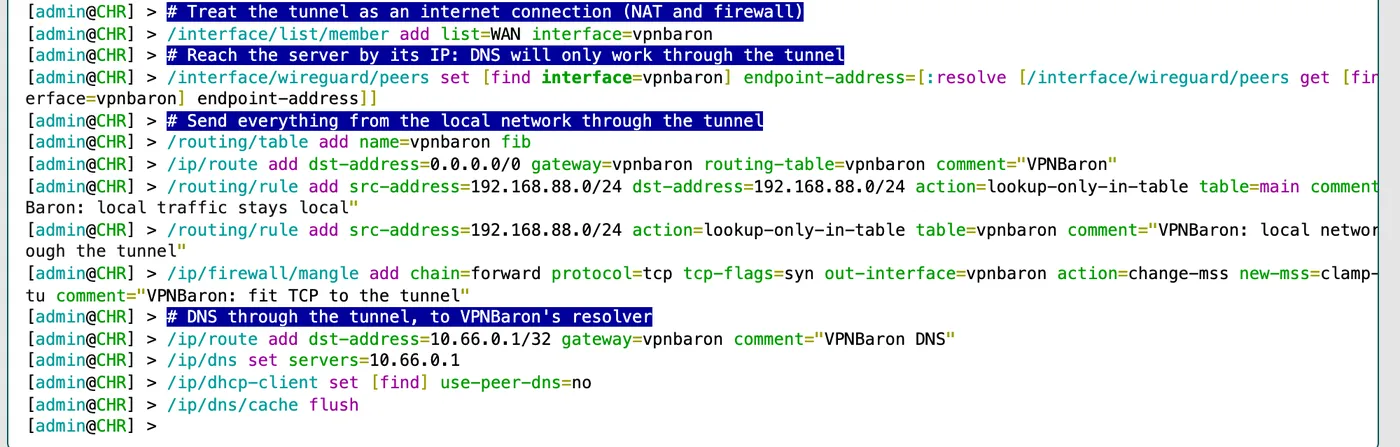
What the commands do:
- The tunnel becomes an internet connection. It joins the WAN list, so your router’s firewall and address sharing (NAT) treat it like your normal connection.
- The server is reached by its IP address. Once DNS goes through the tunnel, the router couldn’t look up the server’s name to reconnect, so it keeps the address instead.
- Your devices go through the tunnel. Traffic between devices at home stays at home; everything else from your network goes through VPNBaron. The router’s own traffic, such as its updates and the tunnel itself, still uses your normal connection.
- Websites don’t stall. The last rule fits TCP connections to the tunnel’s smaller packet size.
- DNS goes through the tunnel too. The router asks VPNBaron’s resolver instead of your internet provider’s, so the provider can’t see the websites you look up.
If your internet connection uses PPPoE (you log in to your provider with a username and password on the router), also run this, so your provider’s DNS servers aren’t added back:
/interface/pppoe-client set [find] use-peer-dns=no7. Check it’s connected
In WireGuard, open the Peers tab and click the peer, peer1 or similar, to open it. Last Handshake shows a time of a few minutes or less, and Rx and Tx grow as your devices use the internet.
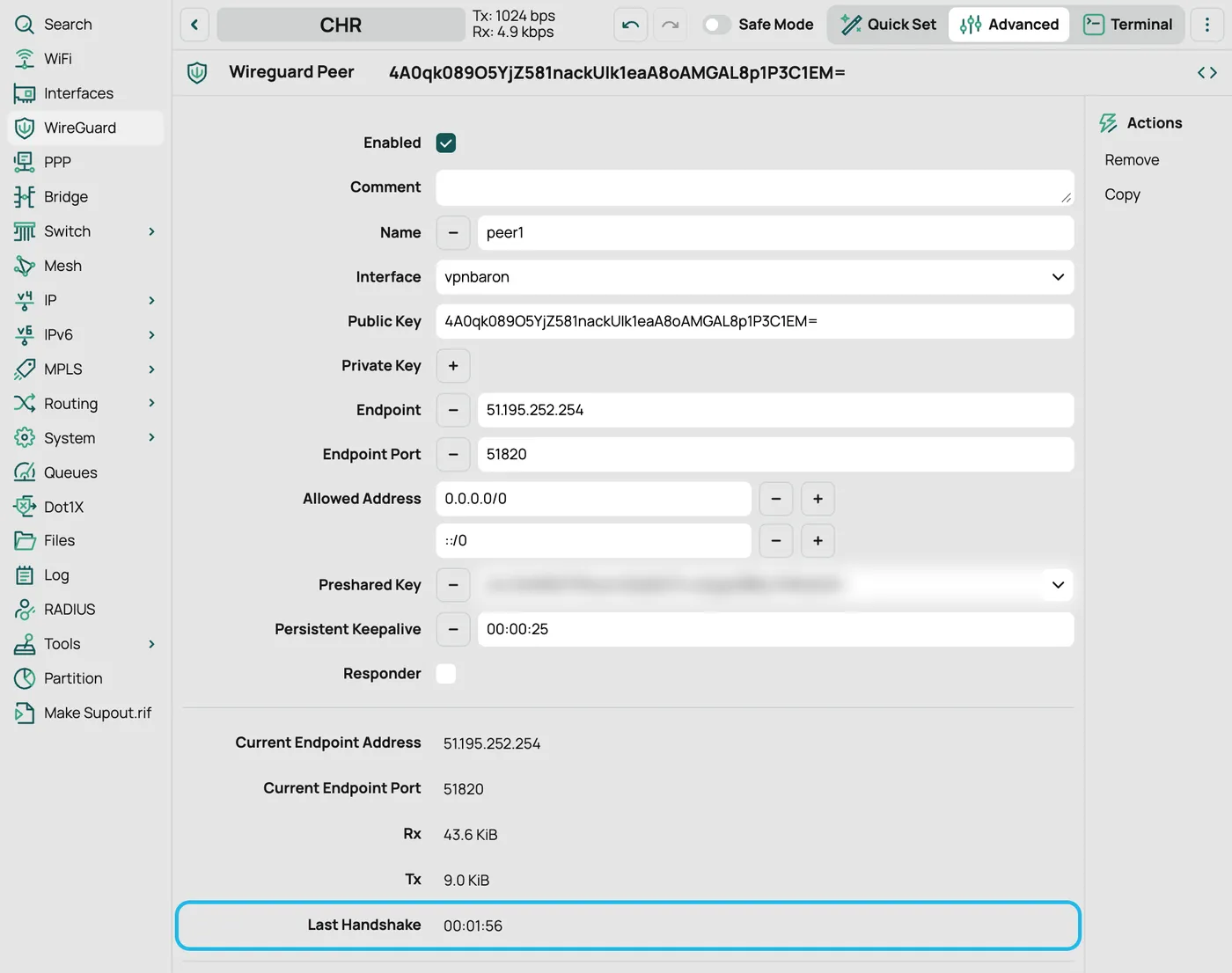
The Preshared Key on this page is secret too, like the private key, so blur it if you share a screenshot.
On a computer or phone connected to the router, open whatismyip.com. It shows the server’s location, not yours.
If the tunnel stops, devices on your network lose the internet instead of going around VPNBaron, so your real address stays hidden. To use your normal connection again, turn it off.
Another location
Each file is for one server. To move the router to another location, turn it off with the commands below, then repeat steps 2 to 7 with the other server’s file. The Router device on vpnbaron.com stays the same.
Turn it off
To go back to your normal connection, paste these into the Terminal. They remove everything this guide added, including the vpnbaron interface.
/routing/rule remove [find comment~"VPNBaron"]/ip/route remove [find comment~"VPNBaron"]/routing/table remove [find name=vpnbaron]/ip/firewall/mangle remove [find comment~"VPNBaron"]/ip/dns set servers=""/ip/dhcp-client set [find] use-peer-dns=yes/interface/list/member remove [find interface=vpnbaron]/interface/wireguard/peers remove [find interface=vpnbaron]/ip/address remove [find interface=vpnbaron]/interface/wireguard remove [find name=vpnbaron]/ip/dns/cache flushIf you had entered your own DNS servers in IP → DNS before, enter them again. On PPPoE, also run /interface/pppoe-client set [find] use-peer-dns=yes.
Good to know
Your network isn’t 192.168.88.x
Open IP → Addresses and look at the address on your local network, usually on the interface called bridge. If it’s 192.168.1.1/24, for example, your network is 192.168.1.0/24. In the commands in step 6, replace each 192.168.88.0/24 with your network: it appears three times, in the two /routing/rule lines.
IPv6
The commands cover IPv4, which is what most routers use at home. If you’ve set up IPv6 from your internet provider on the router, devices can still reach IPv6 websites around the tunnel. To keep everything in the tunnel, turn IPv6 off: in IPv6 → Settings, tick Disable IPv6, or run /ipv6/settings set disable-ipv6=yes.
Troubleshooting
Peers is empty, or Last Handshake never appears. If the Peers tab shows nothing for vpnbaron, the import didn’t read the file. Turn it off, then go back to step 4 and choose the file in the File Name list before clicking WG Import. If the peer is there but Last Handshake stays empty, your network may block WireGuard: try another server, or use the VPNBaron apps on your devices instead, which find a protocol that works on your network.
The Terminal shows “input does not match any value of interface” or “no such item”. The interface isn’t named vpnbaron. Rename it as in step 5, run the turn it off commands to clear what was added, and paste the commands from step 6 again.
The handshake is fine, but devices have no internet. Check that your network matches the commands: see Your network isn’t 192.168.88.x.
It stopped working. If you removed the Router device on vpnbaron.com, its files stop working right away. A plan that has ended also stops them. Add the device again, turn it off, and repeat steps 2 to 7 with a new file.
“You’re using all 5 devices”. Each account can add up to 5 devices on the WireGuard page. Remove one you no longer use (the bin icon next to it), then add the router. The VPNBaron apps don’t count toward this.
Still stuck? Open a support ticket with your router model, its RouterOS version, and a screenshot of the WireGuard Peers tab.