

VPNBaron on Linux
The VPNBaron app runs on desktop Linux. One command installs it; after that it works like on Windows and macOS: pick a location and select Connect. Everything on the computer then goes through the VPN.
The app also comes with VPNBaron CLI, our command-line client, for servers or if you’d rather work in the terminal.
Before you start
- Ubuntu 24.04 or newer, Debian 13 or newer, or a distribution based on them (such as Linux Mint 22). It runs on regular 64-bit PCs and on 64-bit ARM computers.
- An account on the computer that can install software. Installing asks for its password.
- A VPNBaron account with an active plan. If you don’t have one, sign up and choose a plan.
1. Install the app
Open a terminal (Ctrl+Alt+T on Ubuntu), paste these two lines and press Enter:
sudo apt install -y curlcurl -fsSL https://vpnbaron.com/download/linux/install.sh | shIt installs curl if it’s missing, downloads the VPNBaron package for your computer, checks that the download is intact, and installs it with everything it needs. Enter your password when asked. It finishes with “VPNBaron … is installed.”
2. Open VPNBaron
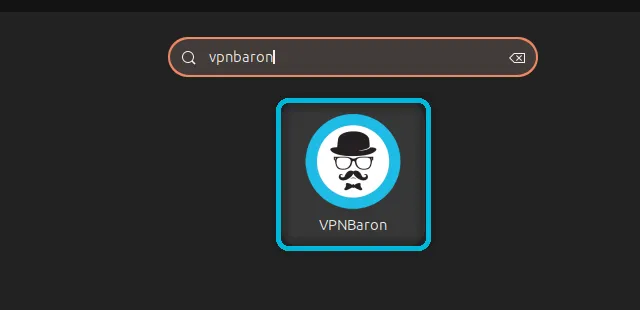
Open your apps (Activities on Ubuntu), type VPNBaron and open it.
3. Sign in
Select Sign in. Your browser opens the VPNBaron sign-in page, where you can use your email and password or continue with Google or Apple; when you’re done it takes you back to the app. New to VPNBaron? Select Create account instead.
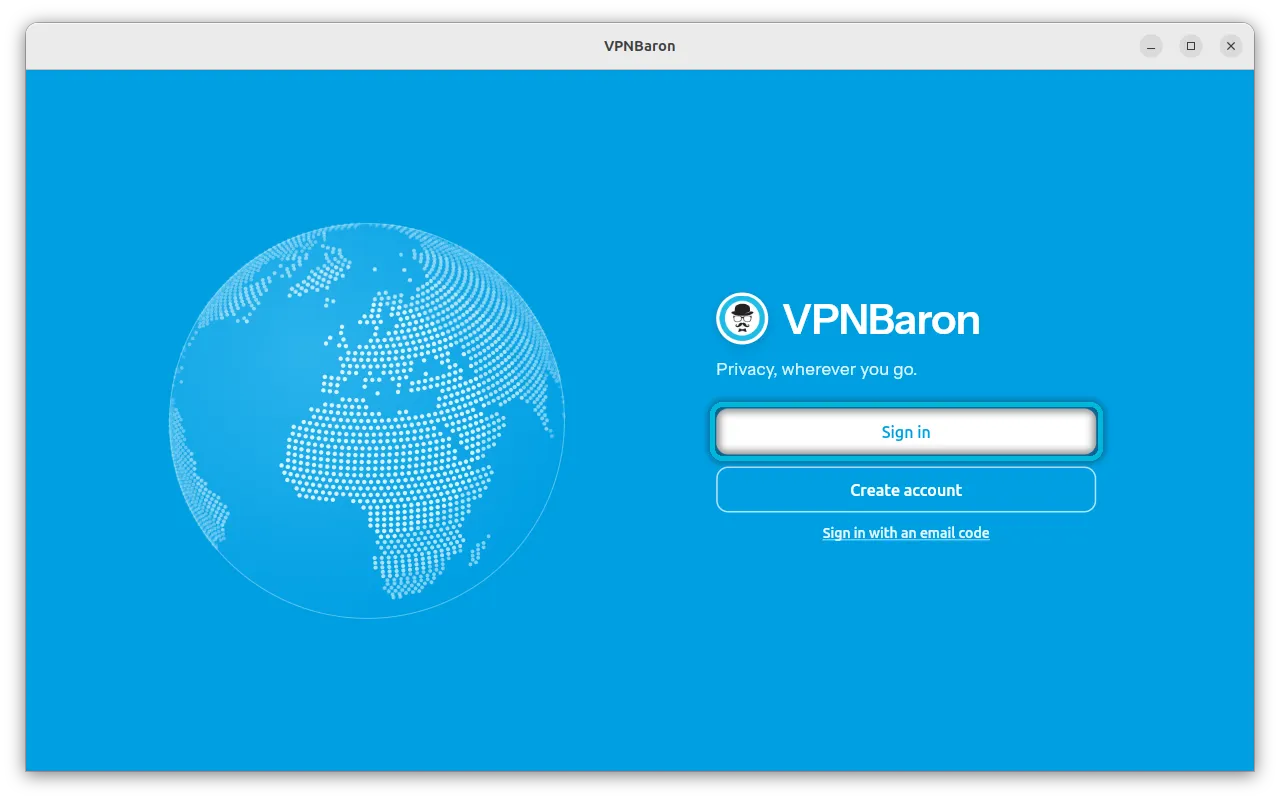
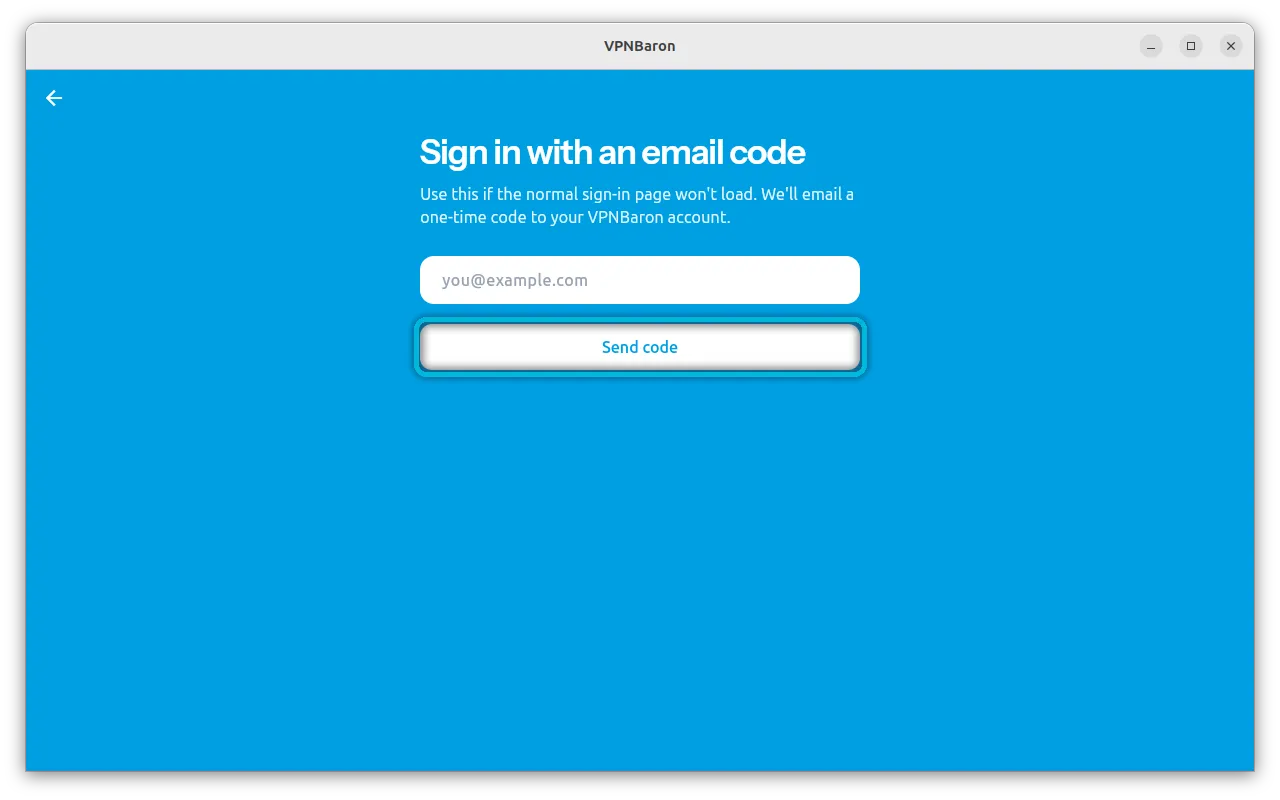
If the sign-in page won’t load (some networks block it), select Sign in with an email code. Enter the email address of your VPNBaron account and select Send code.
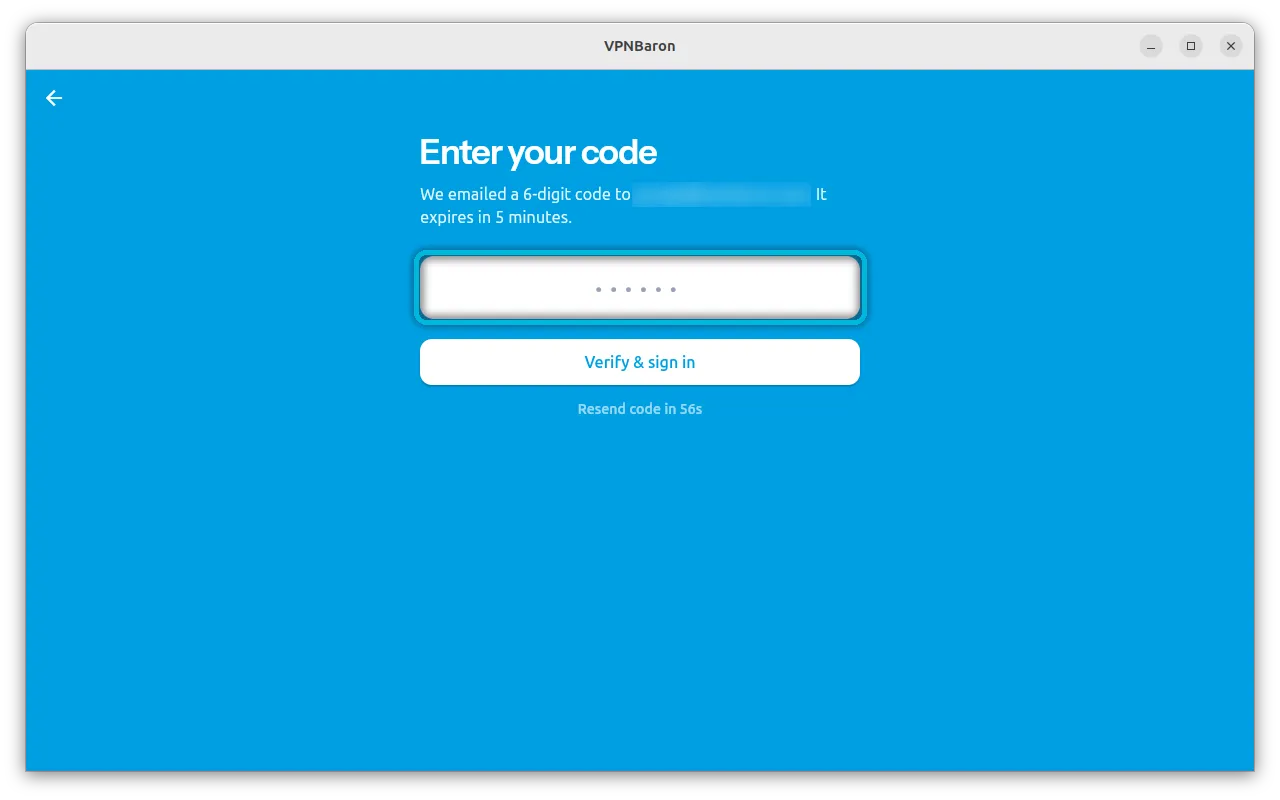
Check your email for a 6-digit code, type it in and select Verify & sign in. The code expires after 5 minutes; if it does, select Resend.
4. Choose a location and connect
Pick a location from the list. Search for one, or use Favorites, P2P and Streaming to narrow the list. Then select Connect.
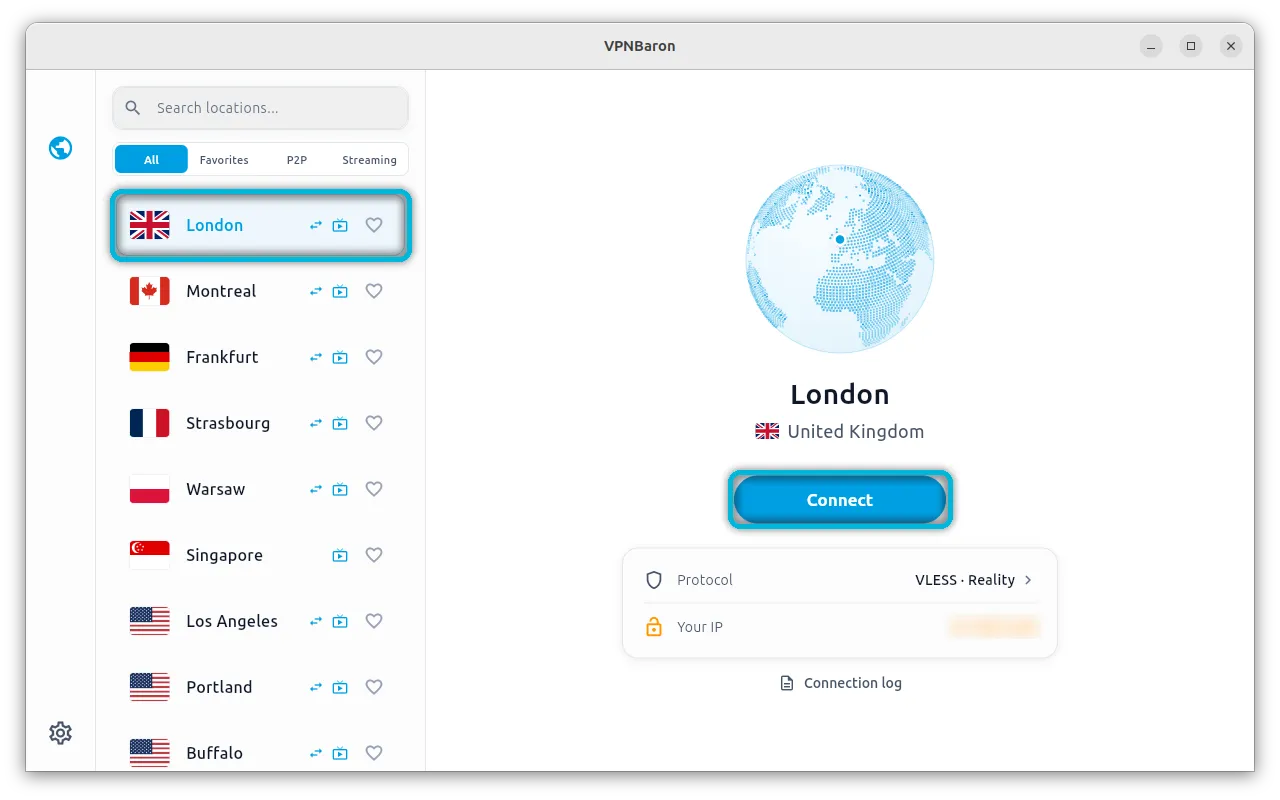
Connecting doesn’t ask for your password: a VPNBaron service running in the background handles the connection.
5. You’re protected
The button turns green and says Connected, with how long you’ve been connected. Your IP is now the VPN server’s address.
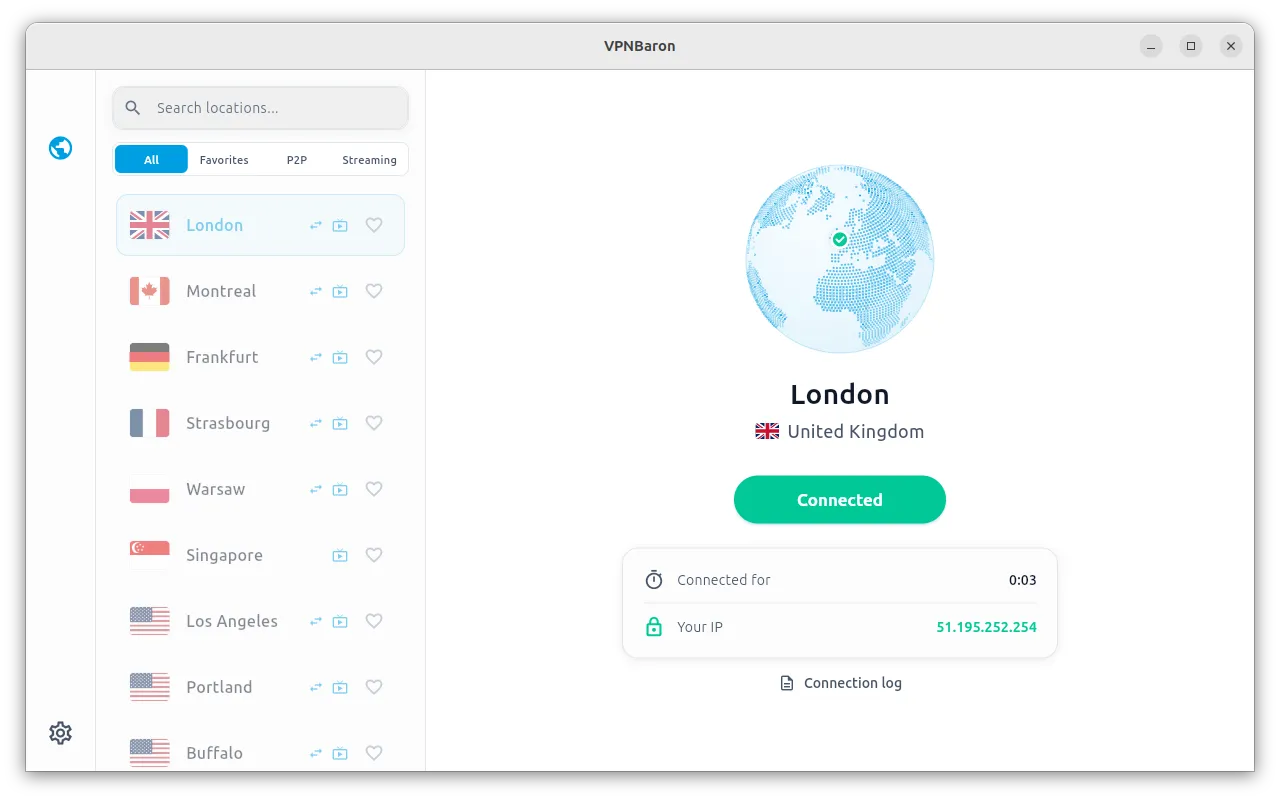
To disconnect, select the Connected button again.
Changing the protocol
Open Settings, the gear at the bottom left. Disconnect first: the protocol can’t change while you’re connected.
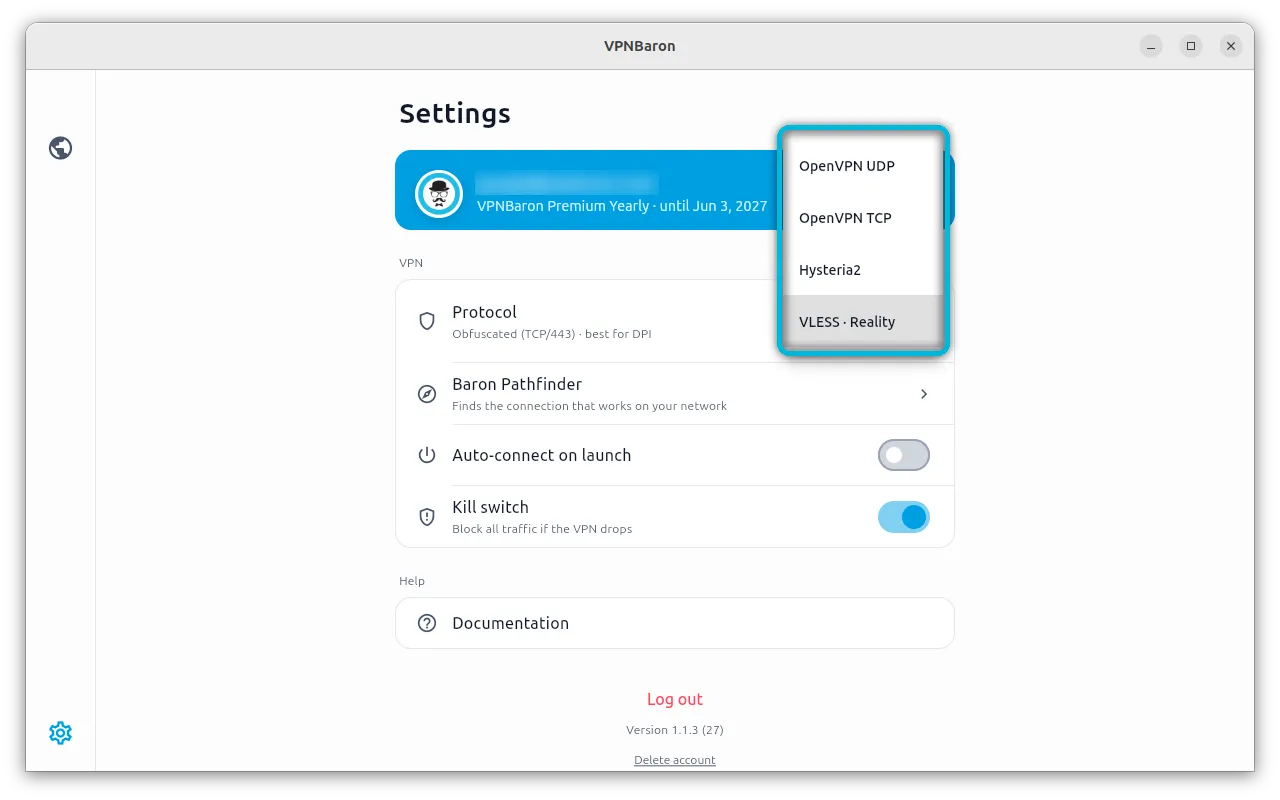
| Protocol | Best for |
|---|---|
| OpenVPN UDP | Everyday use on ordinary networks. The lightest on your computer |
| OpenVPN TCP | Networks that block OpenVPN UDP |
| Hysteria2 | Speed, especially over long distances or patchy connections |
| VLESS Reality | Networks that block VPNs: it looks like ordinary web browsing |
Let Baron Pathfinder choose
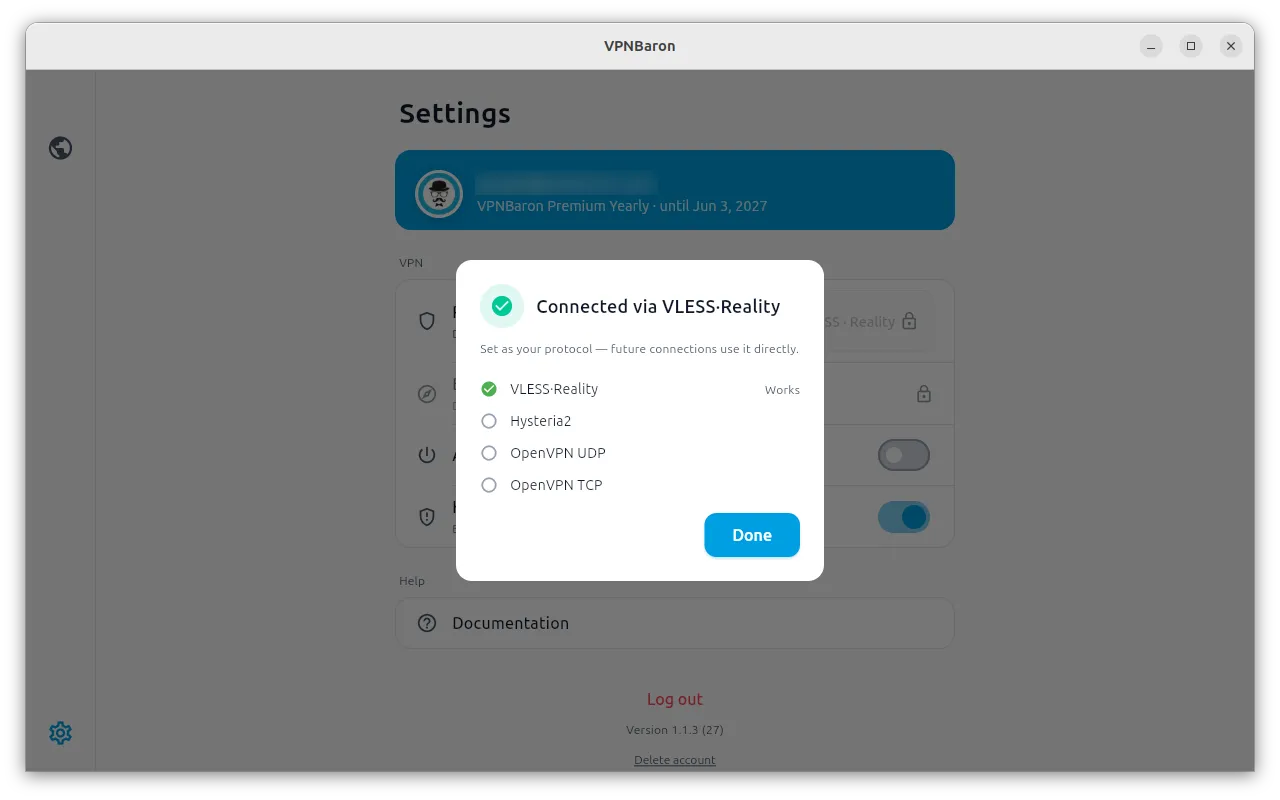
Not sure which one works on your network? Select Baron Pathfinder in Settings, then Start. It tries each protocol on the location you picked and connects you through the one that works best. This can take up to a minute.
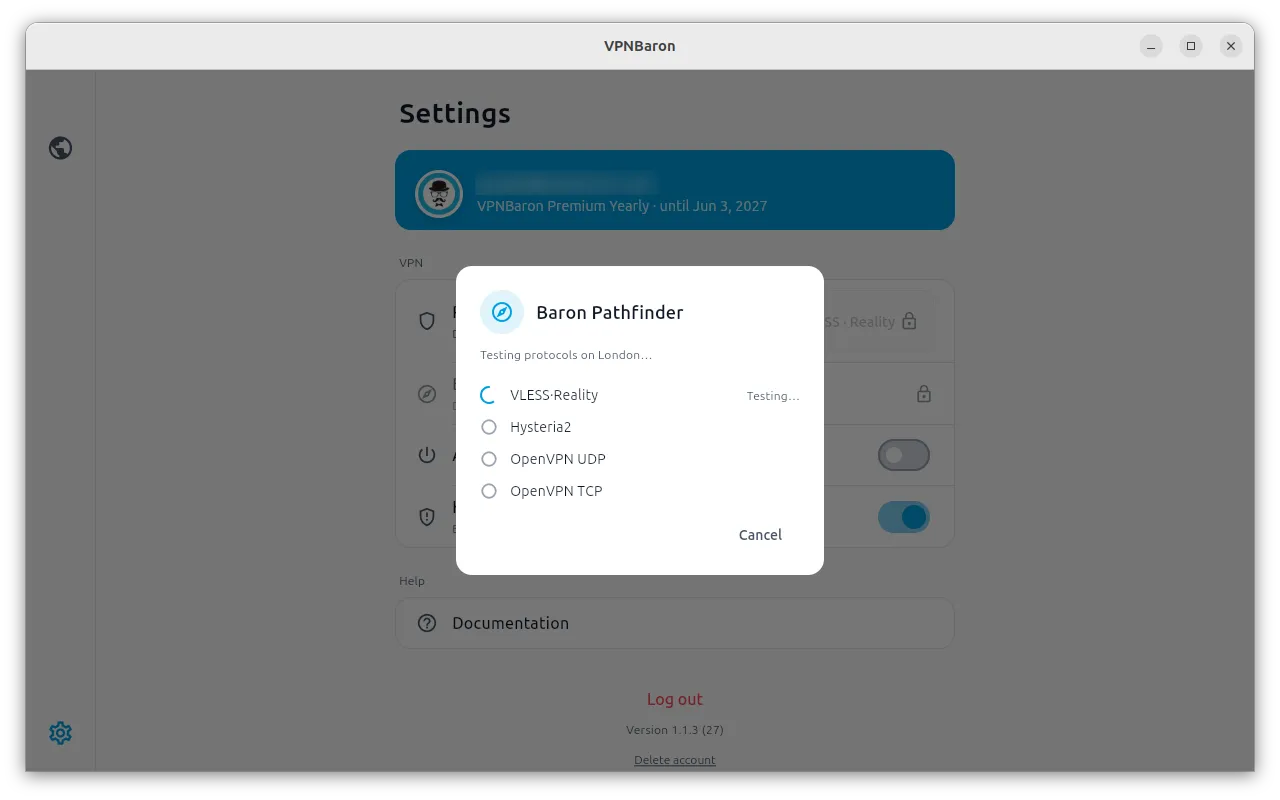
The protocol it finds stays your protocol for future connections.
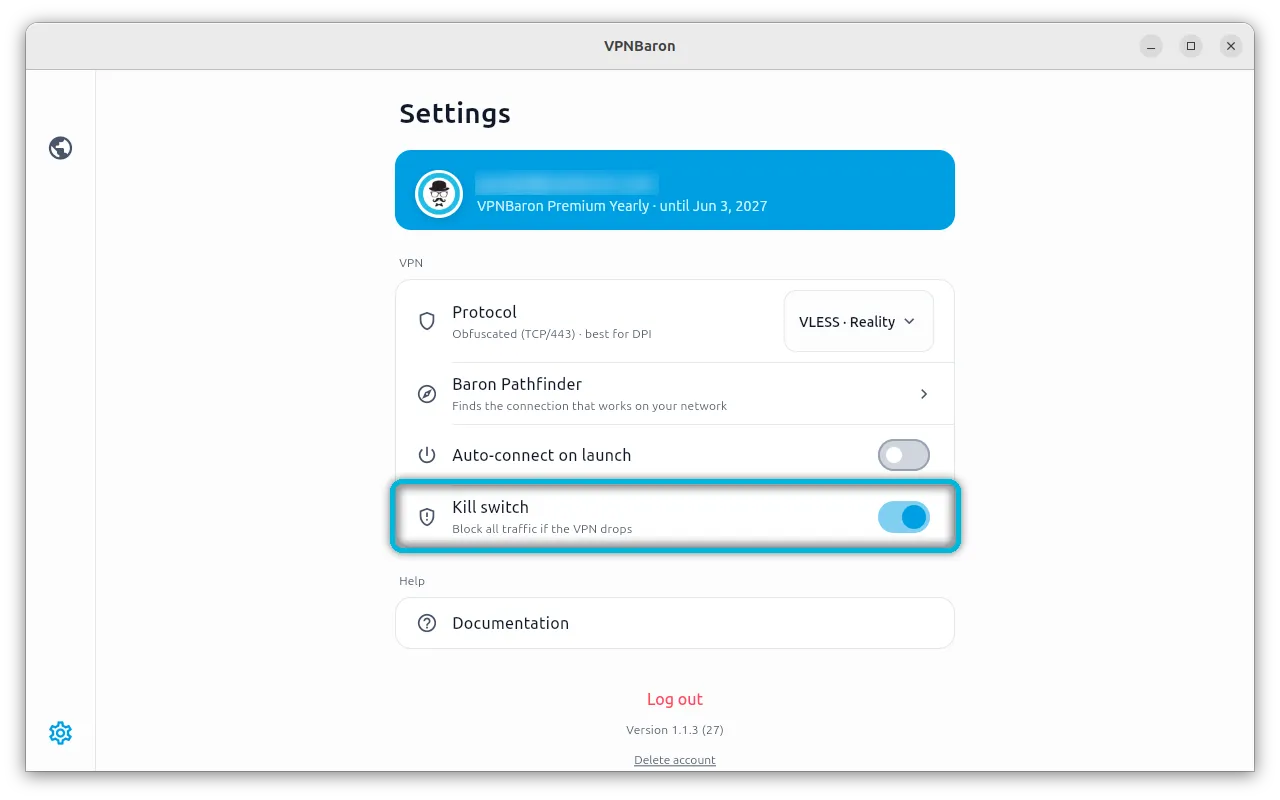
Kill switch
With the kill switch on, VPNBaron blocks all internet traffic if the VPN connection drops, so nothing goes out without the VPN until you decide. Your local network keeps working (printers, file shares). Turn it on in Settings.
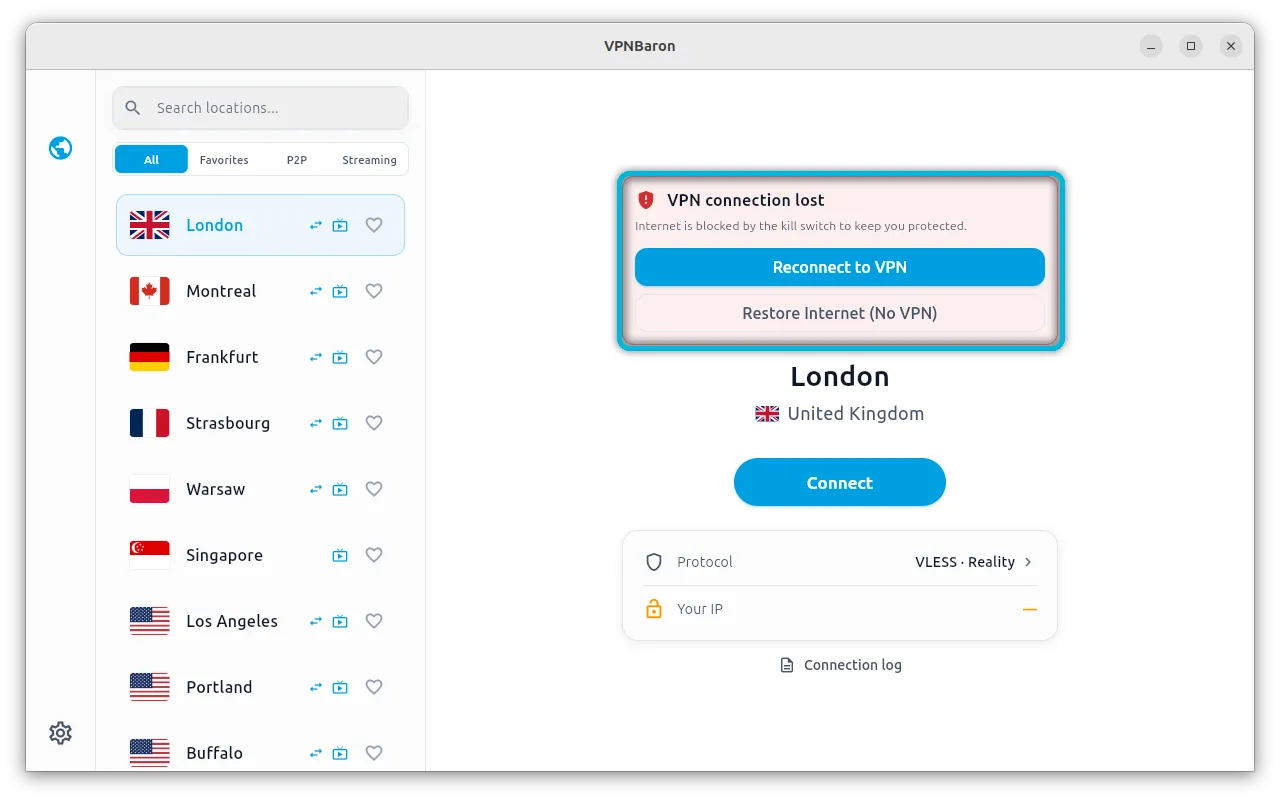
If the connection drops, VPNBaron tells you the internet is blocked. Select Reconnect to VPN, or Restore Internet (No VPN) to lift the block and go on without the VPN.
The block also lifts when you disconnect or quit VPNBaron.
Closing and quitting
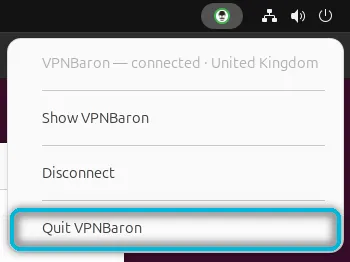
Closing the window doesn’t disconnect: VPNBaron keeps running, with its icon in the top bar. Select the icon to show the window again, disconnect, or quit. Quit VPNBaron disconnects.
Updating and uninstalling
To update, run the install command again: it installs the latest version over the one you have.
To uninstall:
sudo apt remove vpnbaronIf a network blocks VPNs
Hotel, office and campus networks often block ordinary VPN connections. Use Baron Pathfinder, or choose VLESS Reality yourself: its traffic looks like ordinary HTTPS, so it gets through where OpenVPN doesn’t.
Need help?
Contact support with your Linux distribution and version, the location and protocol you chose, and what the Connection log says (the link under the connection box).