

VPNBaron on Android TV and Google TV
The VPNBaron app runs on Android TV and Google TV, on the TV itself or on a stick or box plugged into it. Once connected, every app on the TV goes through the VPN, including streaming and IPTV apps.
Before you start
- An Android TV or Google TV device. Check Settings > System > About (on older Android TV models, Settings > Device Preferences > About). Samsung (Tizen), LG (webOS) and Amazon Fire TV aren’t covered here.
- A VPNBaron account with an active plan. If you don’t have one, sign up and choose a plan on your phone or computer.
- Access to your email on another device, for the sign-in code.
1. Install the app
On the TV, open Google Play, search for VPNBaron, and install it. Then open VPNBaron from your apps. (VPNBaron on Google Play)
2. Sign in with your email
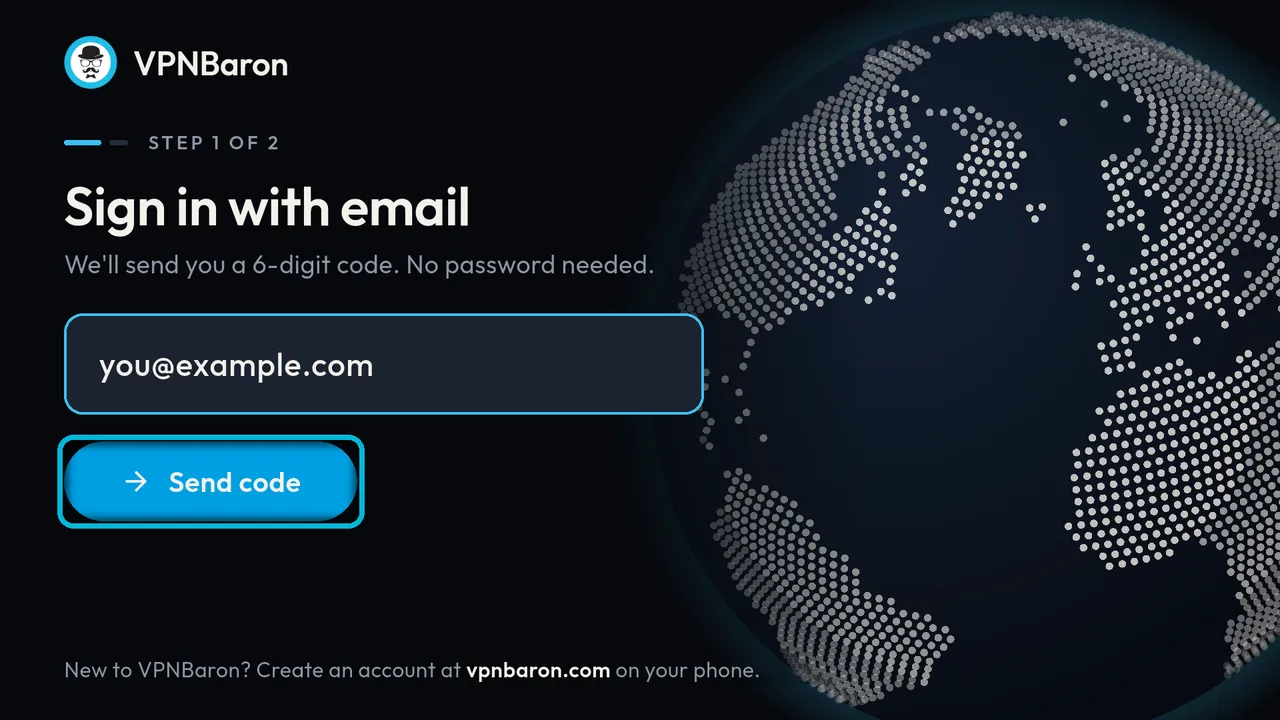
Enter the email address of your VPNBaron account and select Send code. There’s no password.
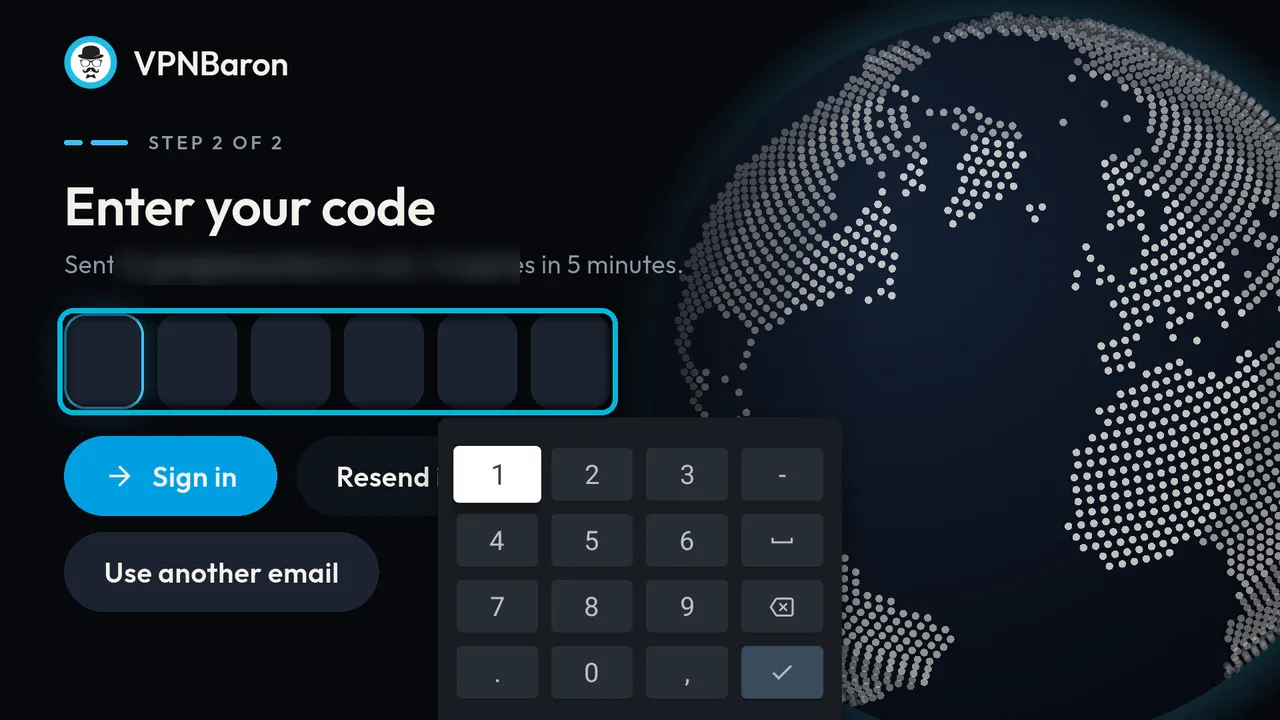
Check your email for a 6-digit code and enter it with the remote. You’re signed in as soon as the last digit is in. The code expires after 5 minutes; if it does, select Resend.
3. Choose a location
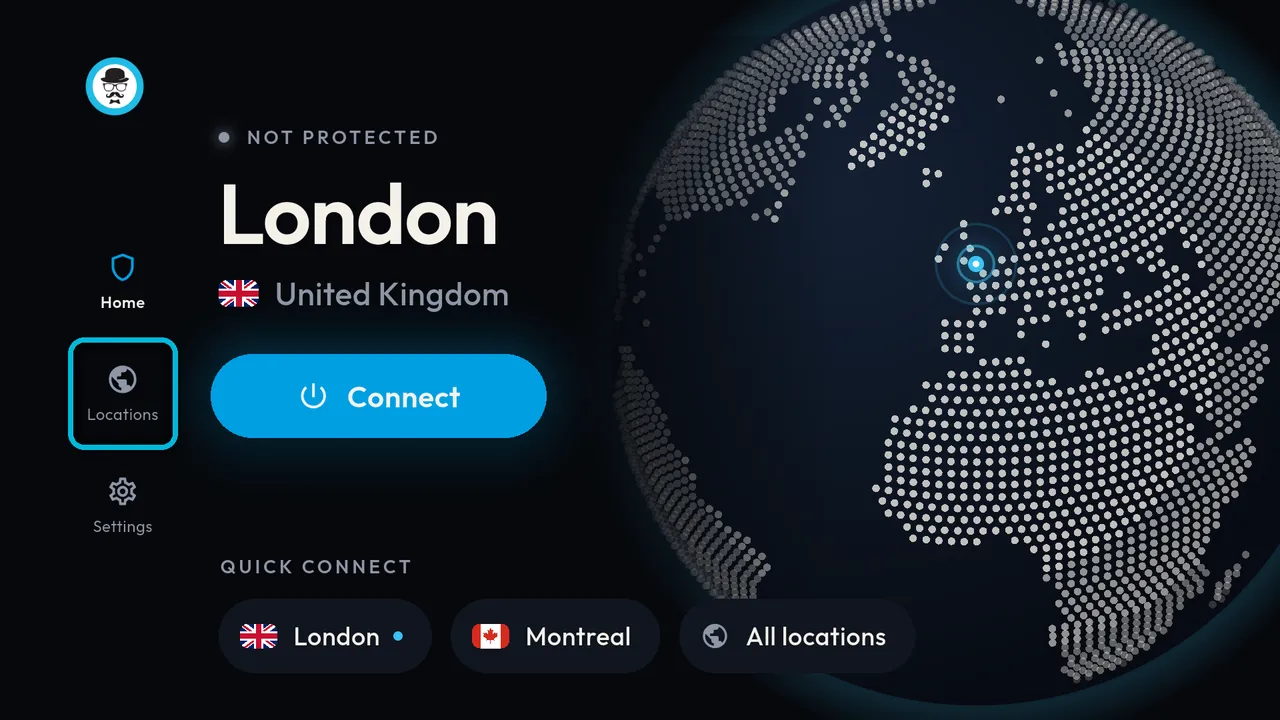
Select Locations on the left.
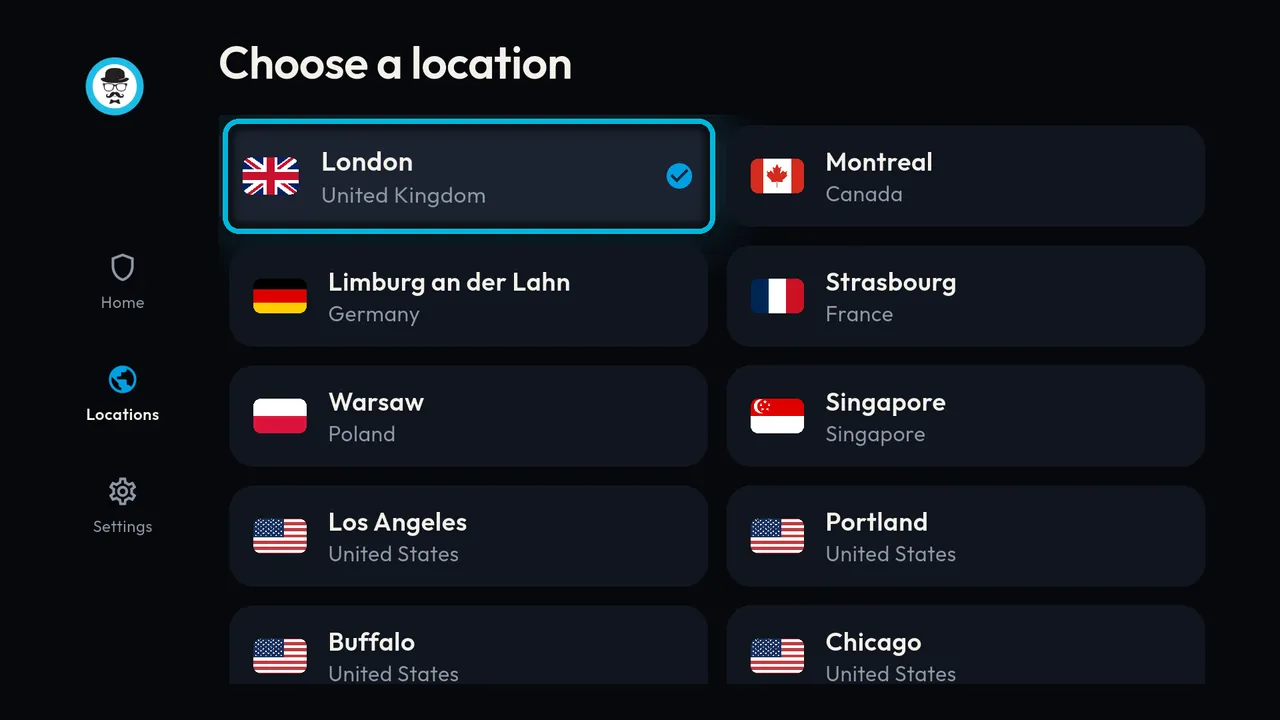
Choose a location. Pick one near you for the best speed, or the country your streaming service needs.
Quick connect, at the bottom of the home screen, gives you a few locations and the full list in one step.
4. Connect
Select Connect.
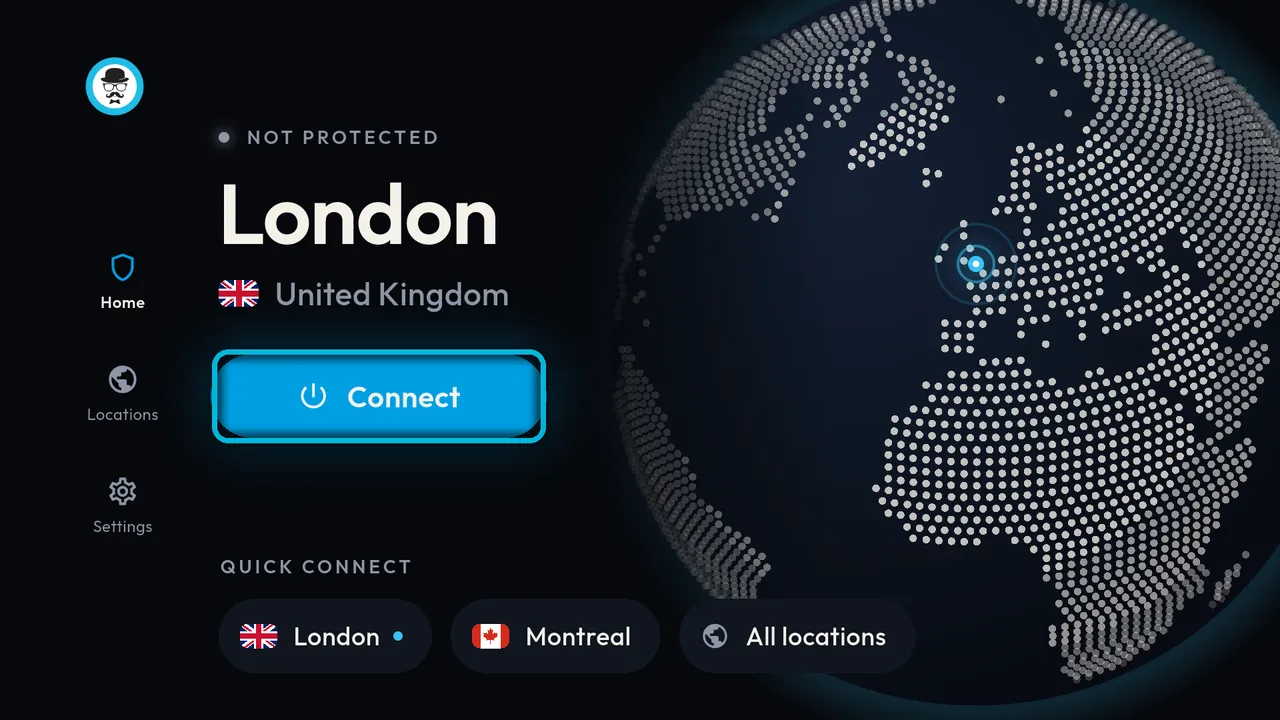
The first time, VPNBaron explains how it uses Android’s VPN service and what data it needs. Select Agree & Connect.
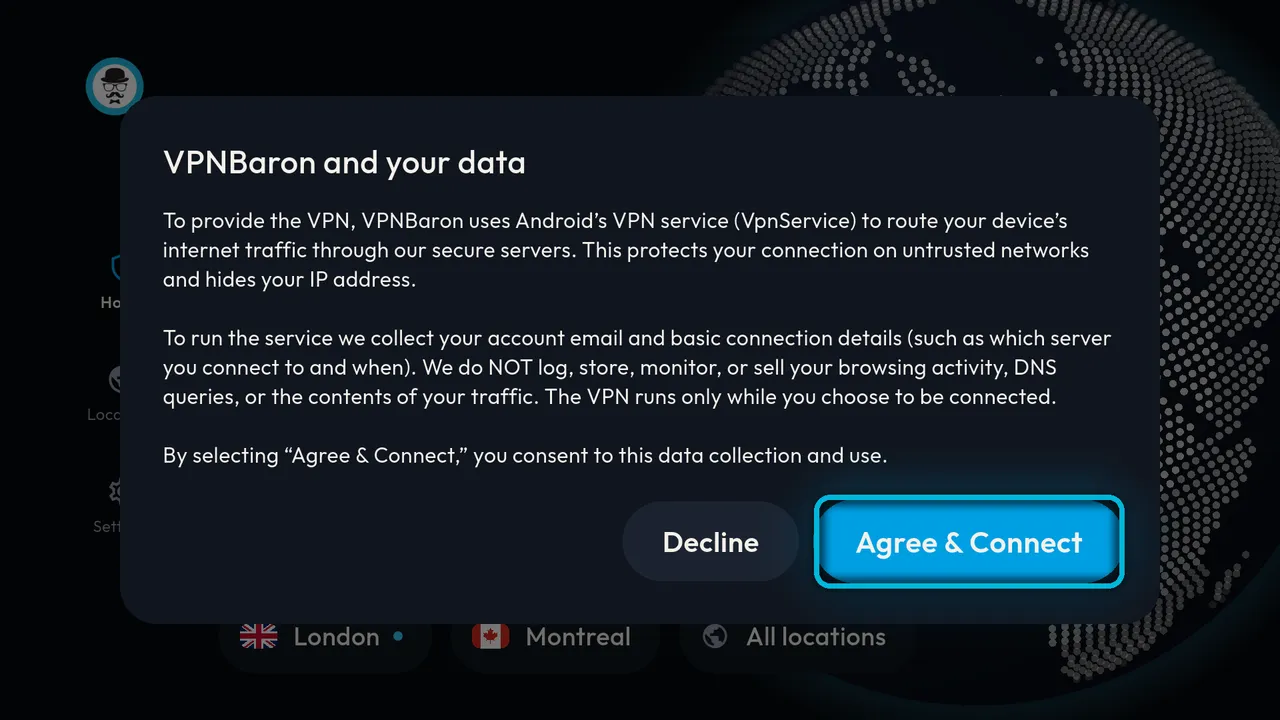
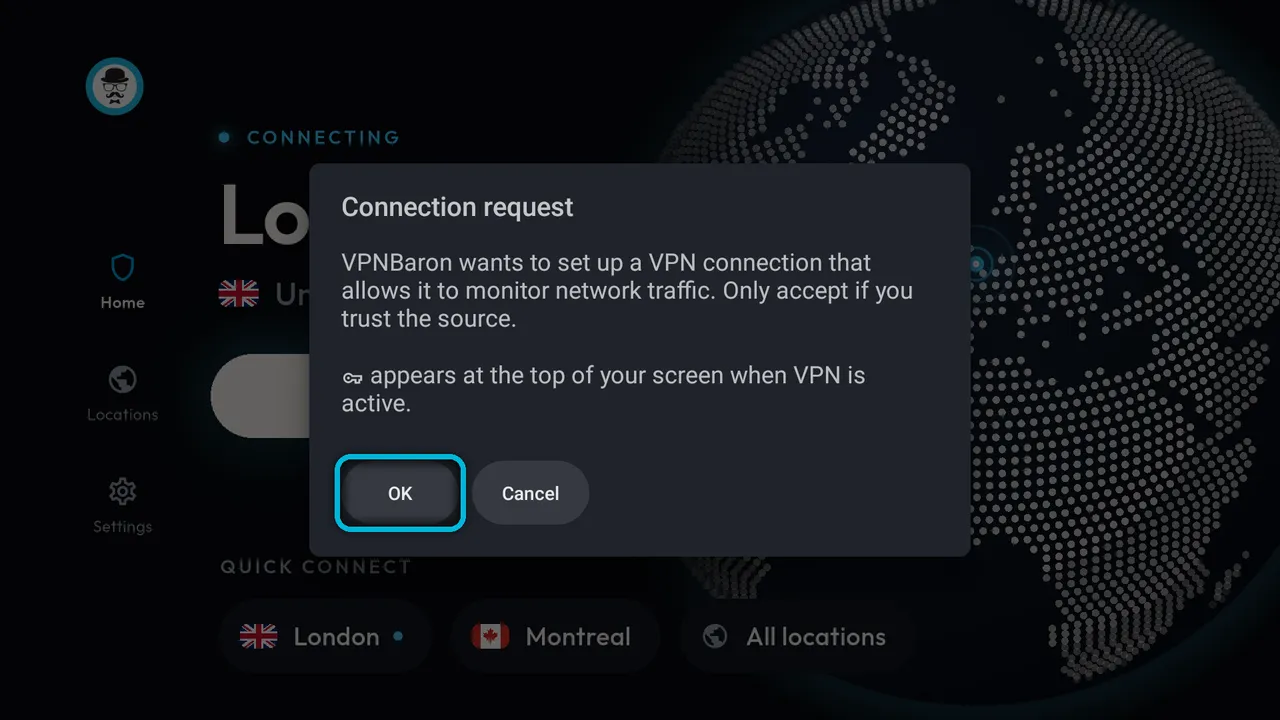
Android then asks you to allow the VPN. Select OK. You usually only see these the first time.
5. You’re protected
The home screen shows PROTECTED and your location, with “Your IP address is hidden” and the protocol underneath. Leave VPNBaron connected and open your streaming app.
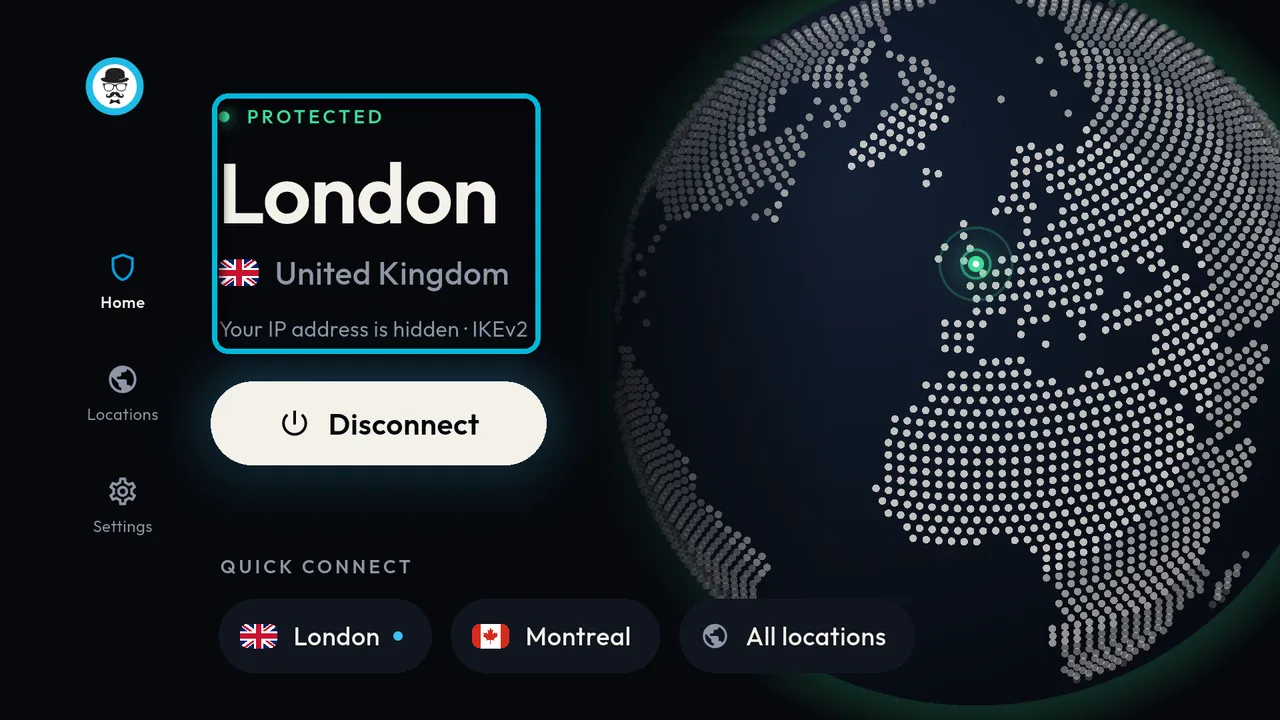
To disconnect, open VPNBaron and select Disconnect.
Changing the protocol
Open Settings. IKEv2 is recommended and works on most networks. If it won’t connect, disconnect, choose OpenVPN, and connect again.
IKEv2 needs Android 11 or newer. On older TVs and boxes, the app connects with OpenVPN, and Settings says so under the protocols.
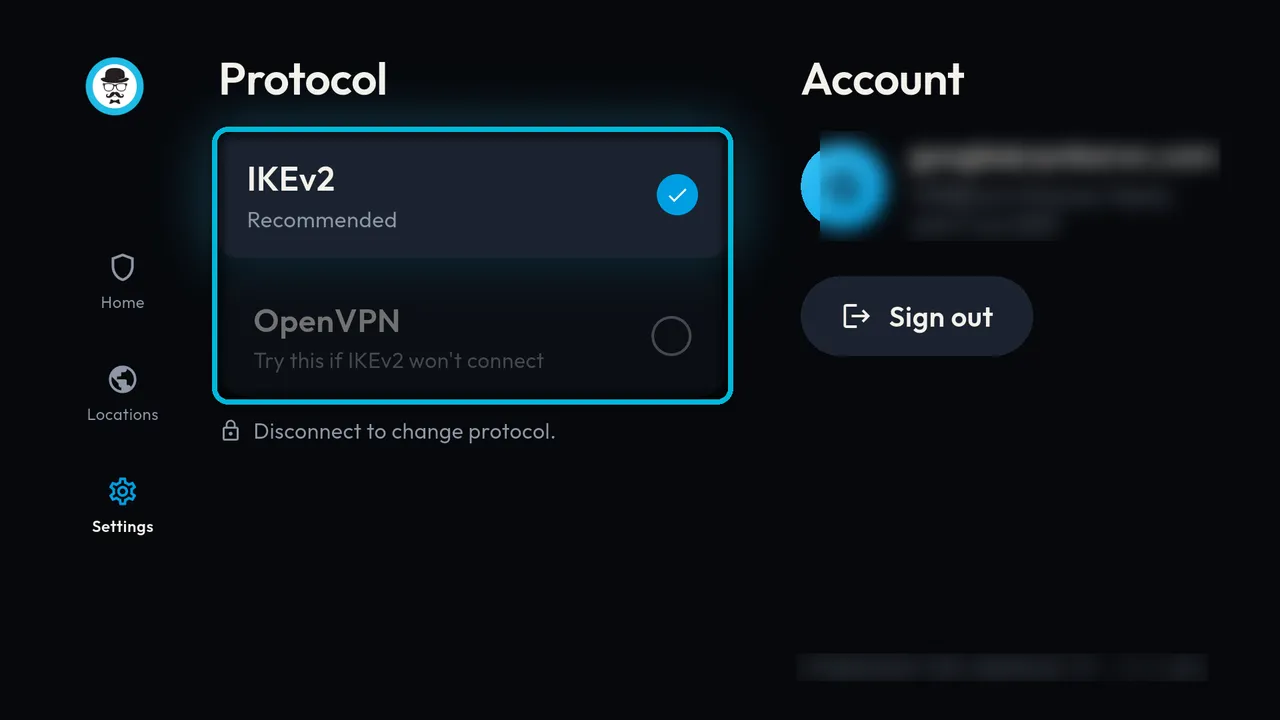
You can also sign out from Settings.
If a network blocks VPNs
Some networks block ordinary VPN connections, including IKEv2 and OpenVPN. On those, use VPNBaron’s stealth protocols with the Hiddify app instead: see Hiddify on Android TV.
Need help?
Contact support with your TV or box model, the location you chose and the exact message you see.