

One command to connect
Pick a server by its short ID or just its name: vpnbaron connect london.
VPNBaron CLI puts the whole VPN in your terminal. Sign in once, then connect to any location with one command: vpnbaron connect uk1. It speaks every VPNBaron protocol, including the stealth ones that get through networks that block VPNs, and it’s built for servers, SSH sessions and scripts.
One command to connect
Pick a server by its short ID or just its name: vpnbaron connect london.
Stealth built in
Hysteria2 and VLESS Reality included. If a network blocks one, it switches to the other by itself.
Made for servers and scripts
Works over SSH, with clear exit codes for scripts and tab completion for every command.
One connection, two ways
Shares its connection with the VPNBaron app: connect in one and the other shows it.
You need Ubuntu 24.04 or newer, Debian 13 or newer, or a distribution based on them, on a regular 64-bit PC or a 64-bit ARM computer.
VPNBaron CLI comes with the VPNBaron app. If you already have the app, skip to step 2. Otherwise run:
sudo apt install -y curlcurl -fsSL https://vpnbaron.com/download/linux/install.sh | shNot available yet. Use the VPNBaron app for Windows.
Not available yet. Use the VPNBaron app for macOS.
You also need a VPNBaron account with an active plan. If you don’t have one, sign up and choose a plan.
$ vpnbaron loginEmail: you@example.comWe sent a 6-digit code to you@example.com. (Check spam if it doesn't arrive.)Code: 123456✓ Signed in as you@example.com — VPNBaron Premium Yearly until 2027-06-03There’s no password: the code arrives in your email and expires after 5 minutes. The command keeps its own sign-in, separate from the app’s, readable only by you (on Linux, in ~/.config/vpnbaron).
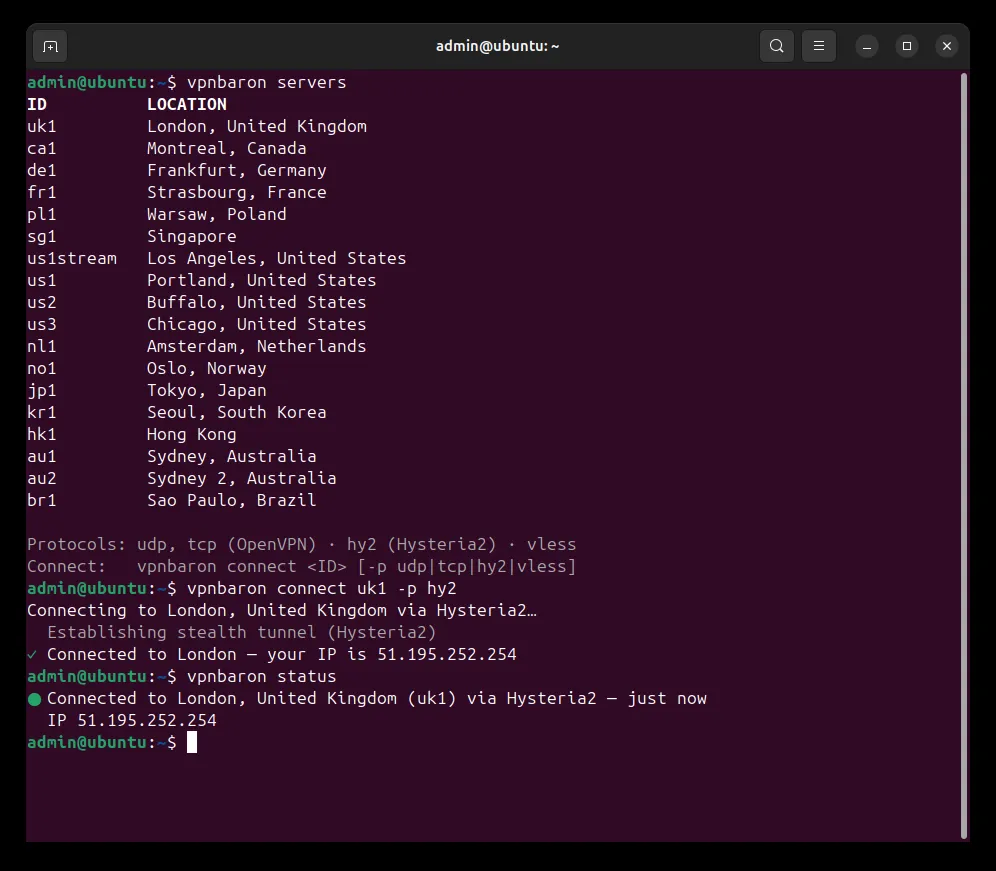
$ vpnbaron serversID          LOCATIONuk1         London, United Kingdomca1         Montreal, Canadade1         Frankfurt, Germanyus1stream   Los Angeles, United States…br1         Sao Paulo, Brazil
Protocols: udp, tcp (OpenVPN) · hy2 (Hysteria2) · vlessConnect:   vpnbaron connect <ID> [-p udp|tcp|hy2|vless]
Each server has a short ID, the easiest way to pick one.
$ vpnbaron connect uk1Connecting to London, United Kingdom via Hysteria2… Establishing stealth tunnel (Hysteria2)✓ Connected to London — your IP is 51.195.252.254Instead of the ID you can use a city or a country, in any case and with or without accents: vpnbaron connect london, vpnbaron connect los-angeles, vpnbaron connect germany or vpnbaron connect de. If several servers match, it lists them so you can pick one by ID.
The command returns as soon as you’re connected; the connection keeps running.
Add -p and a protocol:
-p | Protocol | Best for |
|---|---|---|
udp | OpenVPN UDP | Everyday use on ordinary networks |
tcp | OpenVPN TCP | Networks that block OpenVPN UDP |
hy2 | Hysteria2 | Speed, especially over long distances or patchy connections |
vless | VLESS Reality | Networks that block VPNs: it looks like ordinary web browsing |
vpnbaron connect us1stream -p vlessWithout -p, it uses the protocol that last worked, Hysteria2 the first time. If that one doesn’t get through, it tries the stealth protocols (Hysteria2, then VLESS Reality) by itself and tells you.
$ vpnbaron status● Connected to London, United Kingdom (uk1) via Hysteria2 — 12 min  IP 51.195.252.254
$ vpnbaron disconnectDisconnected.
vpnbaron c and vpnbaron d are short for connect and disconnect. In scripts, vpnbaron status ends with exit code 0 when connected and 1 when not:
vpnbaron status >/dev/null && echo "protected"On Linux, when you’re not at the computer’s own desktop (for example over SSH), connecting and disconnecting ask for an administrator’s password. Or run the command with sudo, which uses your sign-in, not root’s:
sudo vpnbaron connect uk1Your SSH session stays up with Hysteria2 and VLESS Reality, the protocols used by default: replies to it keep their normal route. OpenVPN (-p udp or -p tcp) sends everything through the VPN, including those replies, and the session freezes unless you add two routing rules first. Connect a VPN without losing your SSH session shows them, for OpenVPN and WireGuard alike.
The kill switch is a VPNBaron app setting: turn it on in the app’s Settings. Connections made with VPNBaron CLI run without it.
On Linux, bash and zsh complete commands, server IDs and protocols when you press Tab: vpnbaron connect u then Tab lists uk1 us1 us2 us3 us1stream.
vpnbaron help lists the commands; vpnbaron help connect explains one. On Linux, the full connection log is in the system journal:
sudo journalctl -u vpnbaronvpnbaron logout signs out. A running connection stays up; vpnbaron disconnect ends it.sudo apt remove vpnbaron. That removes the app too.Contact support with your system and its version, the command you ran and what it printed.