

Set Up VPNBaron in Hiddify on Android TV
Hysteria2 is one of VPNBaron’s stealth protocols: it gets through networks that slow down or block ordinary VPNs. This guide sets it up on an Android TV or Google TV with Hiddify, a free VPN app, using your personal Stealth subscription link. Once it’s connected, everything on the TV goes through VPNBaron, including your streaming and IPTV apps.
Before you start
- An Android TV or Google TV device. Check Settings → System → About. If you use a stick or box, it’s that device’s system that matters, not the TV’s brand. Samsung (Tizen), LG (webOS) and Amazon Fire TV aren’t covered here.
- An active VPNBaron plan.
- Your Stealth subscription link. In your VPNBaron account, open Stealth Mode and copy your link. Keep it private: anyone who has it can use your VPN.
- The right date and time on the TV. Go to Settings → System → Date & time and set it to automatic. Stealth connections fail when the clock is wrong.
- Optional, but it saves typing: the Google TV app on your phone. Its keyboard types straight into the TV. You can also type the link with the remote; it just takes longer.
1. Install Hiddify
On the TV, open Google Play, search for Hiddify, then install and open it.
2. Start Hiddify
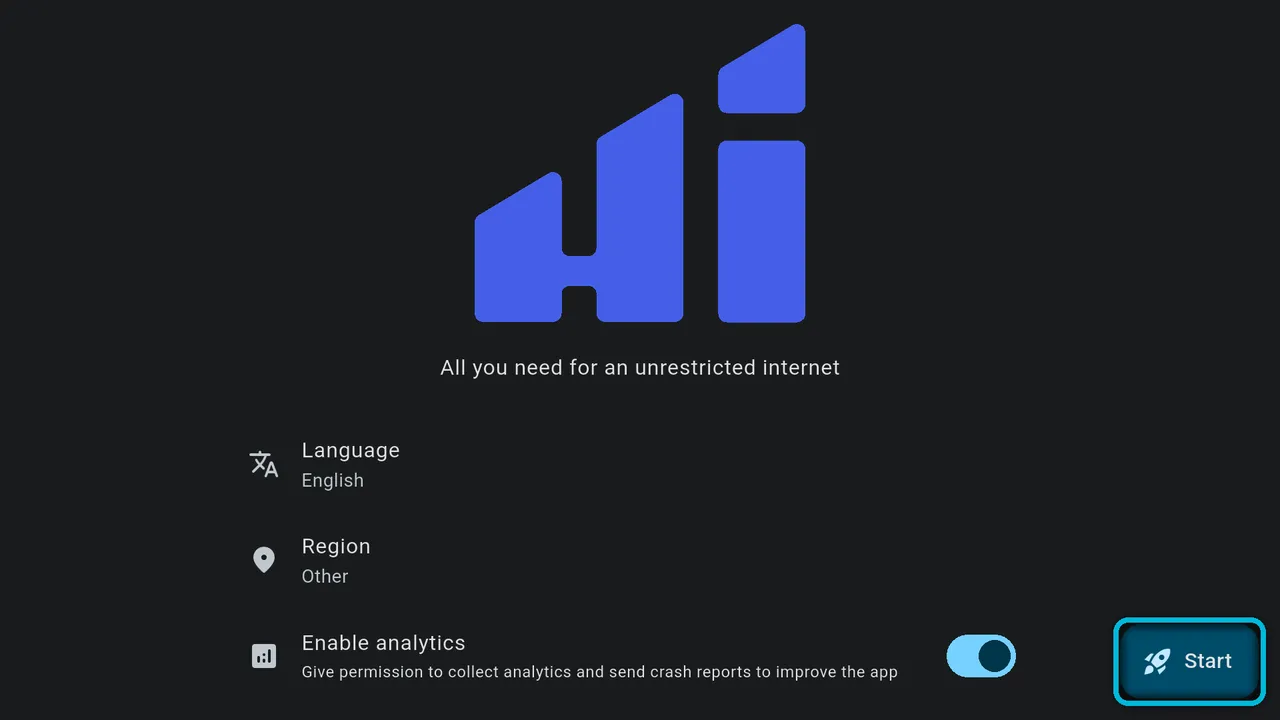
The first time, Hiddify asks for a language and region, and offers to send analytics, which you can switch off. Select Start.
3. Add your subscription link
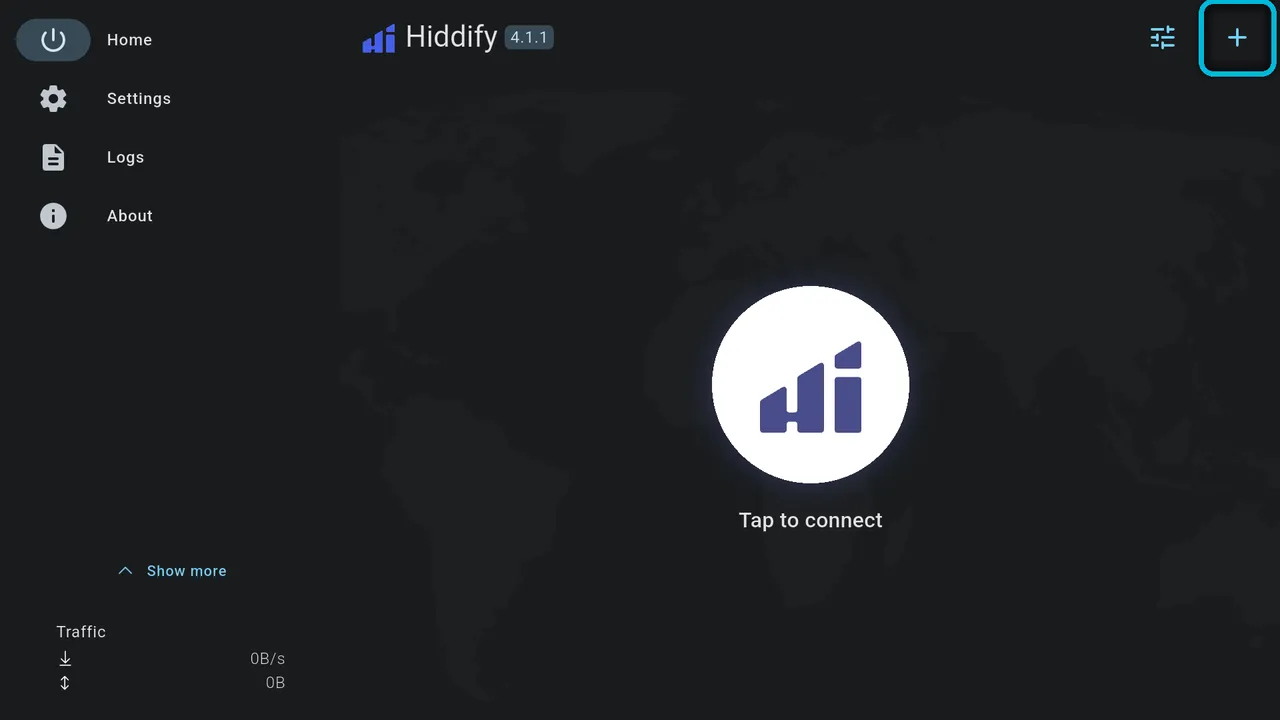
Select + at the top right.
Choose Manually.
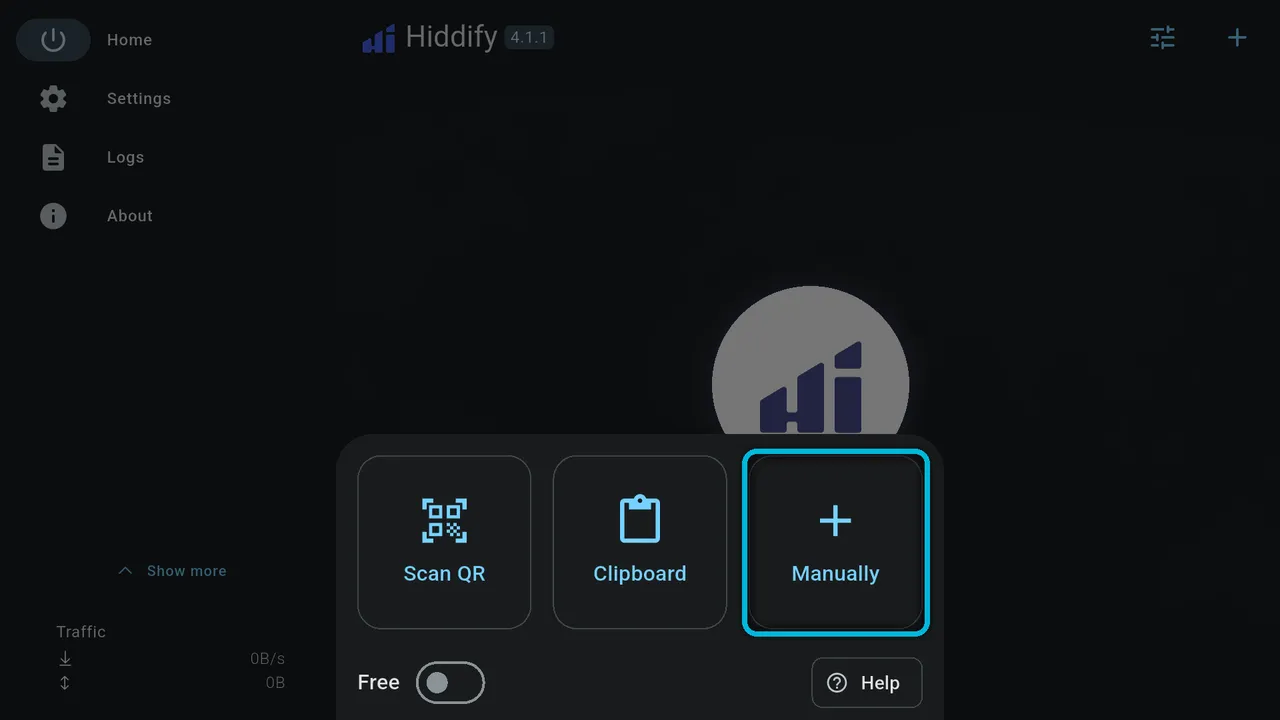
Scan QR needs a camera, which TVs don’t have. Clipboard only works if the link was copied on the TV itself; a link copied on your phone isn’t on the TV’s clipboard.
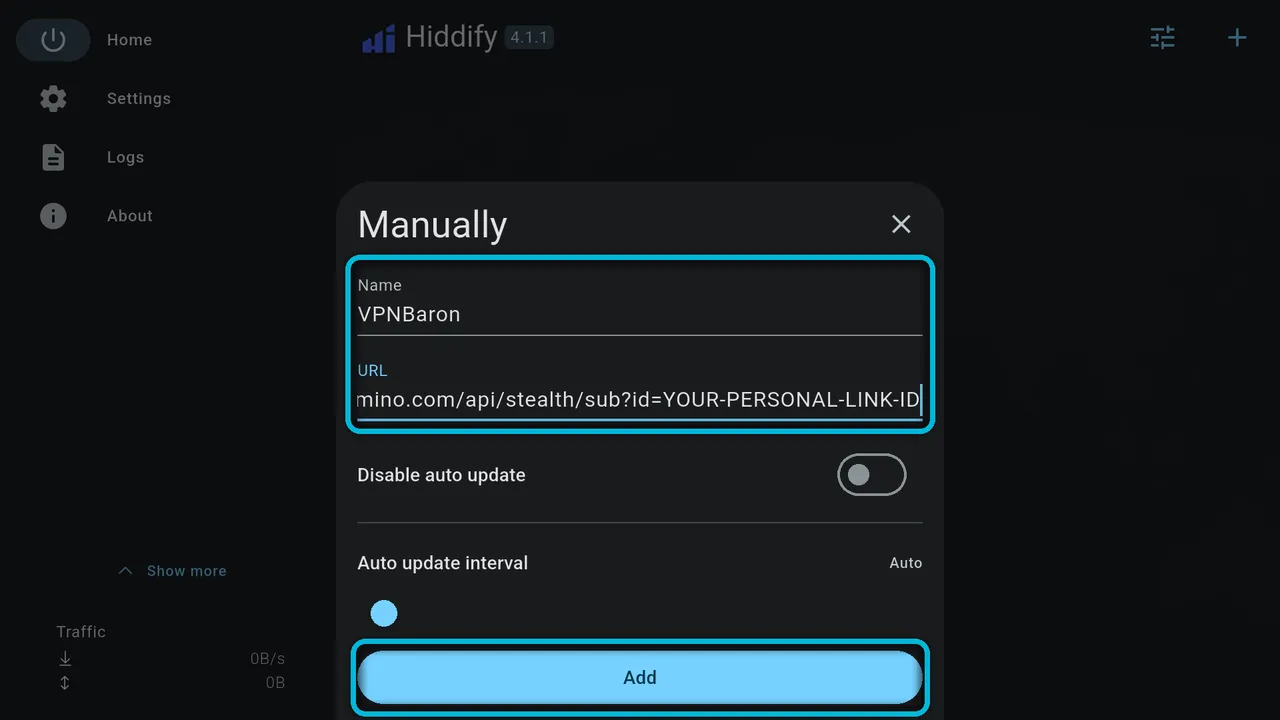
Enter VPNBaron as the Name and your complete Stealth link as the URL, then select Add.
4. Check that VPN mode is on
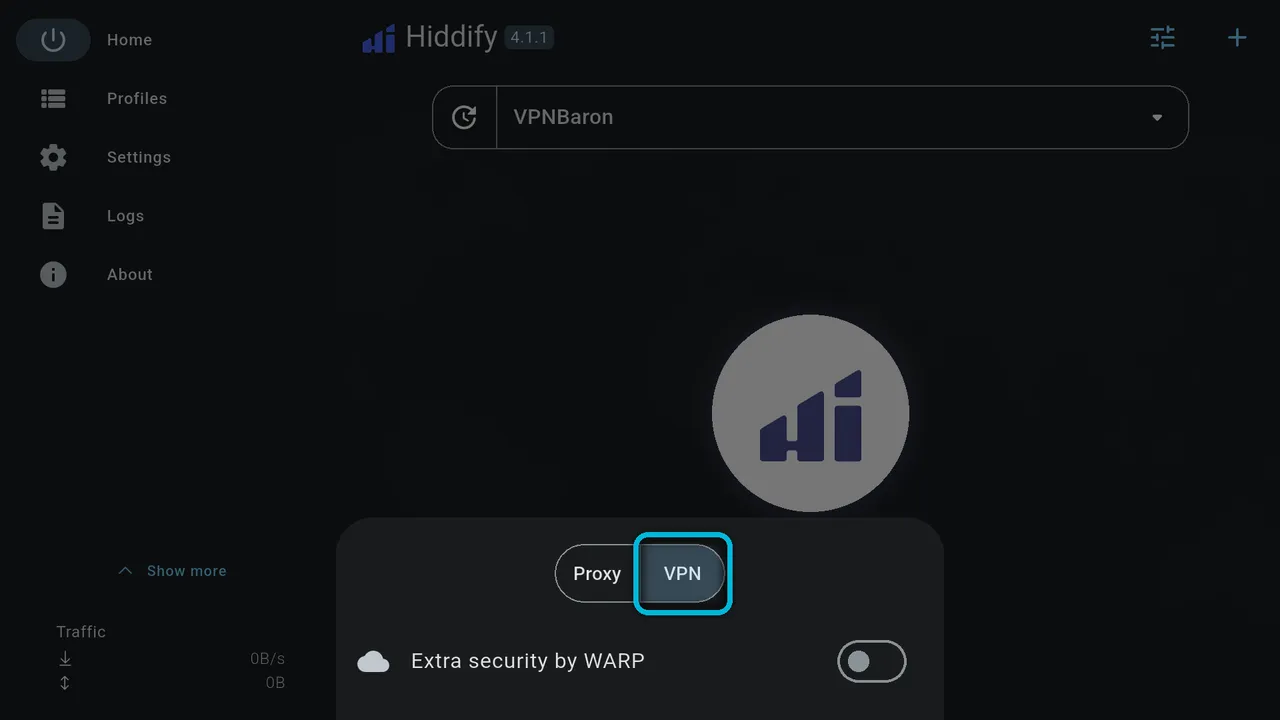
Select the sliders icon next to +. Make sure VPN is selected, not Proxy, and leave Extra security by WARP off. Press Back.
5. Connect
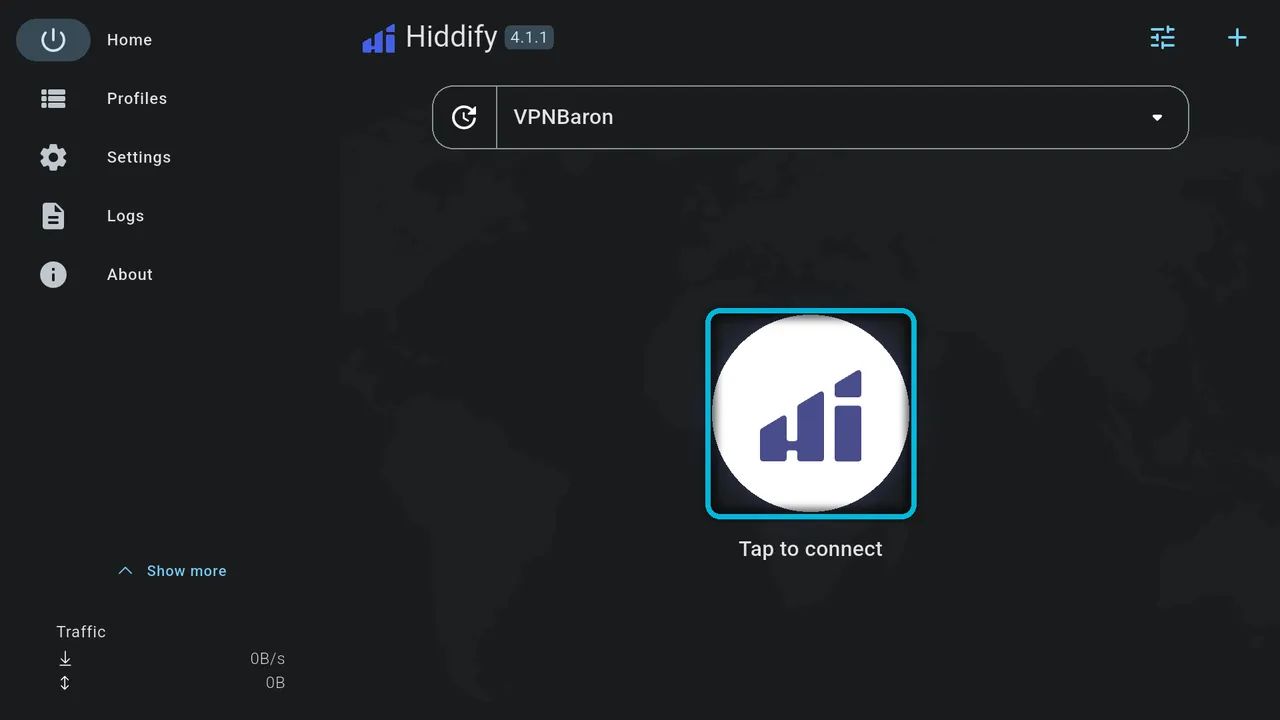
Select the round button in the middle.
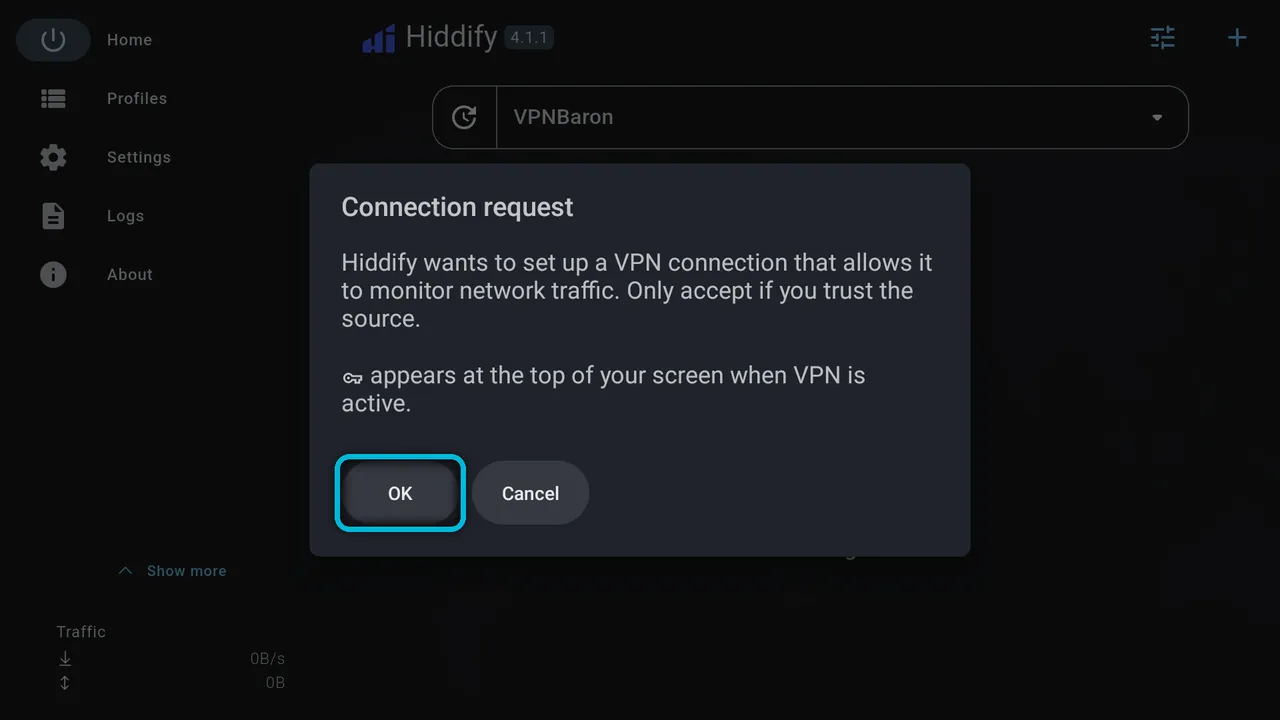
The first time, Android asks you to allow the VPN. Select OK. A key icon appears at the top of the screen whenever the VPN is on.
6. Choose a Hysteria2 server
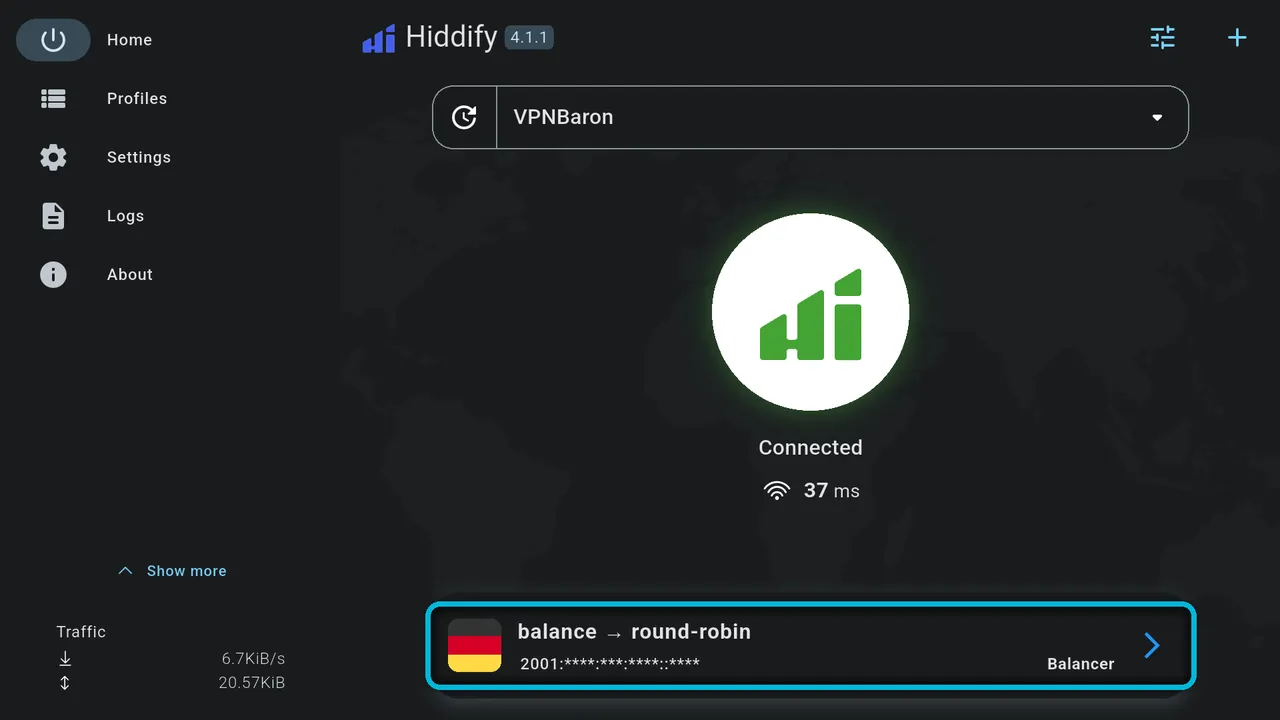
Hiddify starts on balance (round-robin), which switches between all VPNBaron servers, so your location changes from one connection to the next. Pick one server instead: select the server card at the bottom.
Choose a location marked Hysteria2. Pick one near you, unless your streaming service needs a particular country: London is our closest location to Portugal, Spain and most of Western Europe, and for a service that needs a US address, Buffalo or Chicago on the east coast are closer to Europe than Portland or Los Angeles. The number beside each entry is its response time in milliseconds, and lower is better. Entries marked (Reality) and VLESS use VPNBaron’s other stealth protocol.
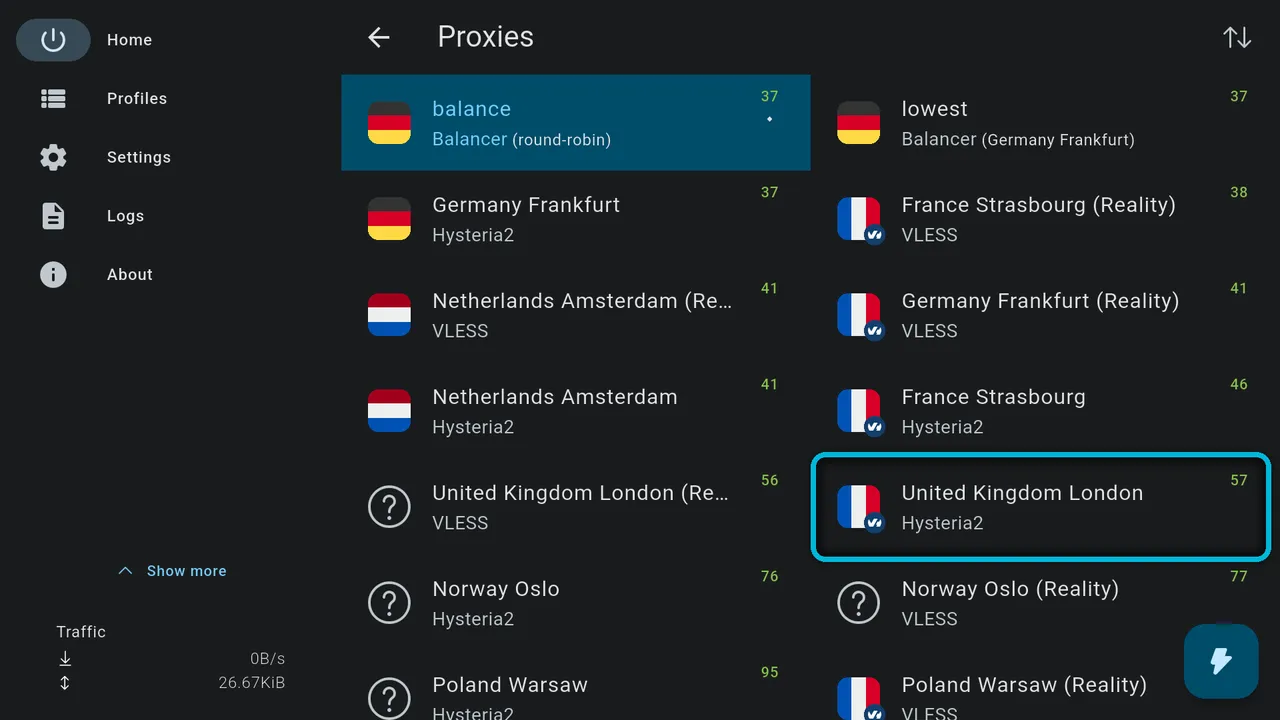
The flags come from where each server’s address is registered, so they don’t always match the city. Go by the name.
7. Check the connection
The home screen shows Connected, with your server and Hysteria2 at the bottom. Now open your streaming app on the same TV.
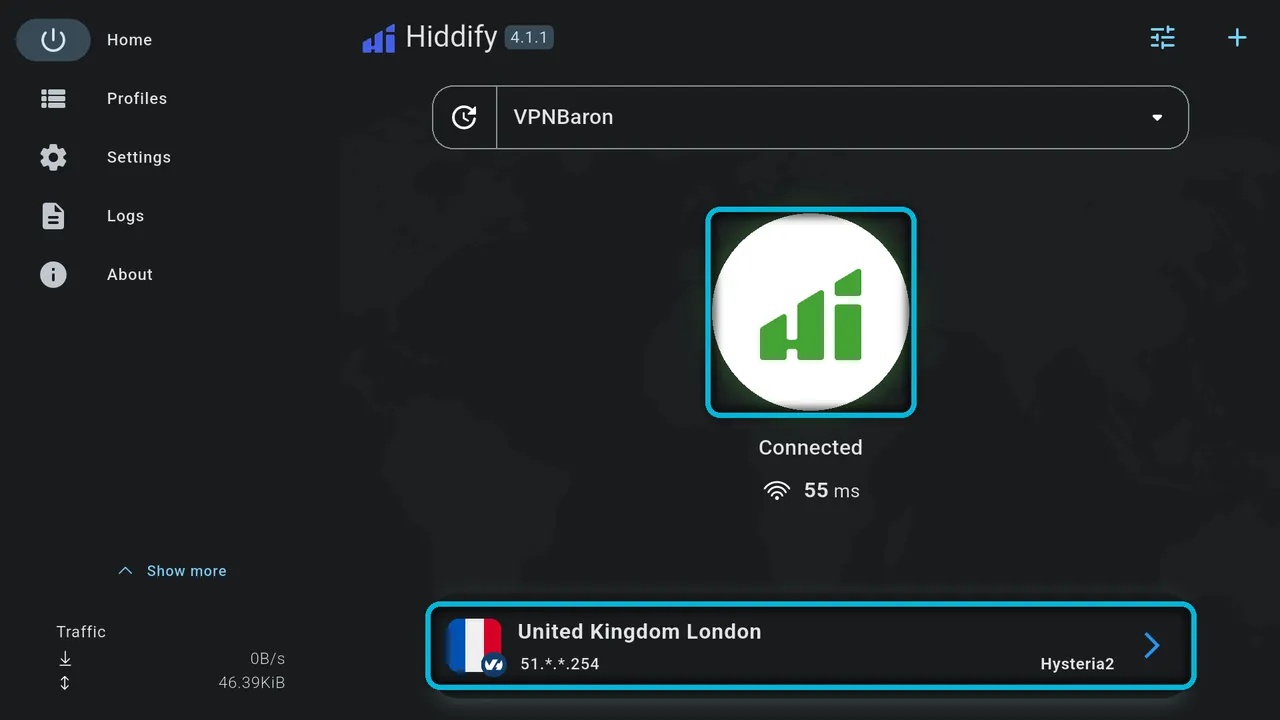
To disconnect, select the round button again.
Troubleshooting
Hysteria2 won’t connect, or nothing loads. Hysteria2 runs over UDP, which some networks block. Open the server list and choose the same city’s (Reality) entry. It uses VLESS Reality over TCP port 443, which gets through where UDP is blocked.
“Unexpected failure” when you connect. Check that the TV’s date and time are set to automatic, then close and reopen Hiddify.
The remote can’t reach a button. On some screens, Hiddify doesn’t respond well to the remote’s arrows. Plug a USB or Bluetooth mouse into the TV or box, or use the Google TV phone app.
A streaming app still shows your real location. Make sure Hiddify says Connected and that VPN mode is on, then close and reopen the streaming app. If your IPTV app has its own VPN setting, leave it off. And cast or stream on the TV itself: a video cast from your phone uses the phone’s connection, not the TV’s.
New locations are missing. Select the refresh icon to the left of VPNBaron at the top to update your server list.
More error messages, with screenshots: Hiddify errors and fixes.
Related guides
- Set up VPNBaron inside IPTV Smarters.
- Use Hiddify on Windows or Linux.
- Set up a TP-Link router or DD-WRT router.
Need help?
Contact support with your TV or box model, Hiddify version, the server you picked and the exact error. Hide your subscription link, passwords and streaming account details.