

Kill switch built in
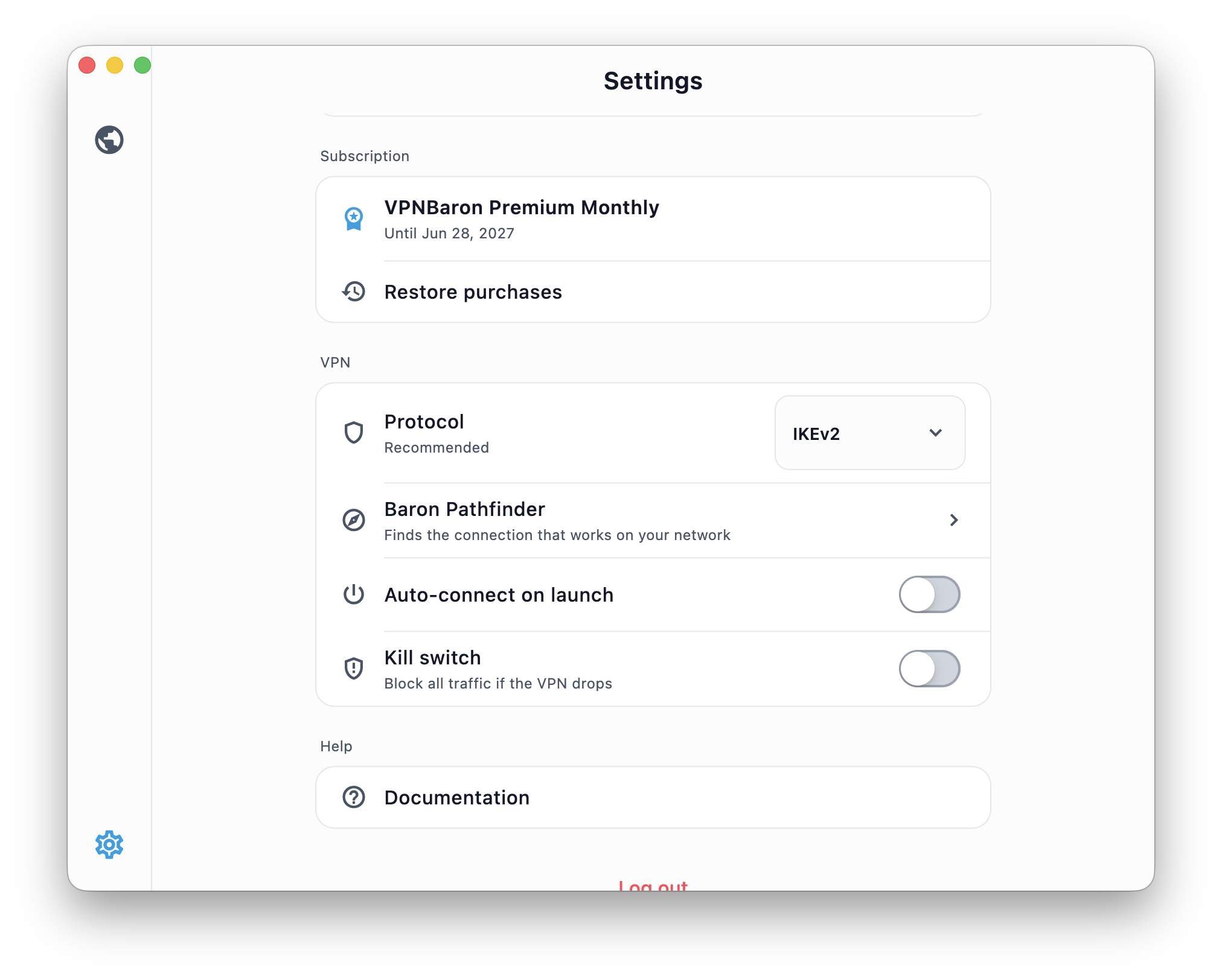
If the VPN connection drops, the app stops your traffic until the tunnel is back, so nothing leaks in between. Manage it in the app settings.
The native macOS app is the easiest way to use VPNBaron: install, sign in, one click to connect. No configuration files, no manual protocol choices.
Get VPNBaron from the Mac App Store
Open the App Store on your Mac and search for “VPNBaron”, or use the direct link:
Get VPNBaron on the Mac App Store
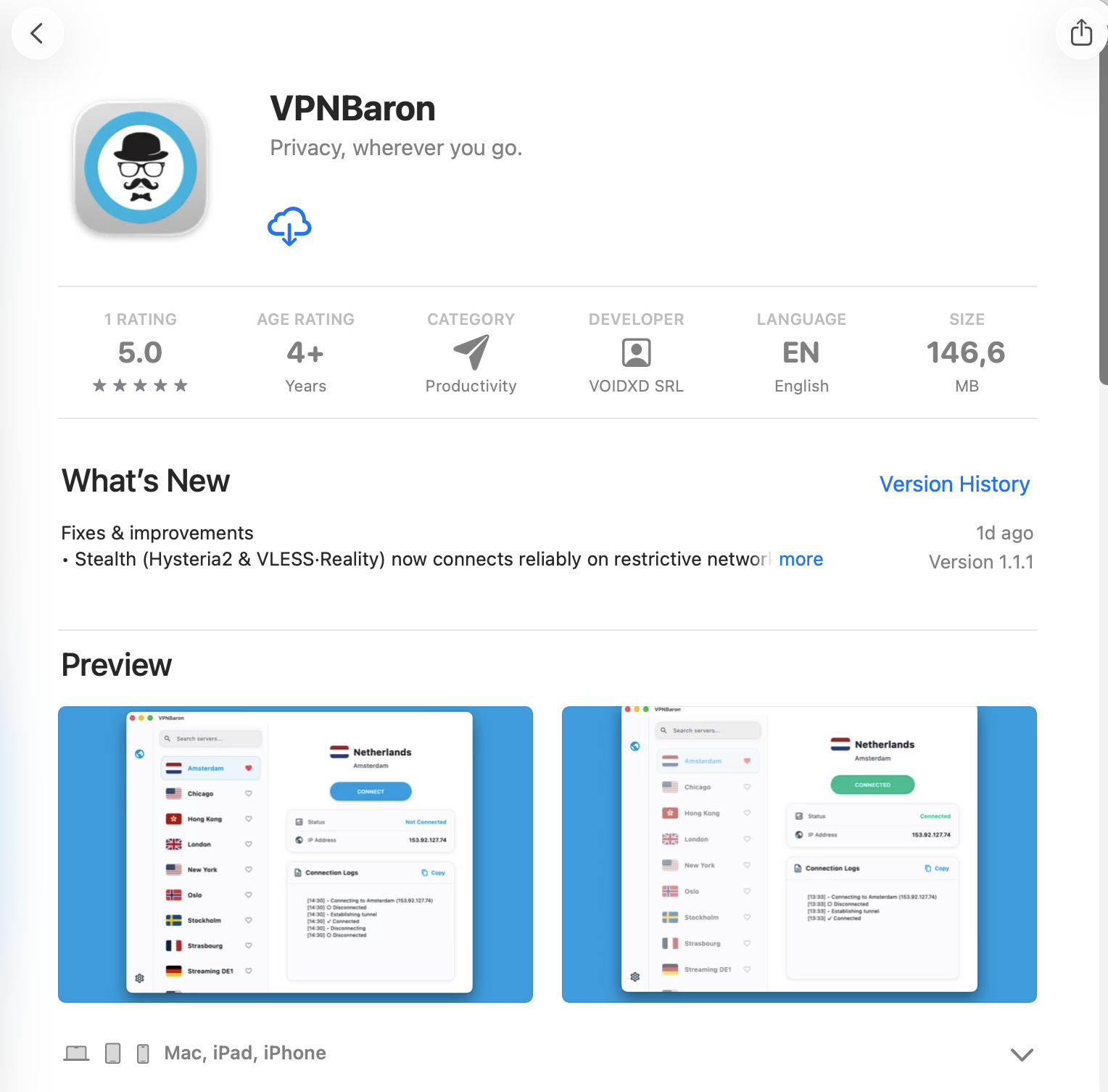
Works on both Intel and Apple Silicon Macs.
Launch and Sign In
Open VPNBaron from your Applications folder and sign in: email and password, or continue with Google or Apple.
Connect
Pick a location (or keep the suggested one) and click Connect.
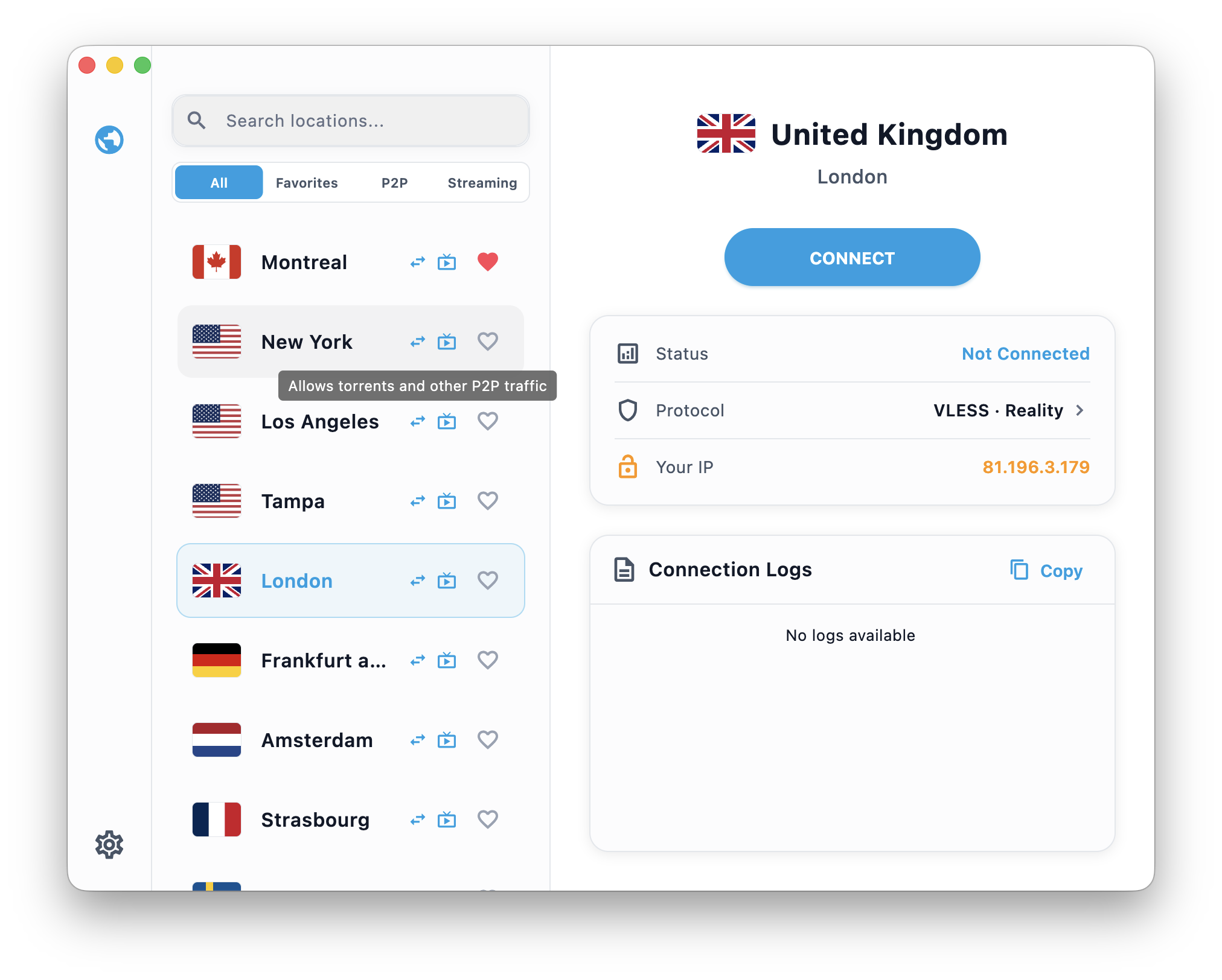
The first time you connect, macOS asks for permission to add VPN configurations. Click Allow. Once connected, the app shows your new IP and location:
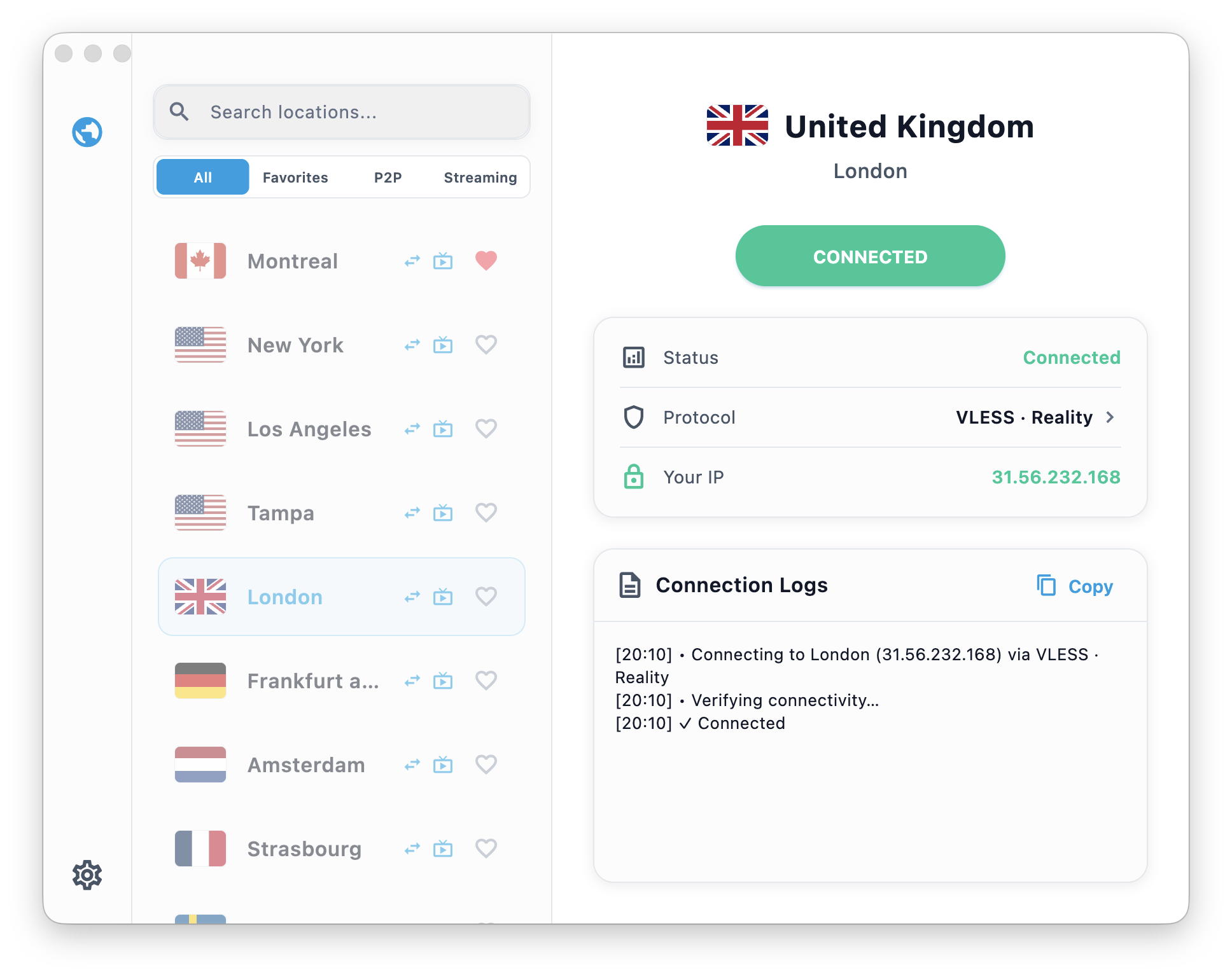
You never have to choose a protocol. Baron Pathfinder tests VPNBaron’s protocols (VLESS Reality, Hysteria2, IKEv2) on your current network and connects through the one that works best. On networks that block ordinary VPNs (hotels, offices, campuses), it falls back automatically to the stealth protocols, whose traffic looks like regular HTTPS.
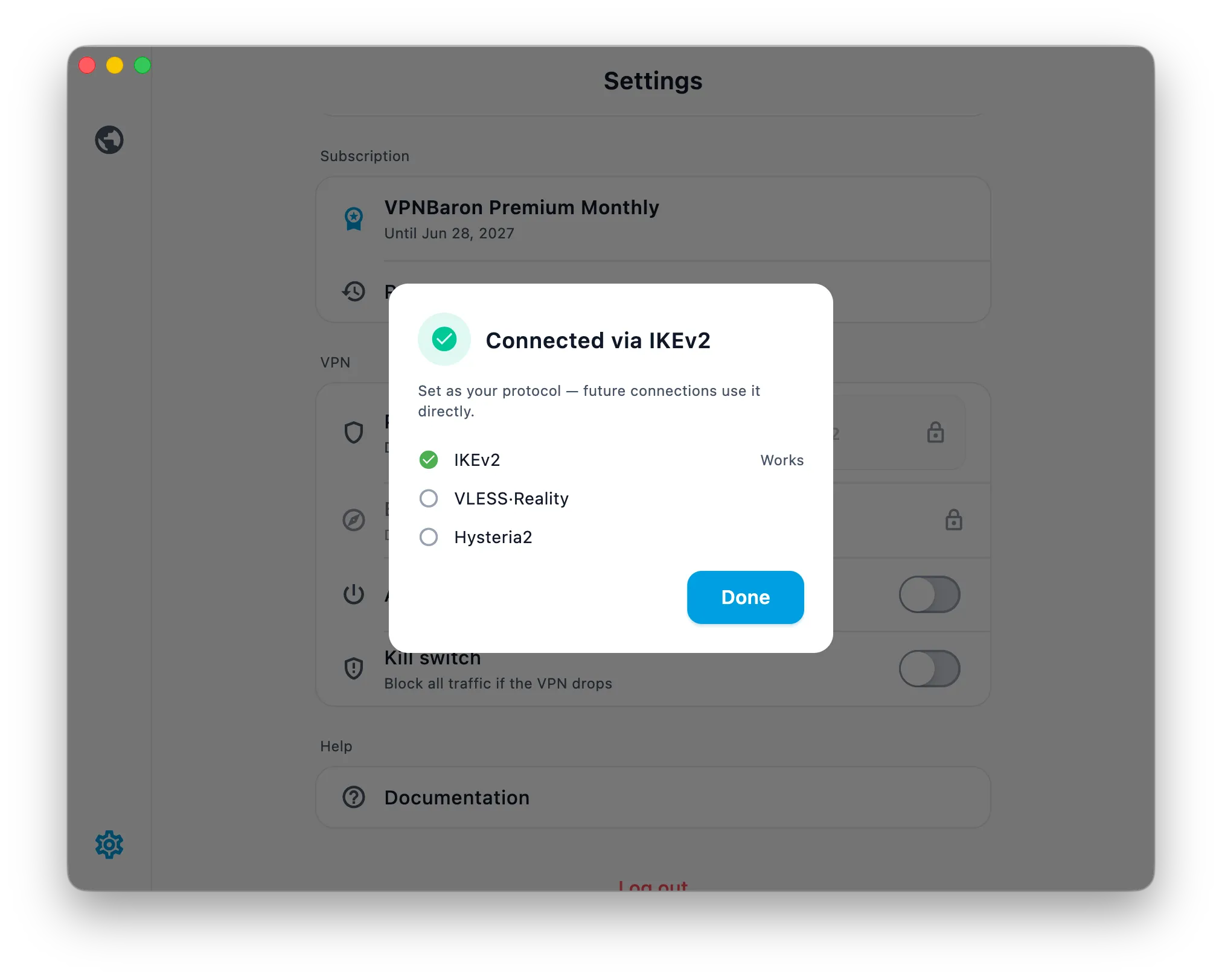
Kill switch built in
If the VPN connection drops, the app stops your traffic until the tunnel is back, so nothing leaks in between. Manage it in the app settings.
Alternative Setup Methods
The app is the recommended path, but manual configuration is fully supported: