

WireGuard on iPhone and iPad (Official WireGuard App)
WireGuard is the fastest way to connect on ordinary networks. You add your iPhone or iPad as a device on vpnbaron.com, then scan its QR code with the free WireGuard app. It works as soon as you add it.
Before you start
- A VPNBaron account with an active plan.
- vpnbaron.com open on a computer, so the QR code is on its screen while you scan with the iPhone. Without a computer, you can download the file on the iPhone instead (see step 4).
1. Get the WireGuard app
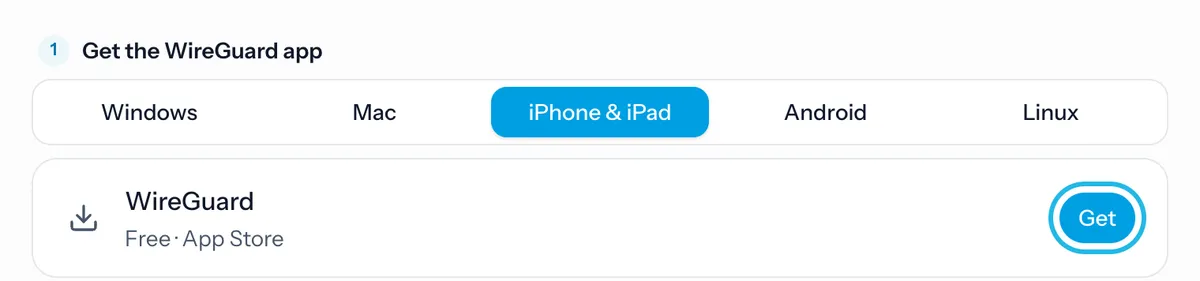
Log in at vpnbaron.com and open the WireGuard page. Choose iPhone & iPad, then tap Get to install WireGuard from the App Store.
2. Add your iPhone as a device
Type a name you’ll recognise, such as “My phone”, and click Add device. Each device gets its own keys, so add one per phone or computer.

3. Show its QR code
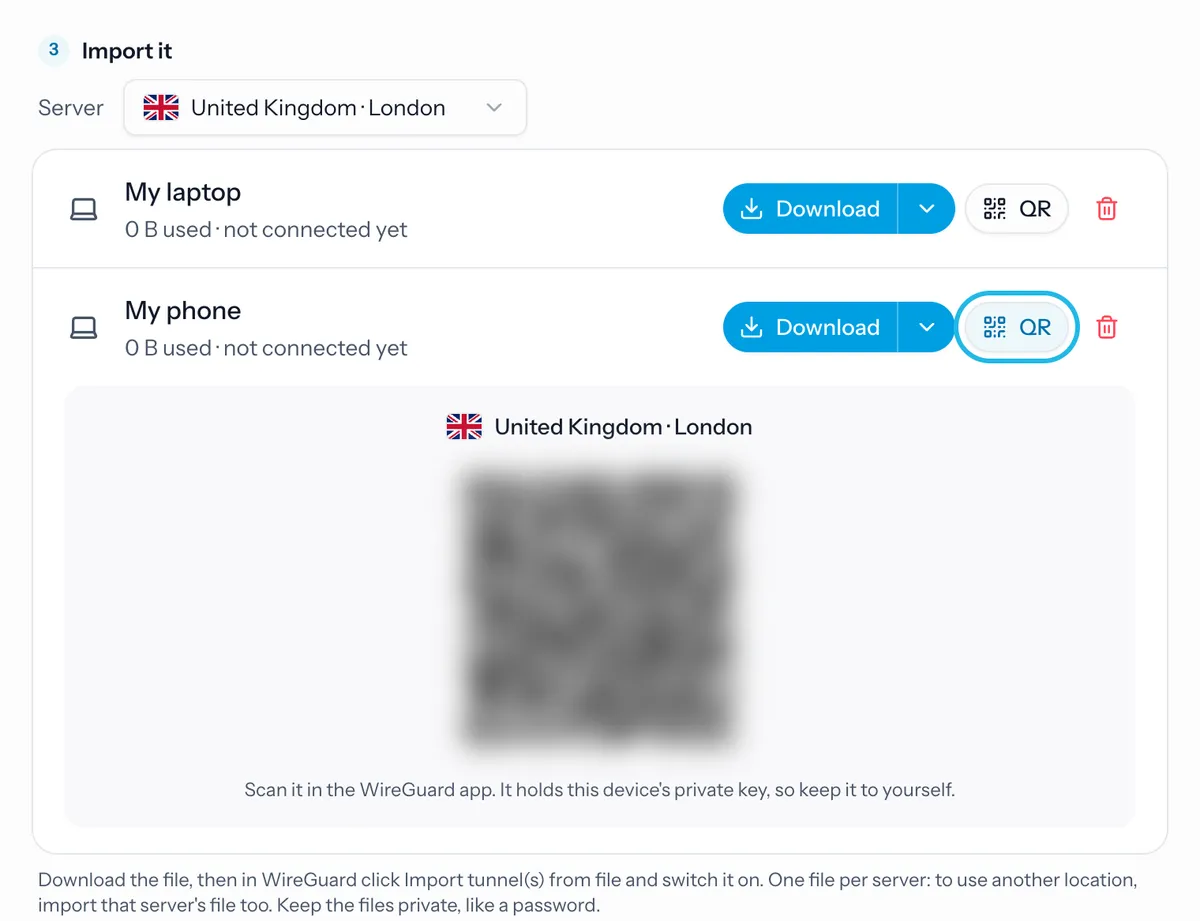
Under Import it, choose a server, then click QR next to your device. Keep the code on screen.
4. Scan it with WireGuard
Open WireGuard on the iPhone, tap + and choose Create from QR code. Allow camera access, and point the camera at the code. Give the tunnel a name you’ll recognise, such as the server’s city.
No computer? On the iPhone, tap Download instead, then in WireGuard tap + and choose Create from file or archive, and pick the file from Downloads in the Files app.
5. Allow the VPN configuration
The first time, iOS asks whether WireGuard may add VPN configurations. Tap Allow, then enter your passcode or use Face ID.
6. Switch it on
Tap the tunnel’s switch. A VPN icon appears in the status bar, or in Control Center on iPhones with Face ID.
To disconnect, tap the switch again.
More locations
Each code or file is for one server. To add another location, choose it under Import it on the WireGuard page and scan its code the same way.
Troubleshooting
It’s switched on, but nothing loads. Some networks block WireGuard. Tap the tunnel and check Latest handshake: if it never appears, use Hysteria2 or VLESS instead, which work where VPNs are blocked, or the VPNBaron app.
It stopped working. If you removed the device on vpnbaron.com, its codes and files stop working right away. Add the device again and scan its new code. A plan that has ended also stops all of them.
“You’re using all 5 devices”. Each account can add up to 5 devices on the WireGuard page. Remove one you no longer use (the bin icon next to it), then add the new one. The VPNBaron apps don’t count toward this.
Still stuck? Open a support ticket with a screenshot of the tunnel’s details and the server you used.