

Can't Connect? Try These Steps in Order
Networks block VPNs in different ways, and what a network blocks can change from one week to the next. Your VPNBaron plan includes several ways through, on every location, so when one is blocked, another often still works. Work down this page and stop at the first step that connects you.
1. Sign in with an email code
If the app’s sign-in page won’t load, our website is probably blocked on that network. The VPNBaron apps for Windows, Mac and Linux have a second way in that doesn’t need the website: on the welcome screen, select Sign in with an email code, enter the email address of your VPNBaron account and select Send code.
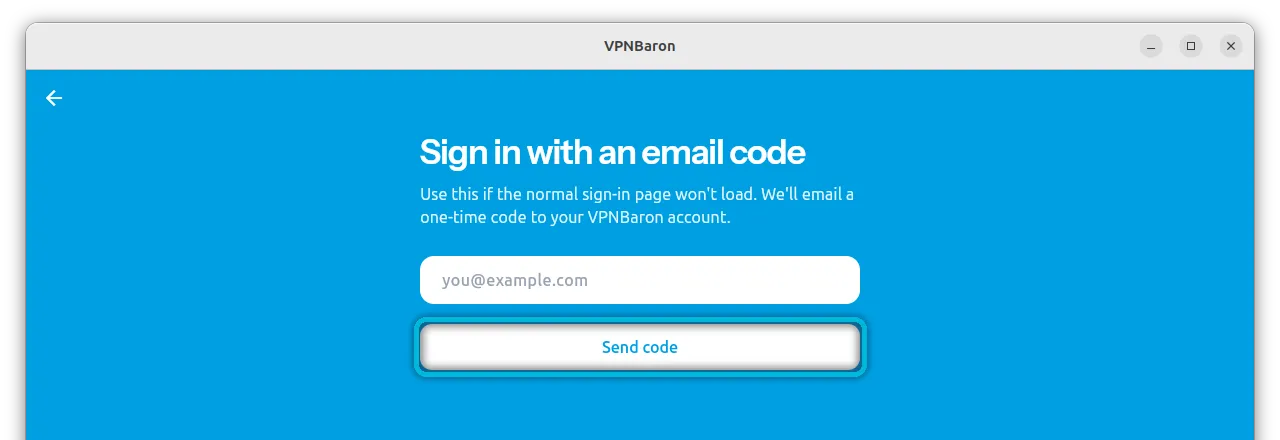
Type the 6-digit code from the email and select Verify & sign in. The code expires after 5 minutes; if it does, select Resend. On Android TV and Apple TV, the app always signs you in with an email code.
2. Let Baron Pathfinder find a way in
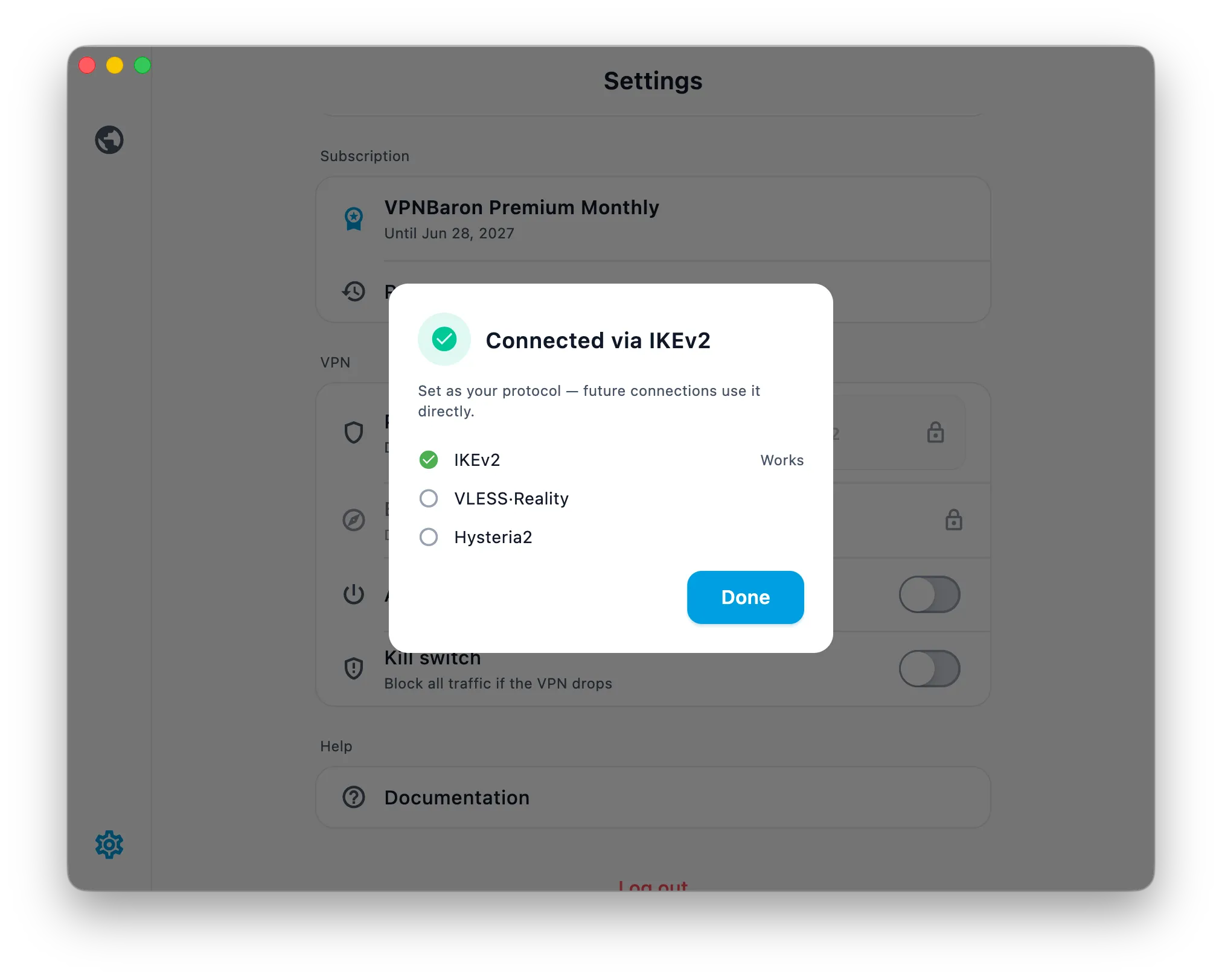
Baron Pathfinder tests the app’s protocols on the network you’re on (IKEv2, VLESS Reality and Hysteria2), connects through the first one that works and keeps it for your next connections. Open Settings, then Baron Pathfinder.
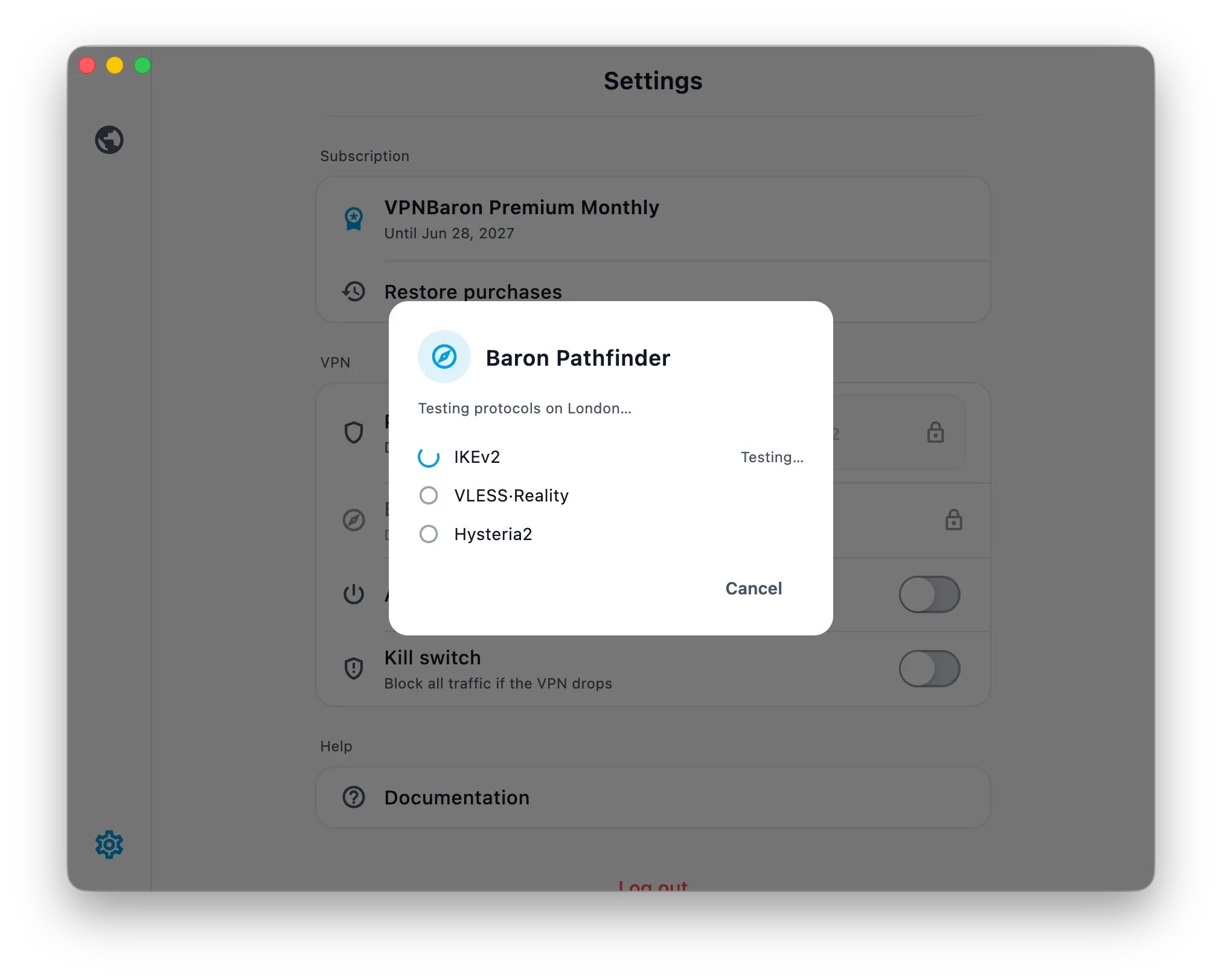
Run it again whenever you change networks: the protocol that works at home is not always the one that works at a hotel or on another mobile carrier.
3. Choose VLESS Reality yourself, then Hysteria2
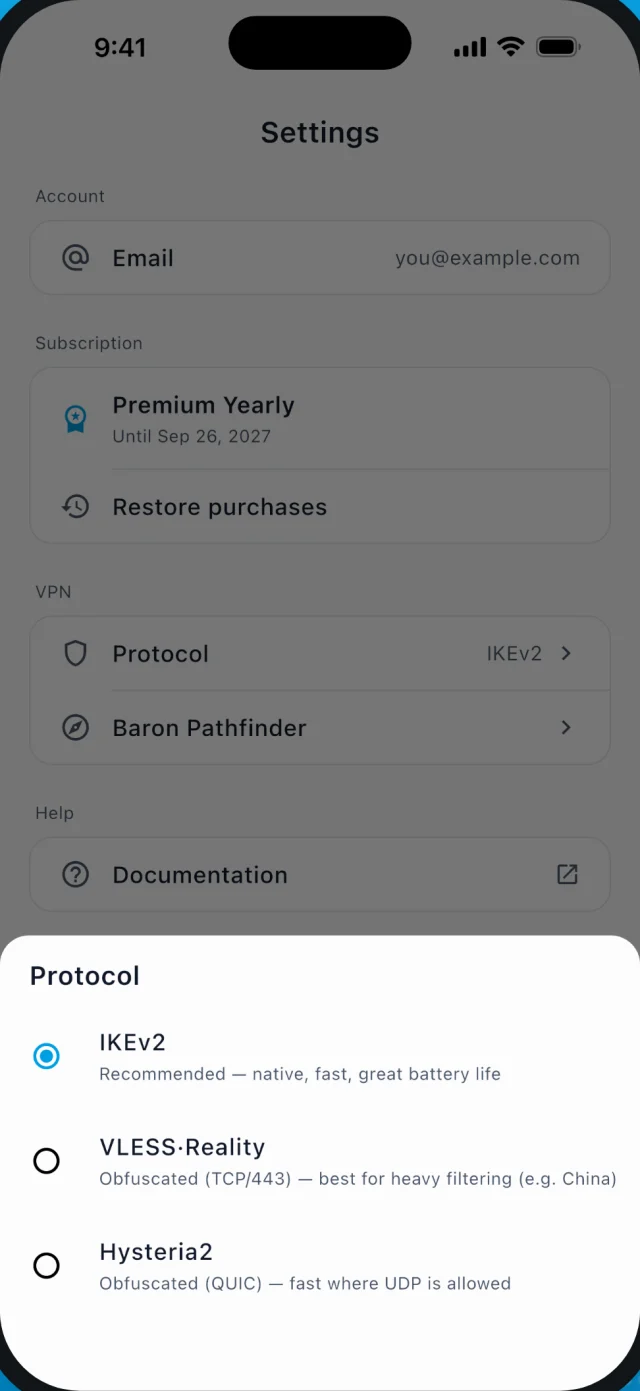
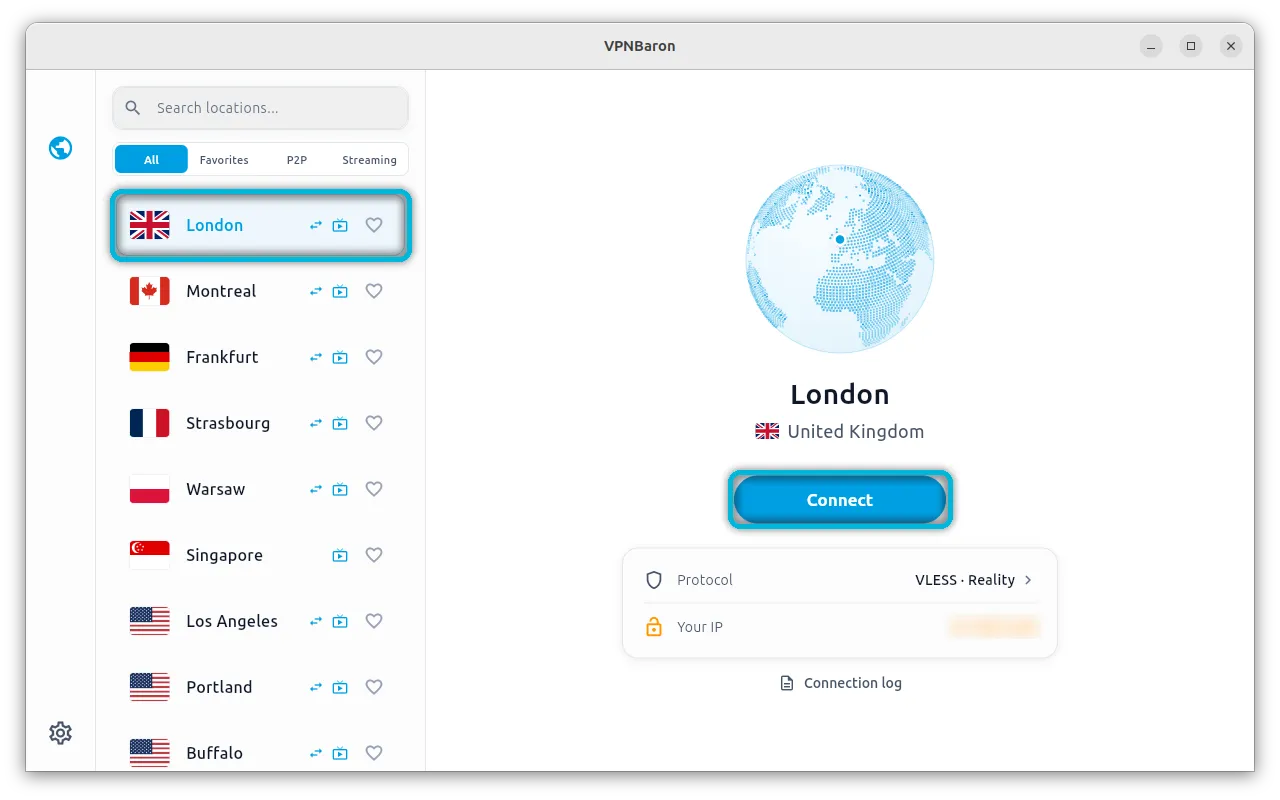
If you connect but pages crawl, or the connection drops after a few minutes, the network is probably slowing down or cutting that protocol. Choose one yourself in Settings > Protocol:
- VLESS Reality first. It runs over TCP port 443 and looks like a visit to an ordinary HTTPS website, which makes it the hardest to block.
- Hysteria2 next. It runs over UDP (QUIC) and stays fast on congested or unreliable networks, but some networks block UDP.
Want the details? Hysteria2 vs VLESS Reality explains when each one wins.
4. Change location, then change network
Blocks are often aimed at particular addresses, so a different location can work when one doesn’t. Pick another location in the app, ideally in a different region, and connect.
On hotel, airport or café Wi-Fi, open a browser and accept the network’s sign-in page first, then connect. Still nothing? Switch from Wi-Fi to mobile data, or the other way round: they are often filtered differently.
5. Use your stealth link in V2Box or Hiddify
If our app can’t connect at all, use your stealth link in a free third-party app. It’s the same servers through different software. The link comes from a different address than our website, so the app can refresh your server list even where vpnbaron.com is blocked.
- In your account, open Hysteria2 · VLESS and pick your device. It shows the app to install: V2Box on iPhone, Android and Mac, Hiddify on Windows, Linux and Android TV.
- Copy your private link, or scan the QR code with your phone, and add it to the app as a subscription.
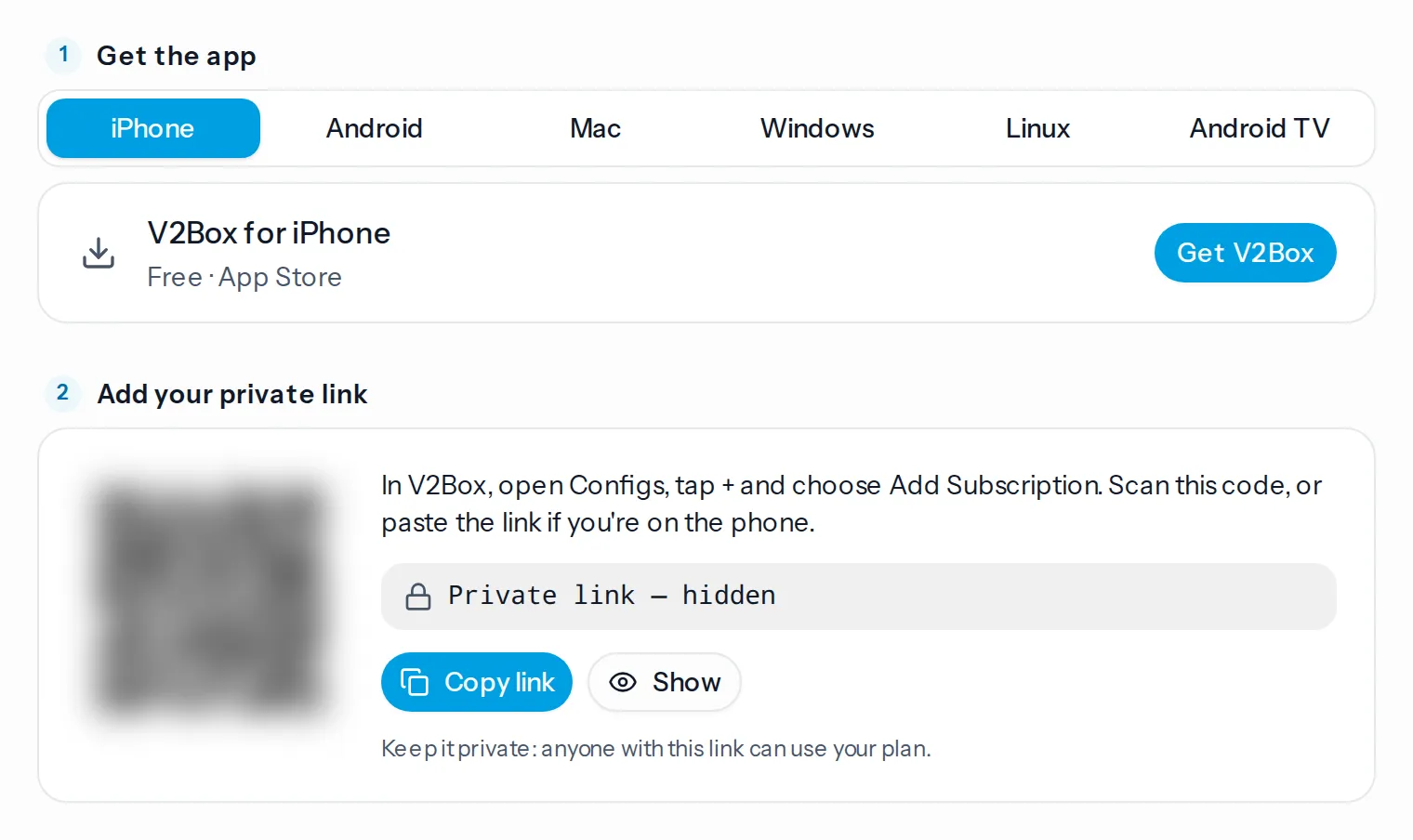
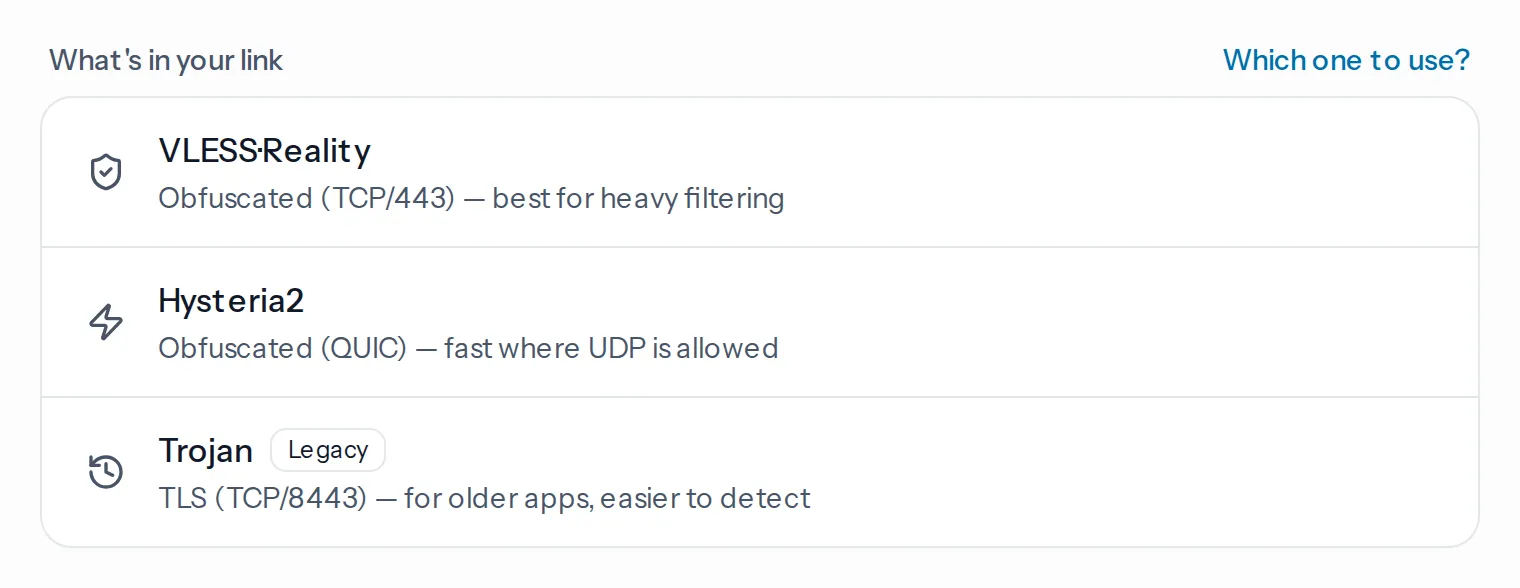
- Your link includes every location in three protocols. Pick a VLESS Reality entry first. If it won’t connect, try the Hysteria2 entry for the same location, then Trojan.
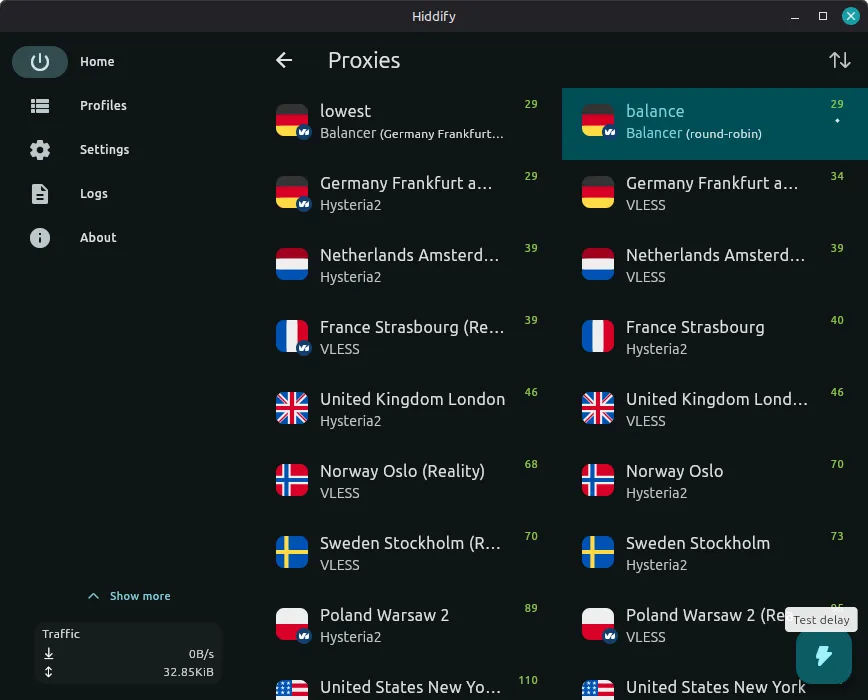
In Hiddify, each location appears once per protocol:
Step-by-step guides: V2Box (iPhone, Mac, Android), Hiddify (Windows, Linux), Hiddify on Android TV and v2rayNG (Android).
6. Last resort: Trojan in a Clash app
Trojan is our oldest stealth option. It’s easier to detect than VLESS Reality and Hysteria2, and a few networks block its port (8443), but it uses a different port and handshake, so now and then it gets through when the others don’t. It’s also the one that works in classic Clash apps.
Your stealth link from step 5 already includes Trojan. To use Clash instead, open Trojan (Clash) in your account, get Clash for your device, and add your profile with Open in Clash, or paste the link by hand.
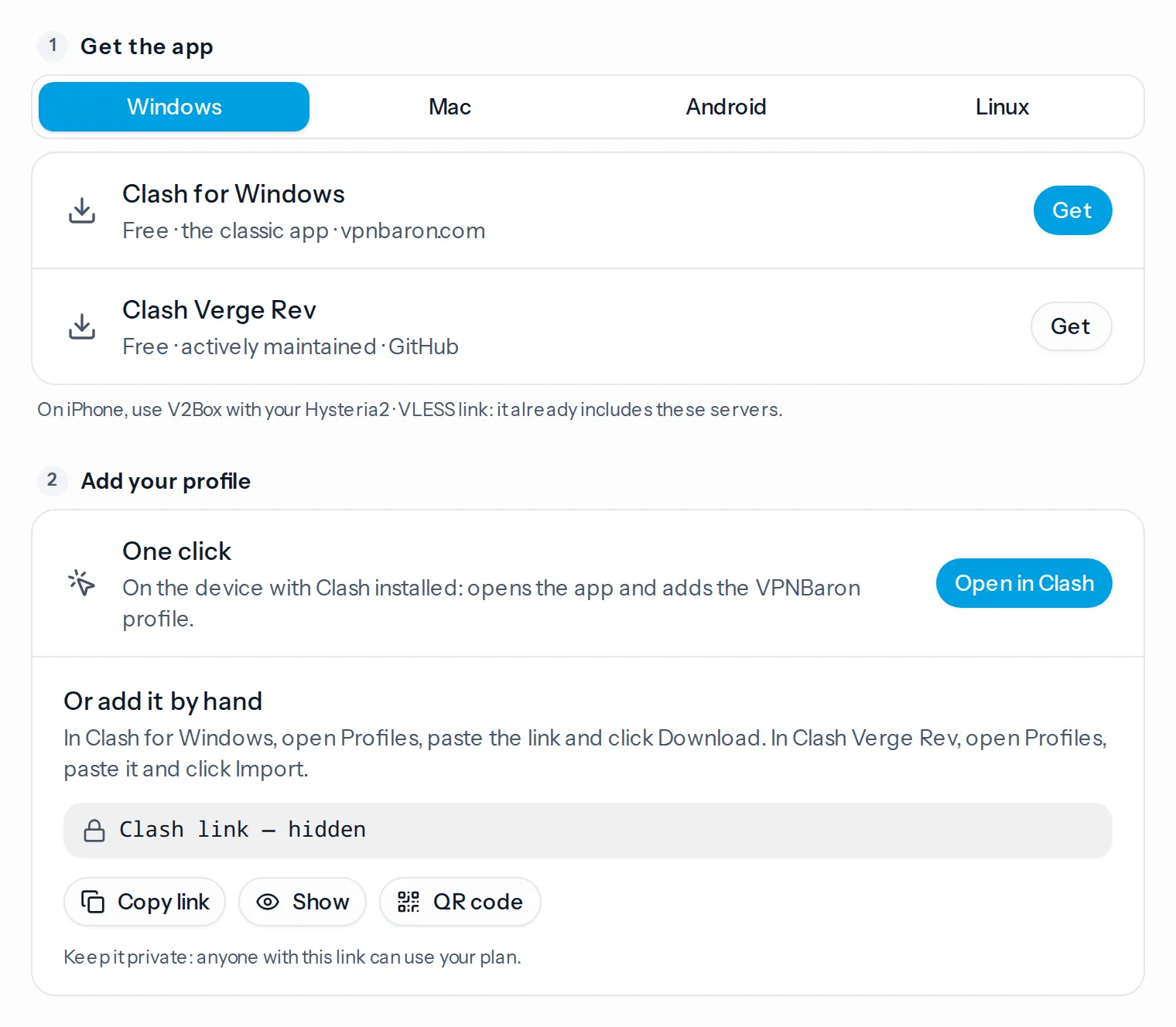
Step-by-step guides: Windows and macOS.
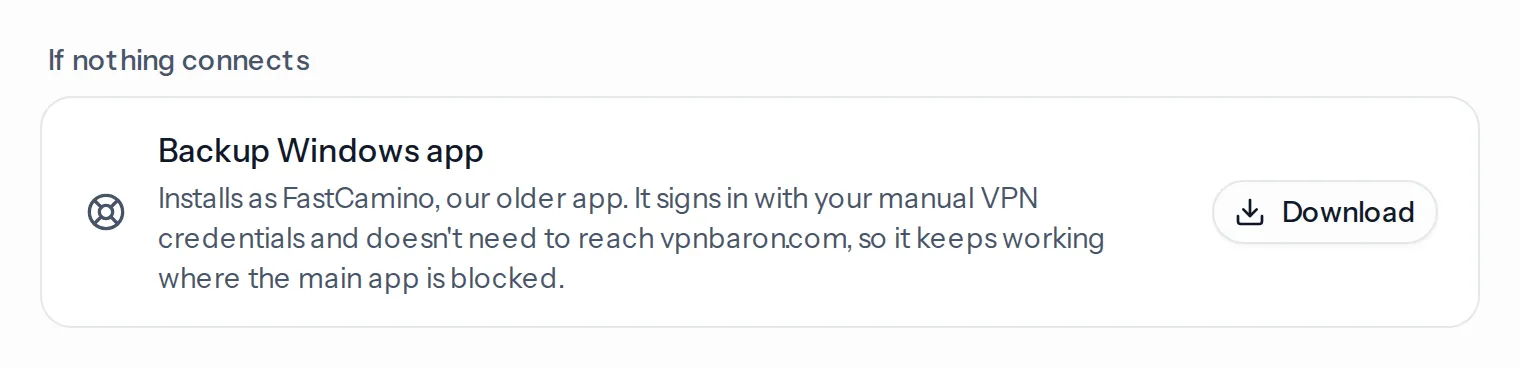
7. On Windows: the backup app
The backup Windows app installs as FastCamino, our older app. It signs in with your manual VPN credentials instead of your account, so it doesn’t need to reach vpnbaron.com at all. Download it from the bottom of the Hysteria2 · VLESS page in your account. Your manual VPN credentials are on the OpenVPN page.
Still can’t connect?
Open a support ticket, or email support@vpnbaron.com if our website doesn’t load. Tell us:
- where you are and which network you’re on (hotel Wi-Fi, office, which mobile carrier),
- your device,
- which steps you tried and what each one did. Screenshots help.
A person reads every ticket, and what you tell us helps us keep these steps working.