

WireGuard on an OpenWrt Router
With WireGuard on your OpenWrt router, every device on your network goes through VPNBaron, including TVs, consoles and other devices that can’t run a VPN app. You add the router as a device on vpnbaron.com, install WireGuard on the router, and import the server’s file in LuCI, OpenWrt’s web page.
The screenshots are from OpenWrt 25.12. Older versions look much the same.
Before you start
- A VPNBaron account with an active plan.
- A router running OpenWrt, and its password (the one for the root user).
- A computer connected to the router, for one command in step 3. The terminal it needs is built into Windows 10 and 11, macOS and Linux.
1. Add the router as a device
Log in at vpnbaron.com and open the WireGuard page. Under Add a device, type a name such as “Router”, and click Add device. The router counts as one of your 5 devices there.

2. Download the file for a server
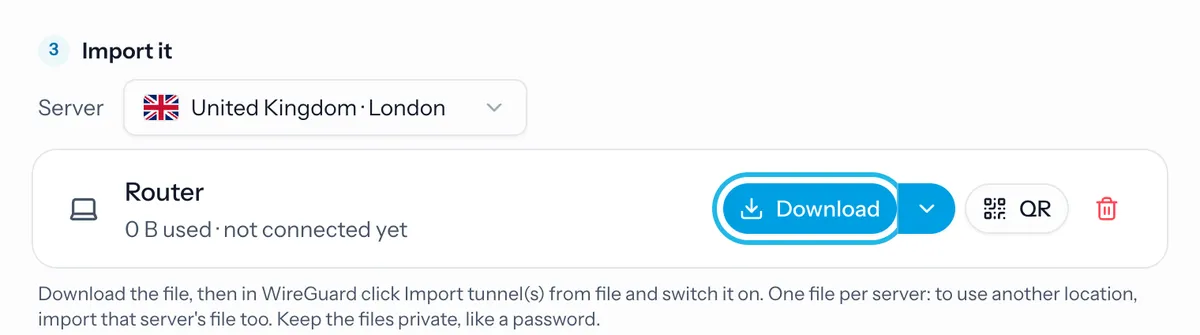
Under Import it, choose a server, then click Download next to Router. The file is named after the device and the server, such as router-london.conf.
3. Install WireGuard on the router
OpenWrt doesn’t include WireGuard until you install it. Open a terminal on your computer: on Windows, right-click Start and choose Terminal; on a Mac, open Terminal from Applications → Utilities. Connect to the router, and enter its password when asked (nothing shows as you type):
ssh root@192.168.1.1If your router has another address, use that instead of 192.168.1.1. Then install WireGuard and restart the router:
apk update && apk add luci-proto-wireguard && rebootOn OpenWrt 24.10 and older, the command is opkg update && opkg install luci-proto-wireguard && reboot. The router restarts, which takes a minute or two.
4. Create the WireGuard interface
Open your router’s page in a browser, usually http://192.168.1.1, and log in. Go to Network → Interfaces and click Add new interface….
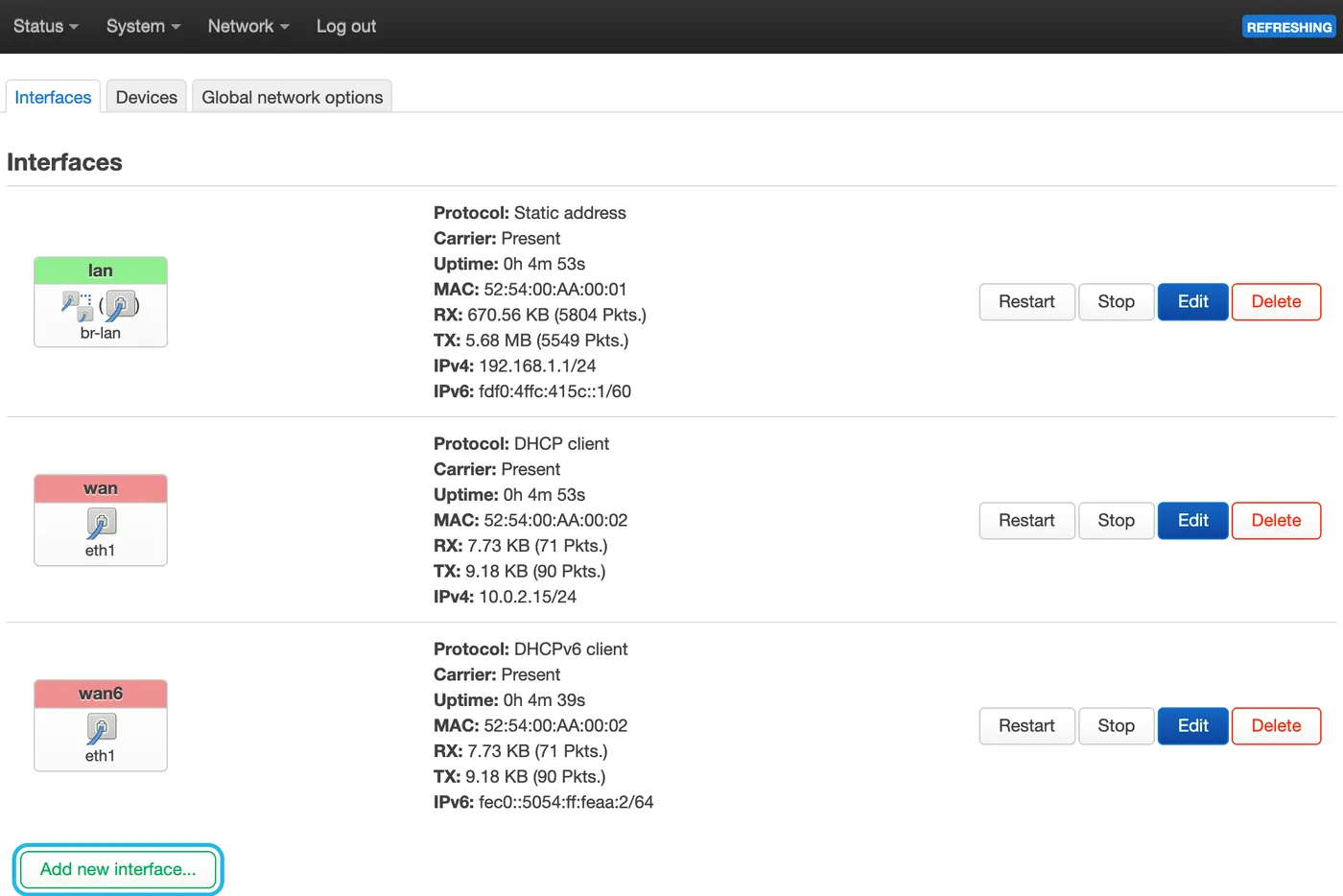
Name it vpnbaron, choose WireGuard VPN as the protocol, and click Create interface.

5. Import the file
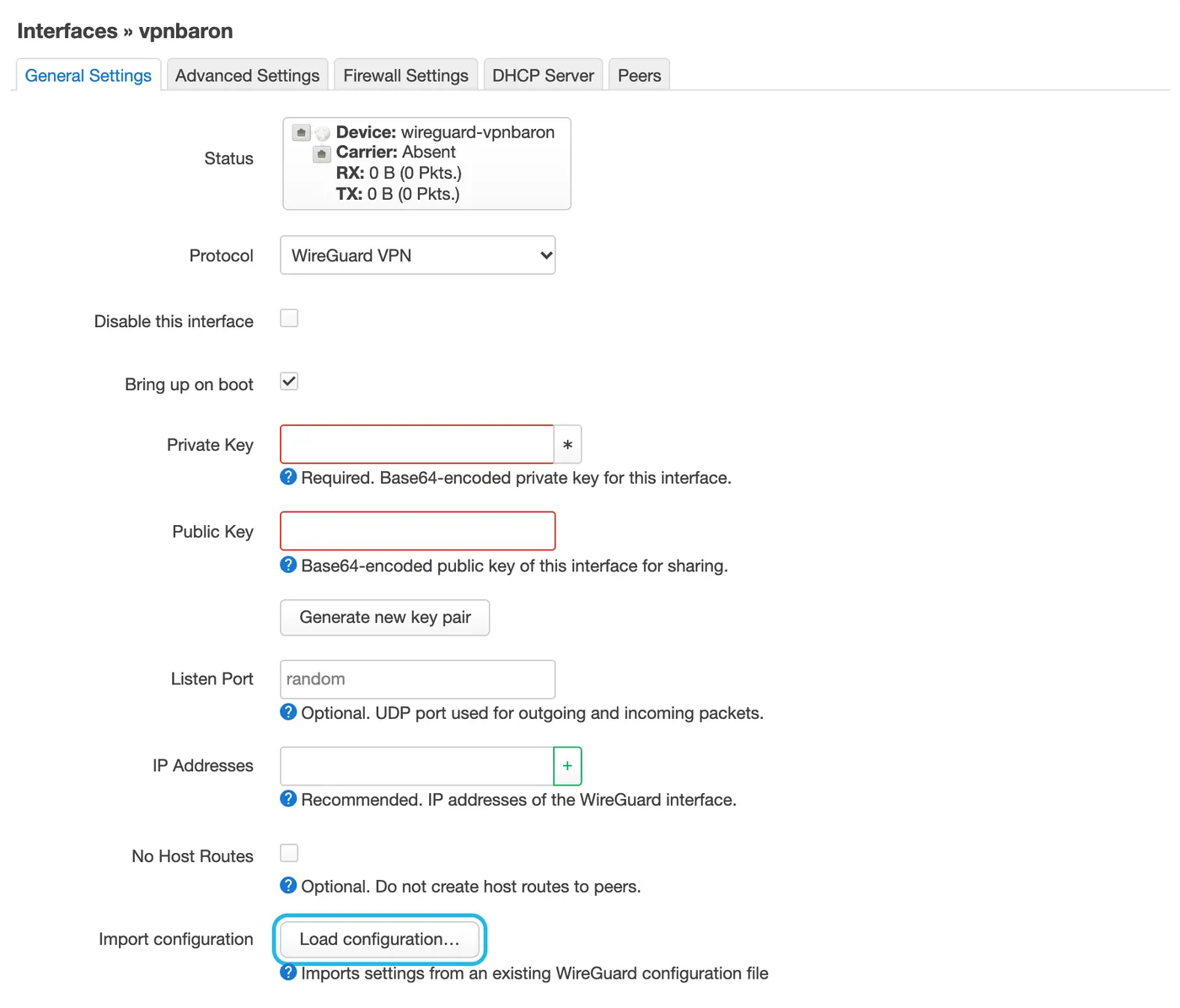
The interface’s settings open. In General Settings, click Load configuration….
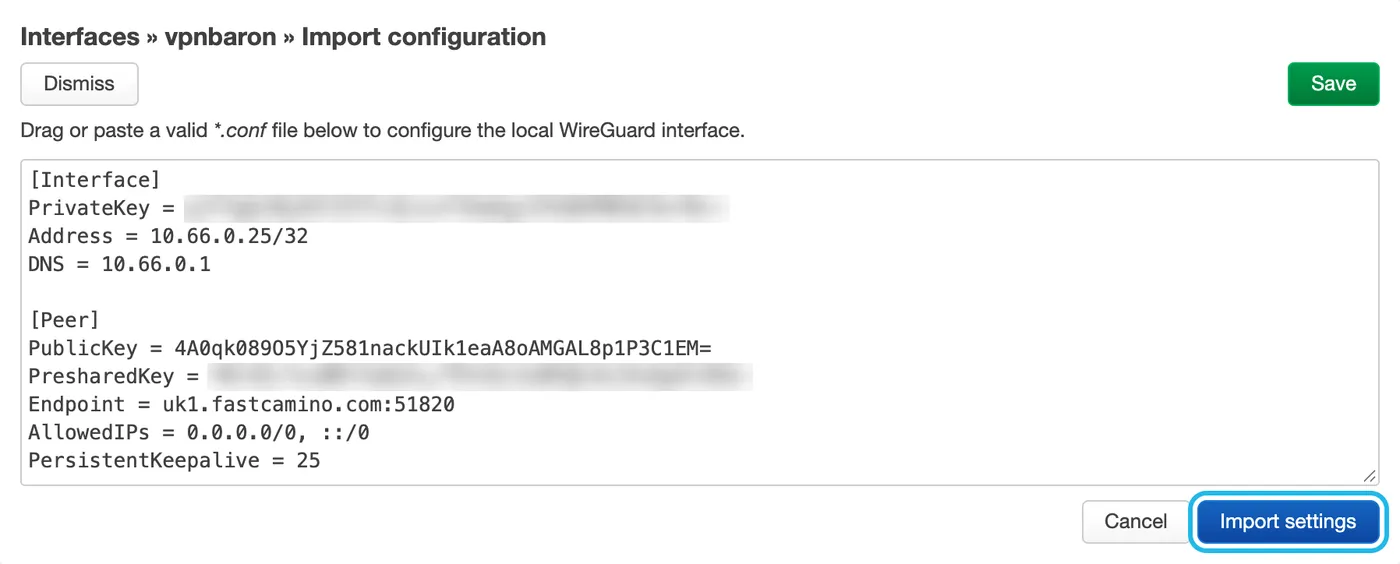
Drag the file you downloaded onto the box, or open it in a text editor and paste all of it. Then click Import settings. LuCI fills in the private key, the tunnel’s address and VPNBaron’s DNS server, and adds the server as a peer.
6. Send your traffic through it
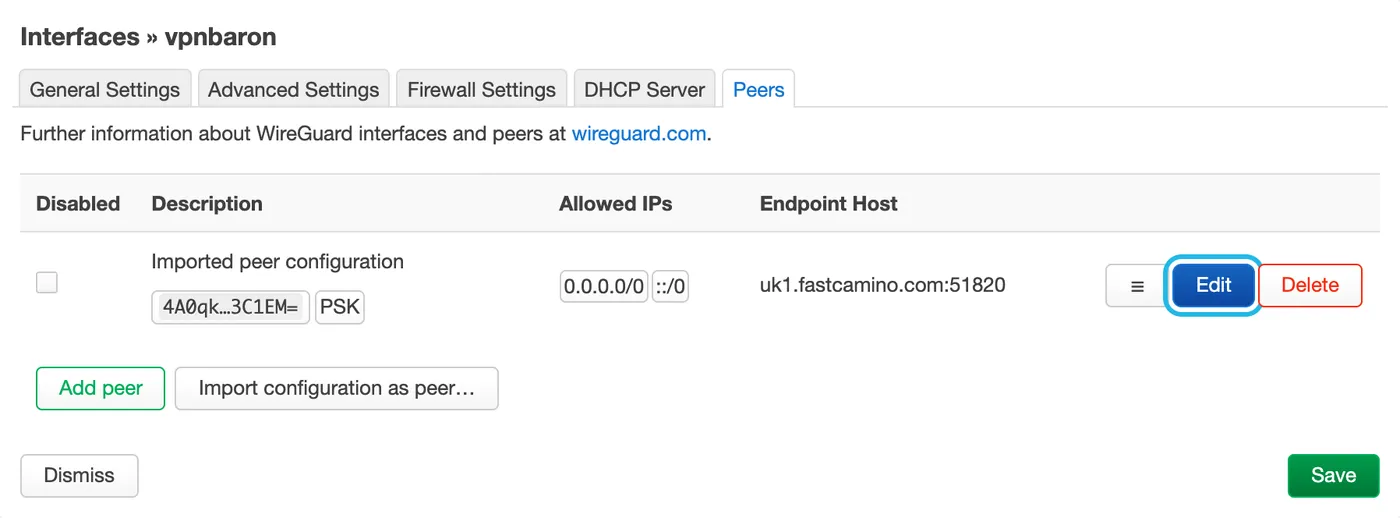
Still in the interface’s settings, open the Peers tab and click Edit next to the imported peer.
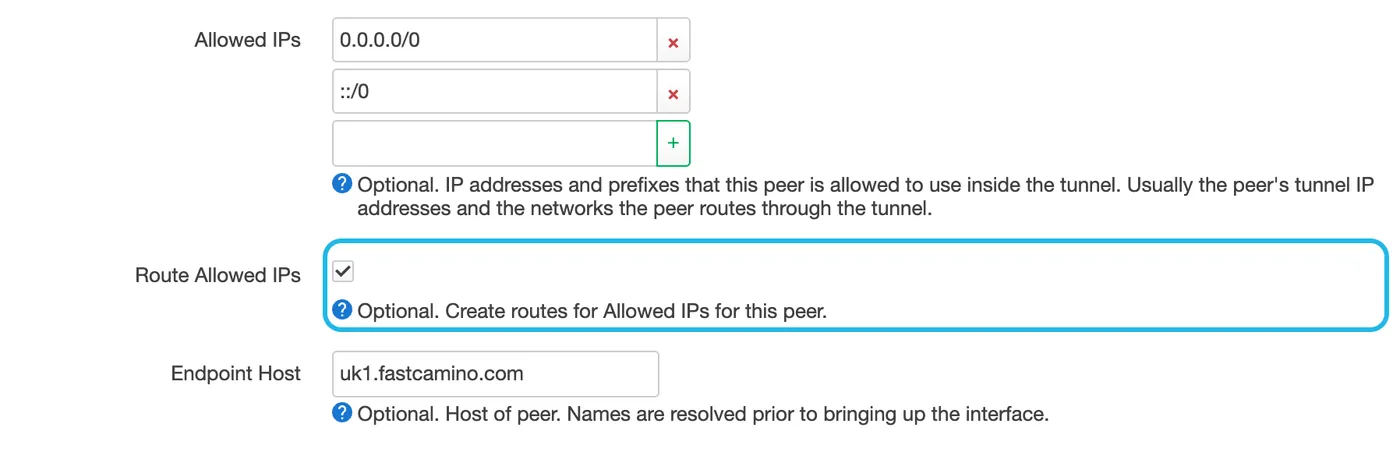
Tick Route Allowed IPs, then click Save. Without it, nothing goes through the tunnel.
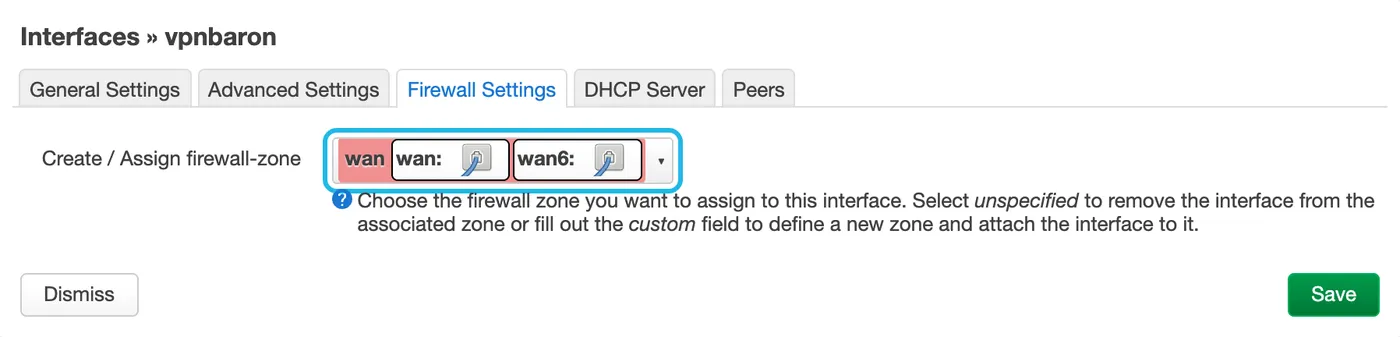
Open the Firewall Settings tab and choose wan. Your router then treats the tunnel like your internet connection, with the same firewall and address sharing (NAT). Click Save.
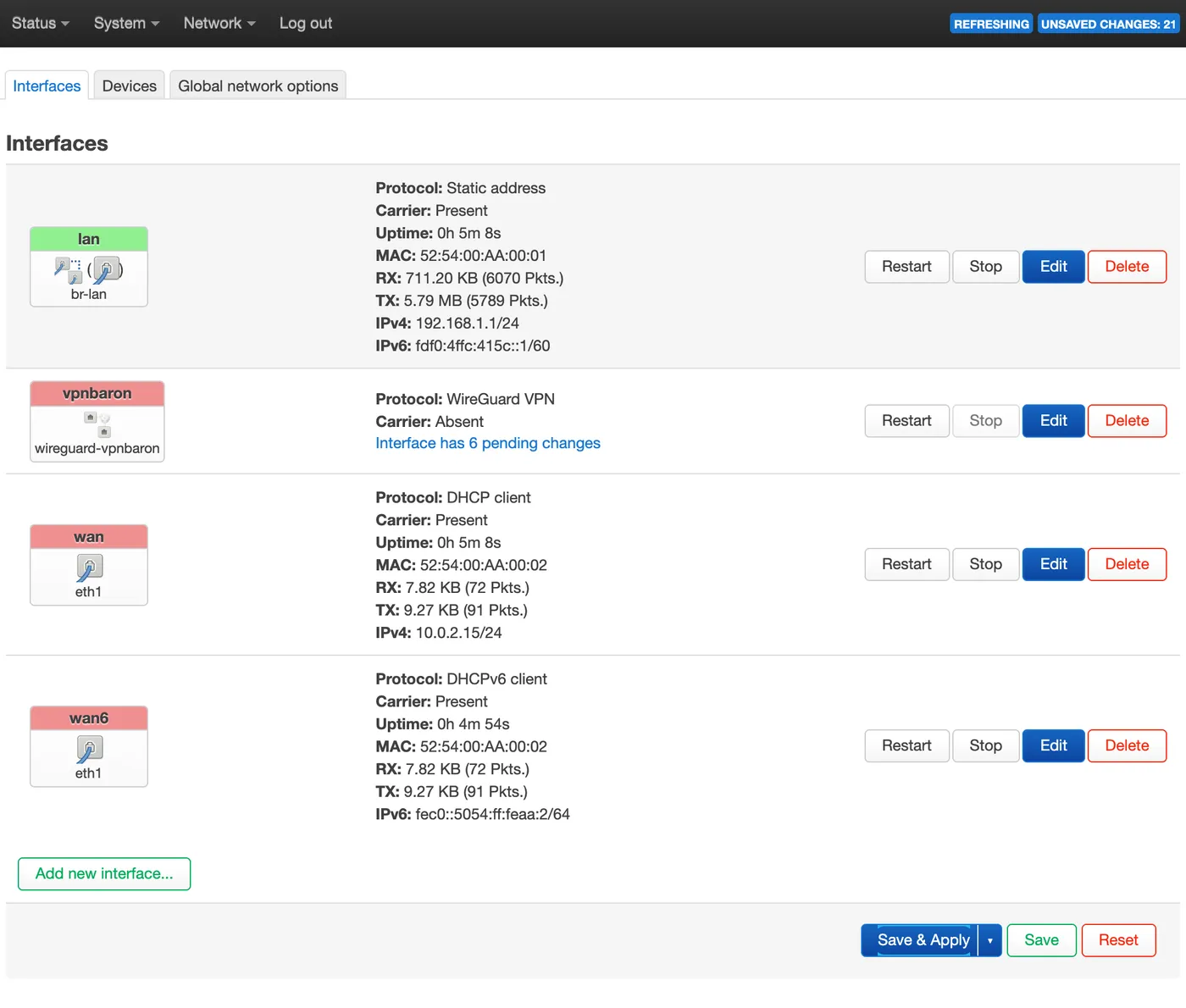
Back on the Interfaces page, click Save & Apply.
7. Check it’s connected
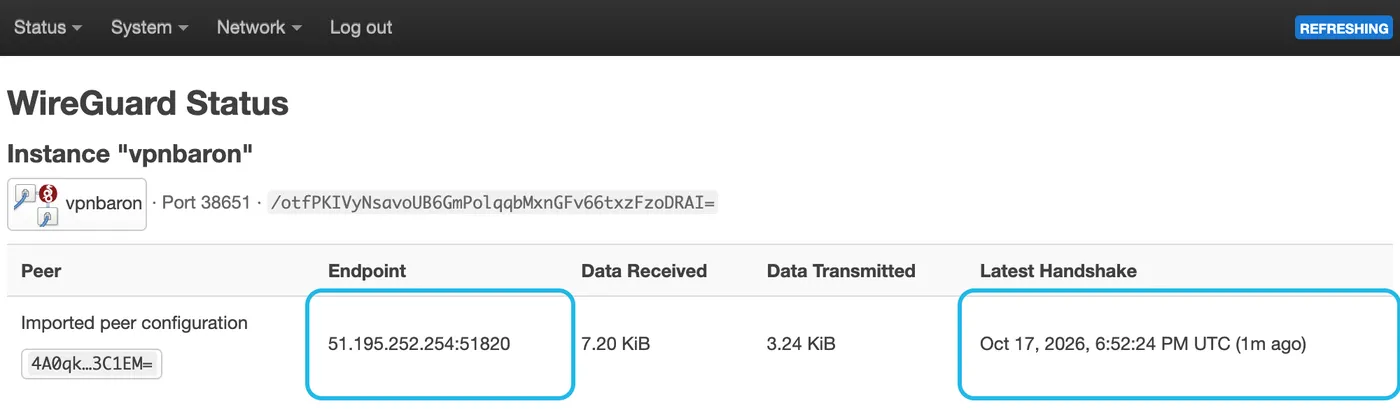
Go to Status → WireGuard. Latest Handshake shows a time a few minutes ago or less, and Endpoint shows the server’s IP address, such as 51.195.252.254:51820. Note that address: you need it in the next step.
8. Reach the server by its IP
Once DNS goes through the tunnel (step 9), the router can’t look up the server’s name before the tunnel is up, for example after a restart. So it uses the IP instead.
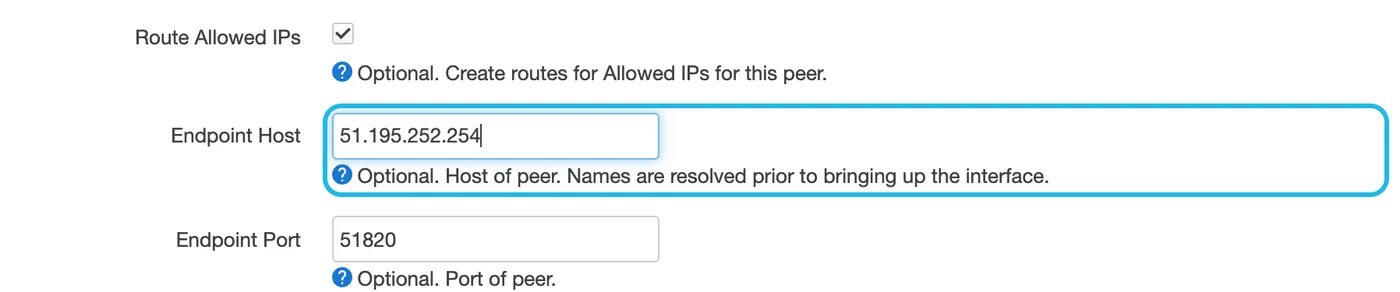
Go to Network → Interfaces, click Edit on vpnbaron, open Peers and click Edit on the peer. In Endpoint Host, replace the server’s name with the IP address from step 7, without the :51820. Click Save, Save again, then Save & Apply.
9. Use VPNBaron’s DNS
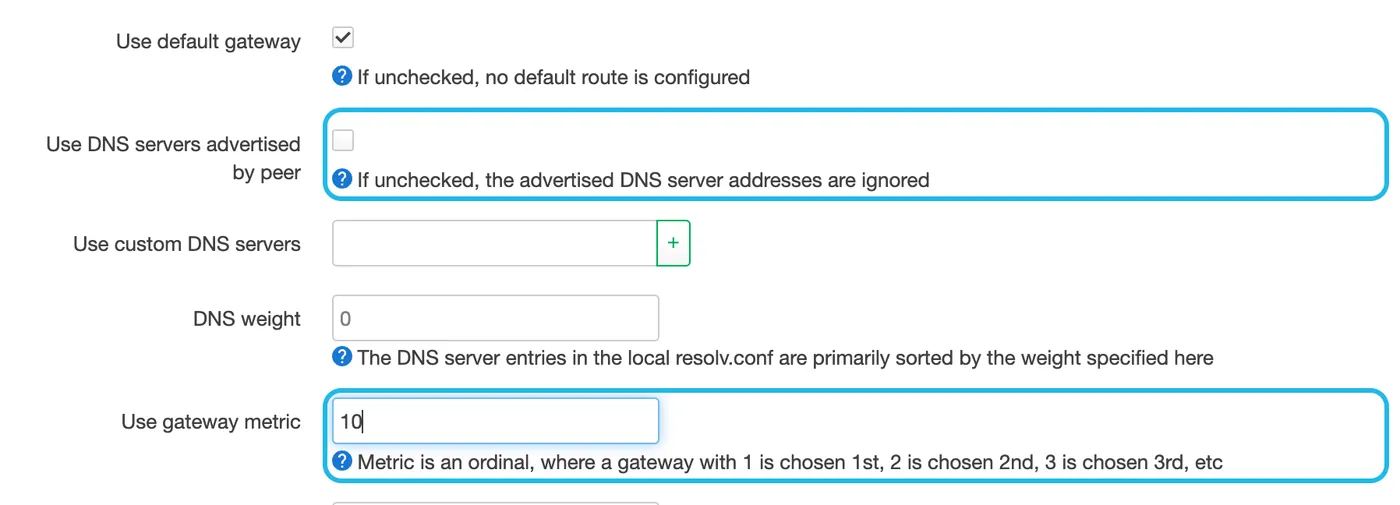
On the Interfaces page, click Edit on wan and open Advanced Settings. Untick Use DNS servers advertised by peer, so your internet provider’s DNS servers aren’t used. In Use gateway metric, type 10: your normal connection stays as the router’s backup route, and the tunnel goes first. Click Save.
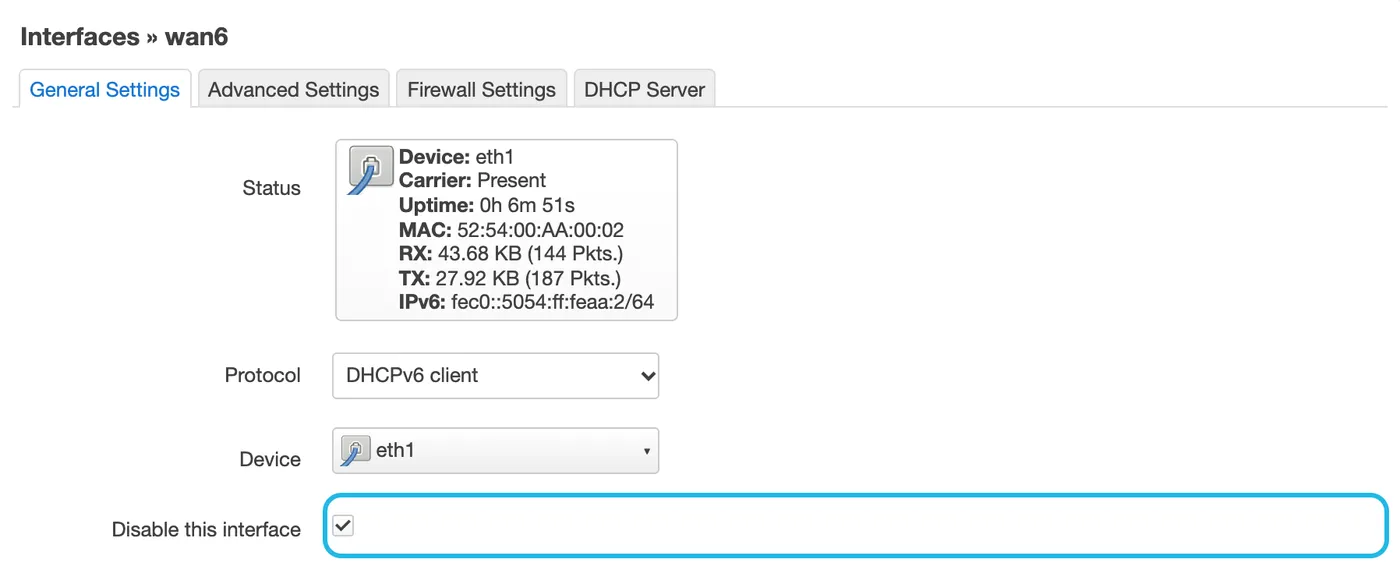
If you have a wan6 interface (IPv6 from your internet provider), click Edit on it and tick Disable this interface, then Save. The tunnel carries IPv4, and with IPv6 on, devices could reach IPv6 websites around it.
Click Save & Apply.
10. Check a device
On a computer or phone connected to the router, open whatismyip.com. It shows the server’s location, not yours.
If the server can’t be reached, devices on your network lose the internet instead of going around VPNBaron, so your real address stays hidden. To use your normal connection again, turn it off.
Another location
Each file is for one server. To move the router to another location, turn it off (below), delete the vpnbaron interface on the Interfaces page, and repeat steps 2 and 4 to 9 with the other server’s file. The Router device on vpnbaron.com stays the same.
Turn it off
- On the Interfaces page, click Edit on vpnbaron and tick Disable this interface. Click Save.
- Click Edit on wan, open Advanced Settings and tick Use DNS servers advertised by peer again. Click Save.
- Click Save & Apply.
To turn it back on, untick both and Save & Apply.
Troubleshooting
Latest Handshake never appears. Check that the Peers tab shows the imported peer. If it’s empty, the import didn’t read the file: repeat step 5. If the peer is there, your network may block WireGuard: try another server, or use the VPNBaron apps on your devices instead, which find a protocol that works on your network.
The handshake is fine, but devices have no internet. Check that Route Allowed IPs is ticked on the peer (step 6) and that the interface’s firewall zone is wan.
Websites don’t open, but IP addresses do. That’s DNS. Check that the vpnbaron interface’s Advanced Settings list 10.66.0.1 under Use custom DNS servers. The import adds it.
It works until the router restarts. The peer’s Endpoint Host still has the server’s name: replace it with the IP (step 8).
It stopped working. If you removed the Router device on vpnbaron.com, its files stop working right away. A plan that has ended also stops them. Add the device again, turn it off, and set it up again with a new file.
“You’re using all 5 devices”. Each account can add up to 5 devices on the WireGuard page. Remove one you no longer use (the bin icon next to it), then add the router. The VPNBaron apps don’t count toward this.
Still stuck? Open a support ticket with your router model, its OpenWrt version, and a screenshot of Status → WireGuard.