

Hiddify Not Working or Not Connecting? Fixes for Common Errors
This page covers the Hiddify problems we see most often, with the exact messages Hiddify shows. It’s written for Hiddify 4 with a VPNBaron Stealth subscription. The screenshots are from Android TV, and the same messages appear in Hiddify on Android phones. On Windows and Linux a few menus differ; our desktop guide covers those.
”Unexpected failure: startService - starting background core”
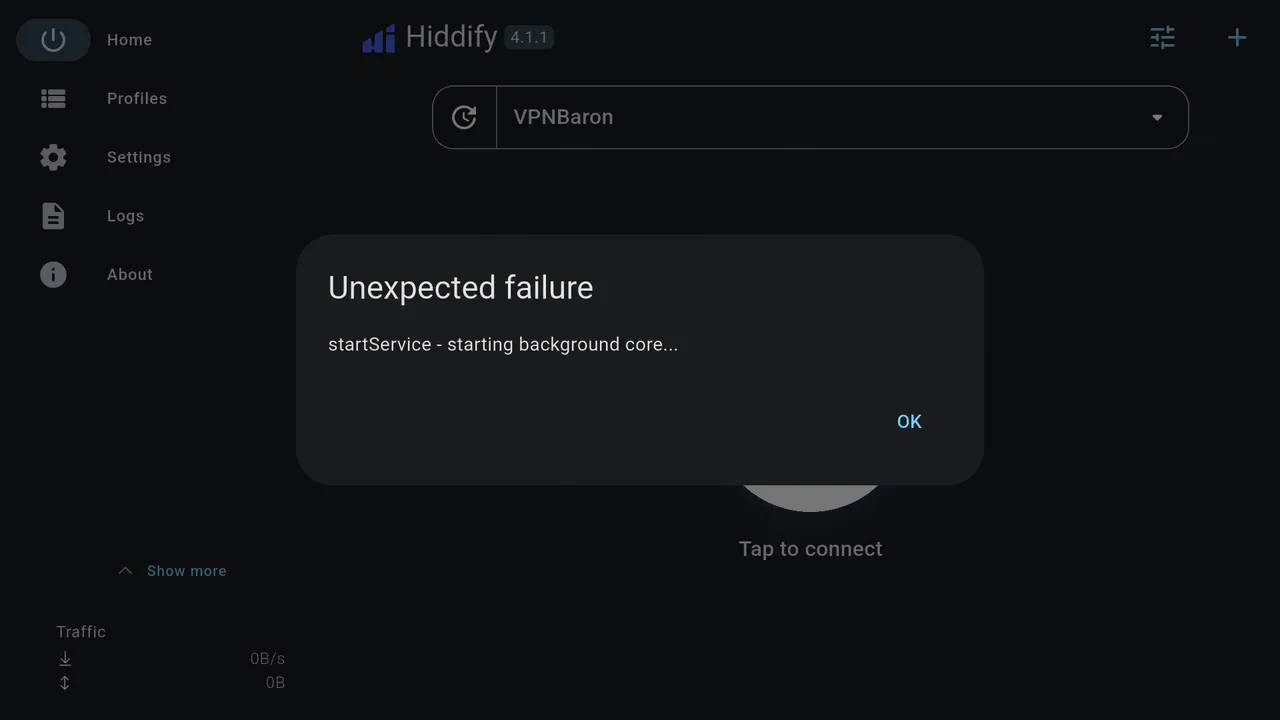
Hiddify’s connection engine didn’t start. Try these in order:
- Check the device’s date and time. Set them to automatic (on Android TV: Settings > System > Date & time). Stealth connections can fail when the device’s clock is wrong.
- Close Hiddify completely and open it again, then connect.
- Update your profile: select the refresh icon to the left of the profile name.
- If it keeps happening, uninstall Hiddify, install it again, and add your link again.
”Failed to add profile: Bad response … status code of 401”
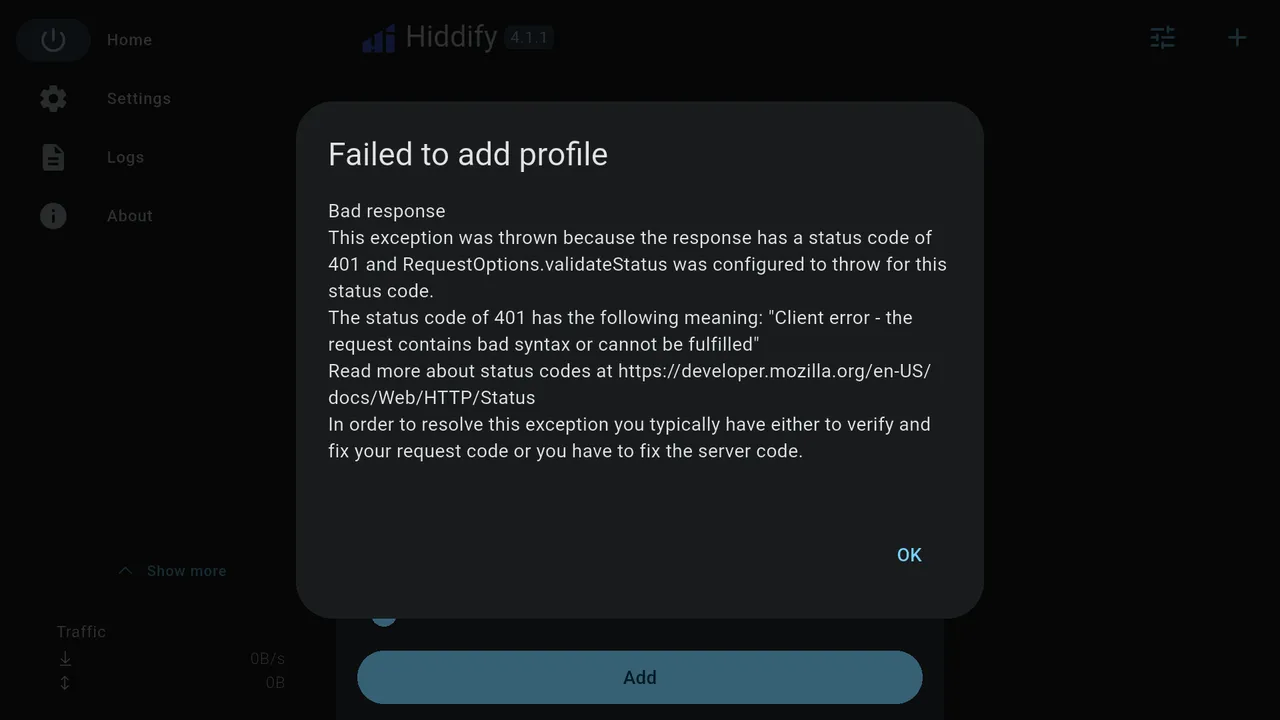
The server didn’t accept the link. Usually part of it is missing or mistyped.
Copy a fresh link from Stealth Mode in your VPNBaron account and add it again, making sure you include the whole link. If it still fails, check that your plan is active.
”Failed to add profile: Unexpected error, unable to determine config format”
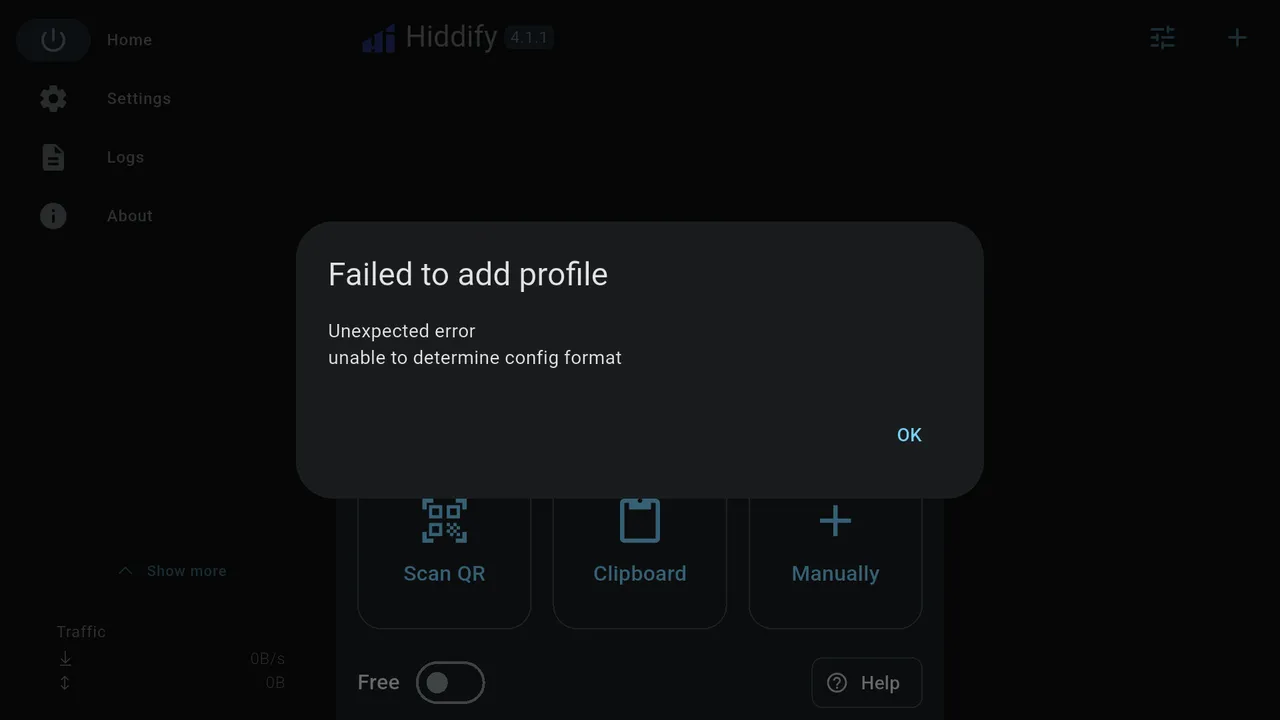
What Hiddify received isn’t a subscription link. This usually happens when you choose Clipboard but nothing (or only part of the link) is copied on that device.
Choose + > Manually instead, and paste or type your complete link into URL. On a TV, a link copied on your phone isn’t on the TV’s clipboard; use the Google TV phone app’s keyboard to type it into the TV.
Scan QR asks for the camera, or does nothing on a TV
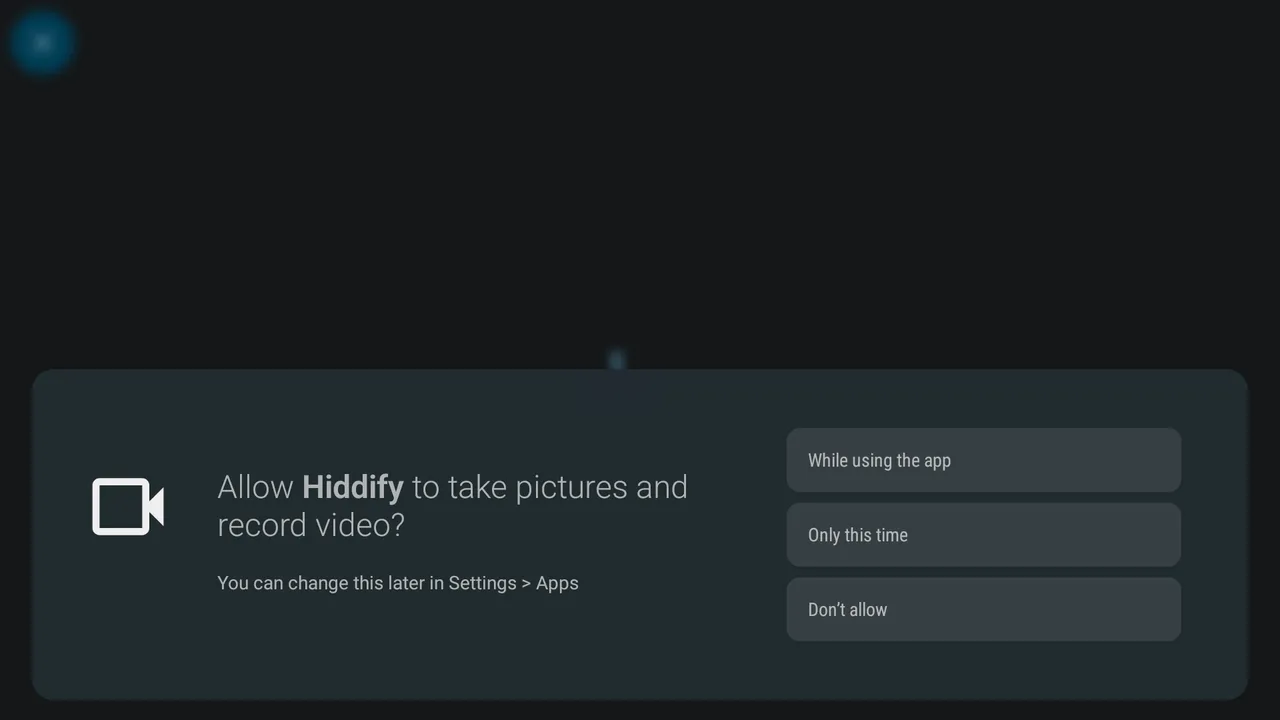
Scan QR needs a camera to read the QR code from your account page. Most TVs don’t have one, so on a TV use + > Manually and enter the link instead.
Hiddify keeps changing my IP address
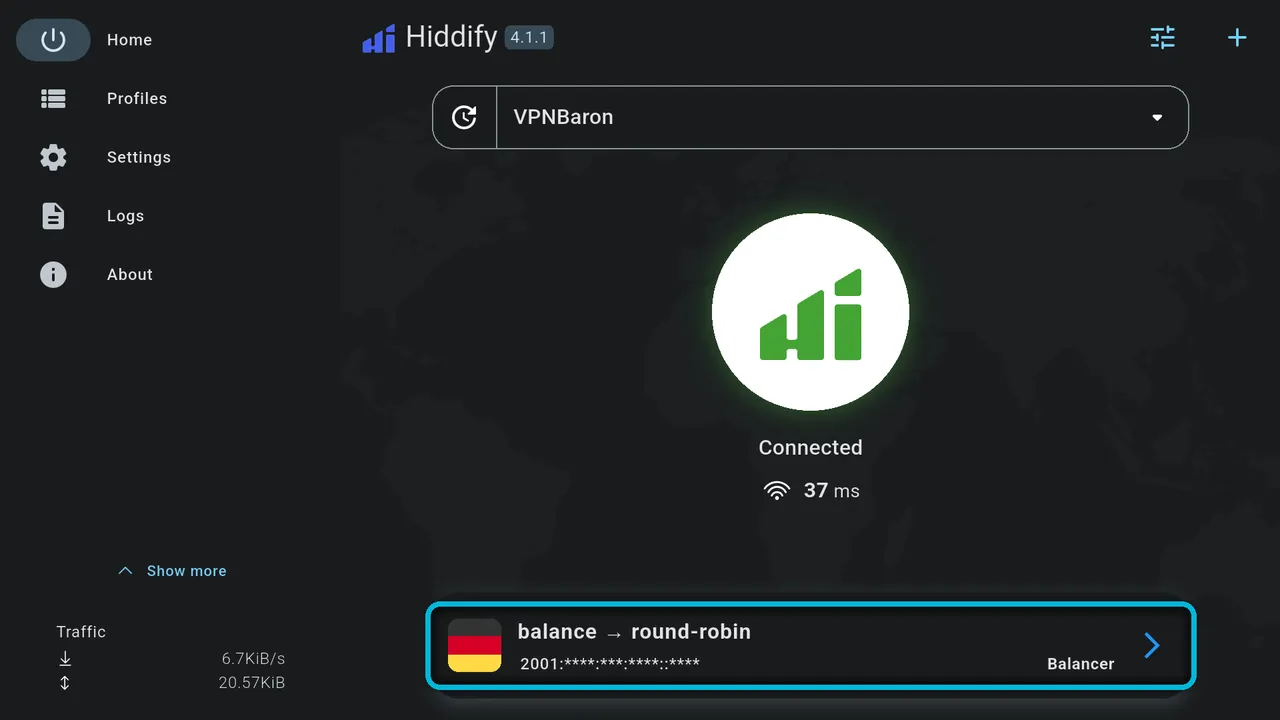
When the server card at the bottom says balance and round-robin, Hiddify is spreading your connections over every server in your subscription. Each site or app can see a different country. Streaming services and banks often react badly to that.
Select the server card and choose one location. Unless your service needs a particular country, pick one near you.
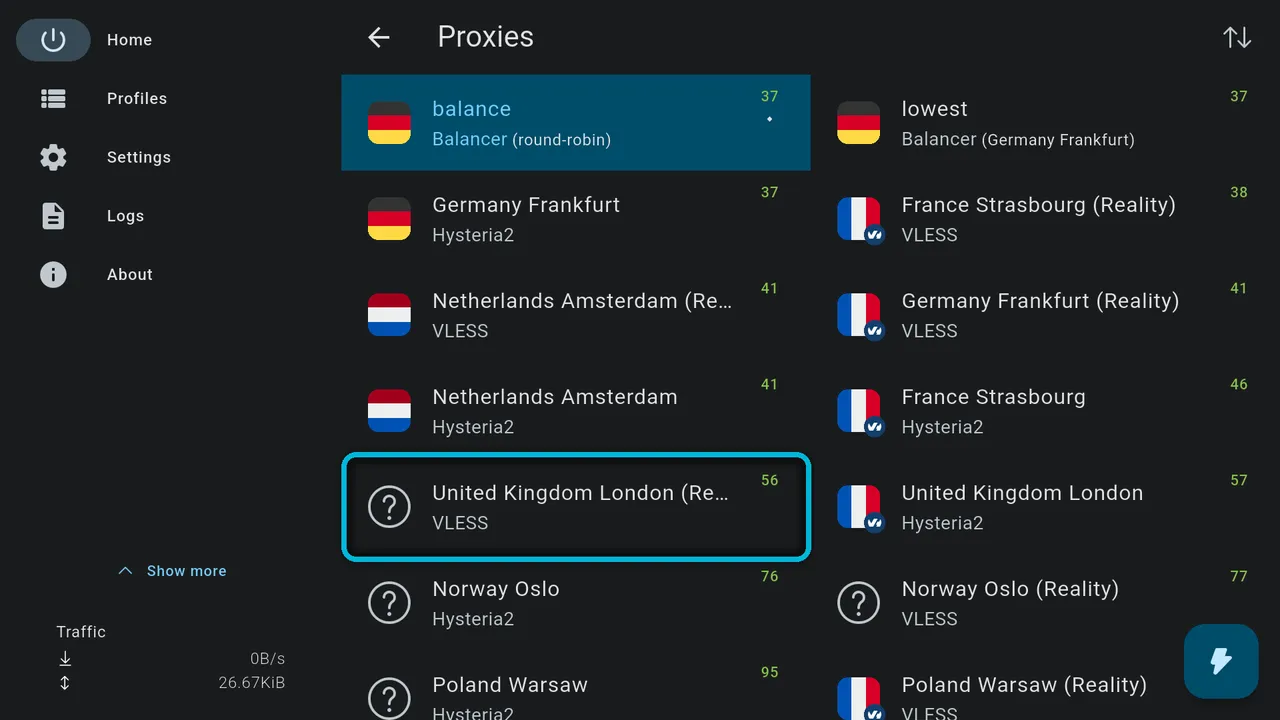
Your choice is kept when you reconnect.
Hiddify is connected but my IP didn’t change
On Android and Android TV, start with Quick settings (the sliders icon next to +). VPN must be selected, not Proxy: in Proxy mode, only apps that support proxies go through Hiddify. (On Windows and Linux, the default system-proxy mode is fine; see the desktop guide.)
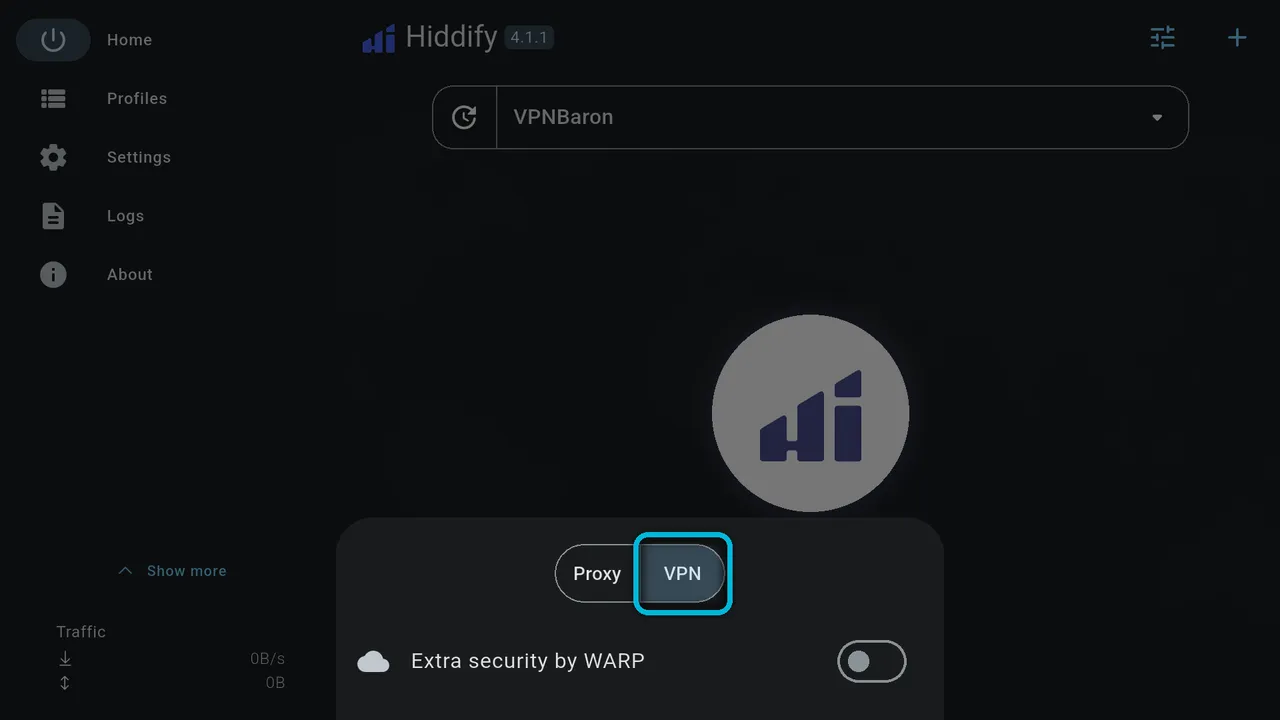
If VPN is already selected, open Settings > Routing:
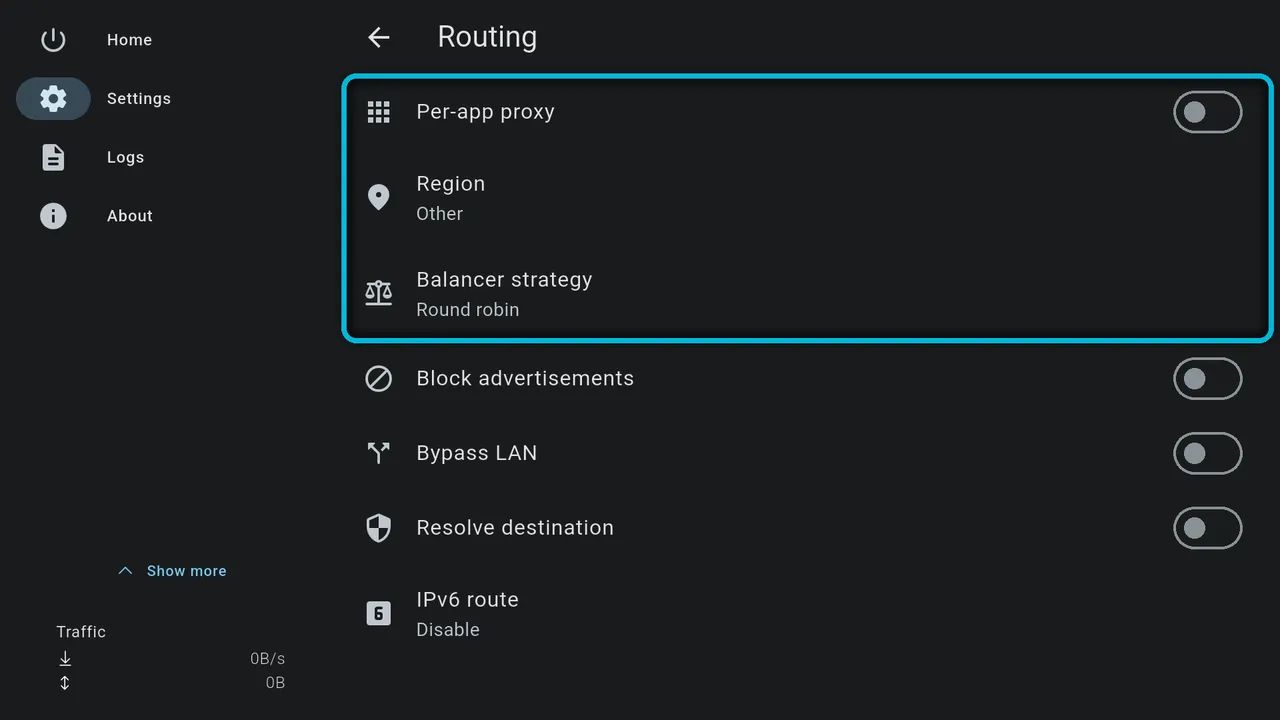
- Per-app proxy: if it’s on, only the apps you chose (or all apps except the ones you excluded) use the VPN. Turn it off, or add the app you’re using to the included apps (or remove it from the excluded ones).
- Region: choosing a country (Iran, China, Russia, Afghanistan, Indonesia or Türkiye) sends that country’s own websites outside the VPN, so a site based there still sees your real address. Choose Reset to go back to Other if you want everything through the VPN.
Then disconnect, connect again, and check once more. Check with the app or browser on the same device; a phone and a TV have separate connections.
Hiddify says Connected, but nothing loads
- If the server you chose is marked Hysteria2, pick the same city’s (Reality) entry instead. Hysteria2 runs over UDP, which some networks block; VLESS Reality uses TCP port 443, like ordinary secure websites.
- Update your profile (the refresh icon to the left of the profile name), then connect again.
- Try another nearby location.
- Check that Extra security by WARP is off in Quick settings.
- Check the date and time, as above.
The TV remote can’t reach a button
On some screens, Hiddify doesn’t respond well to a remote’s arrow keys; the + and connect buttons are the usual trouble spots. Plug a USB or Bluetooth mouse into the TV or box, or use the Google TV app on your phone.
Still not working?
Contact VPNBaron support with a photo or screenshot of the message, the device you’re using, and the location you chose. Hide your subscription link. We’ll take it from there.
Related guides
- Hiddify on Windows and Linux and on Android TV.
- v2rayNG on Android, another app that uses the same link.
- Hysteria2 vs VLESS Reality.