

VPNBaron on Apple TV
The VPNBaron app runs on Apple TV. Once connected, every app on the Apple TV goes through the VPN, including streaming and IPTV apps.
Before you start
- An Apple TV with tvOS 26 or newer. To check, open Settings > General > About on the TV. To update, go to Settings > System > Software Updates.
- A VPNBaron account. The Apple TV app doesn’t create accounts: if you’re new, create one on vpnbaron.com or in the VPNBaron app for iPhone first.
- A plan. One you already have works on the TV. If you don’t have one, you can subscribe in the Apple TV app with your Apple Account, or choose a plan on vpnbaron.com.
- Access to your email on another device, for the sign-in code.
1. Install the app
On the Apple TV, open the App Store, search for VPNBaron and install it. Then open VPNBaron. (VPNBaron on the App Store)
2. Sign in with your email
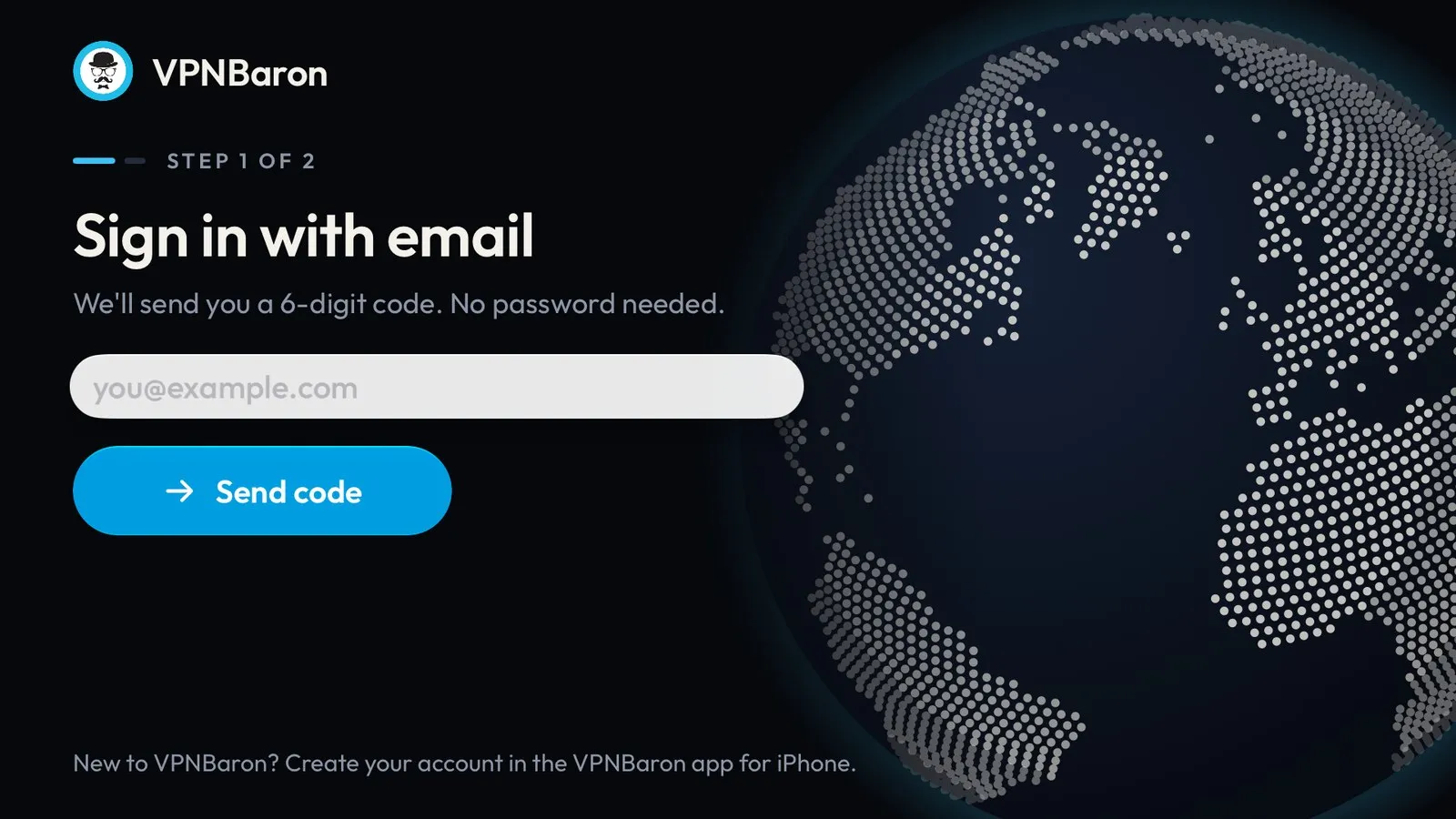
Select the email box, enter the email address of your VPNBaron account and select Send code. There’s no password.
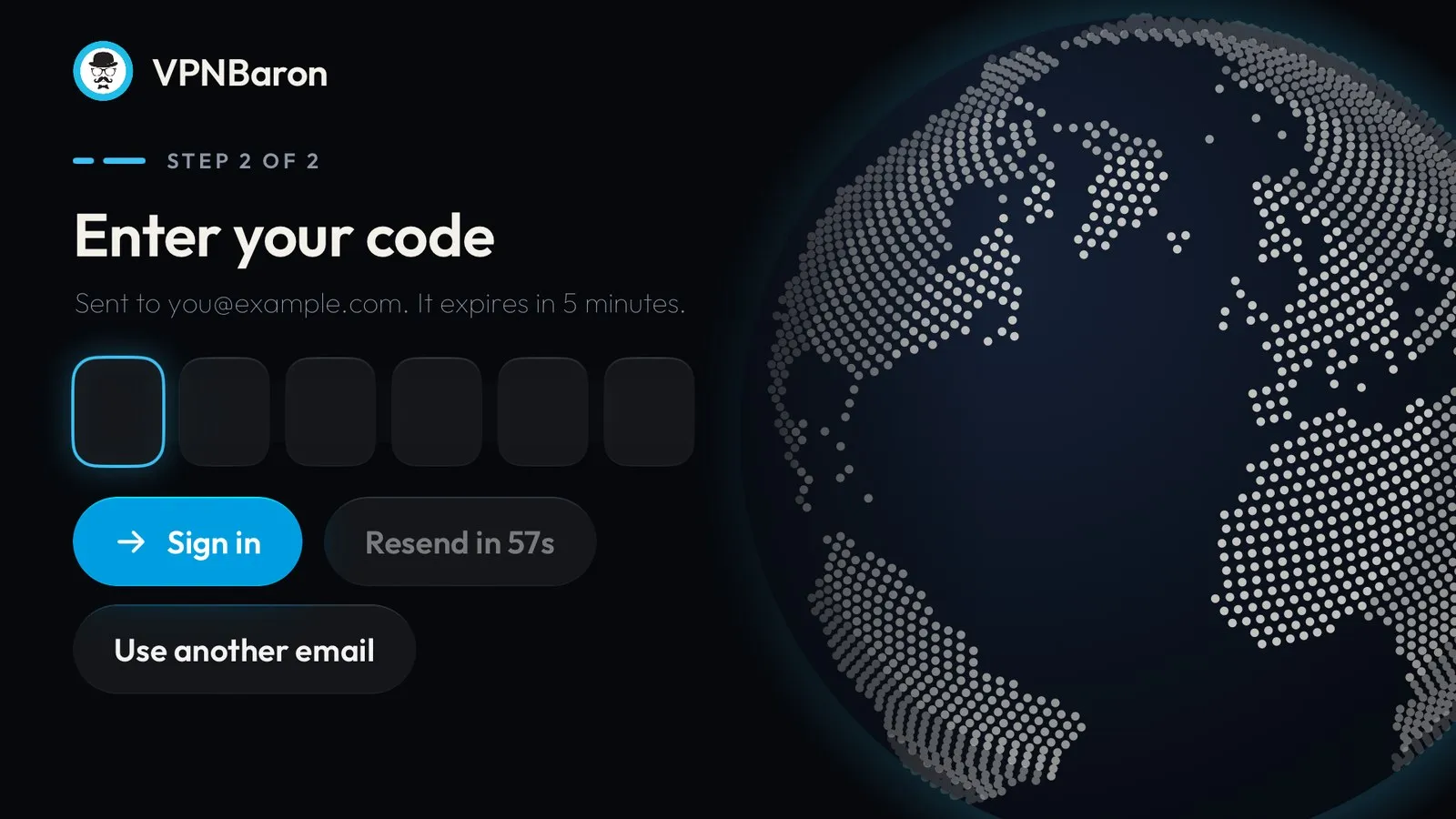
Check your email for a 6-digit code and enter it with the remote. You’re signed in as soon as the last digit is in. The code expires after 5 minutes; if it does, select Resend. Select Use another email to start over.
If your account doesn’t have a plan yet, the plans open next. Choose one to subscribe with your Apple Account.
3. Choose a location
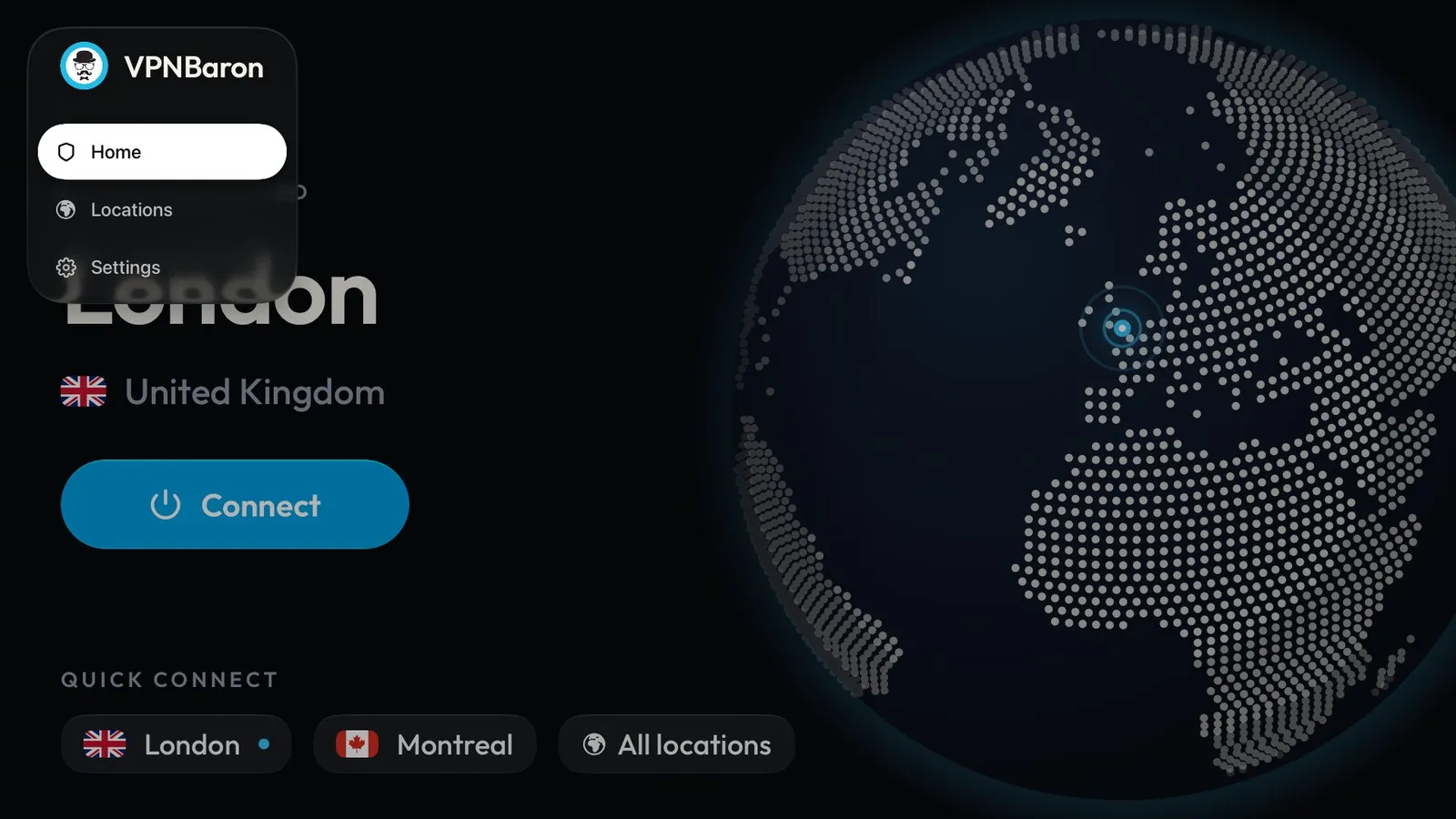
Press left on the remote to open the menu, and select Locations.
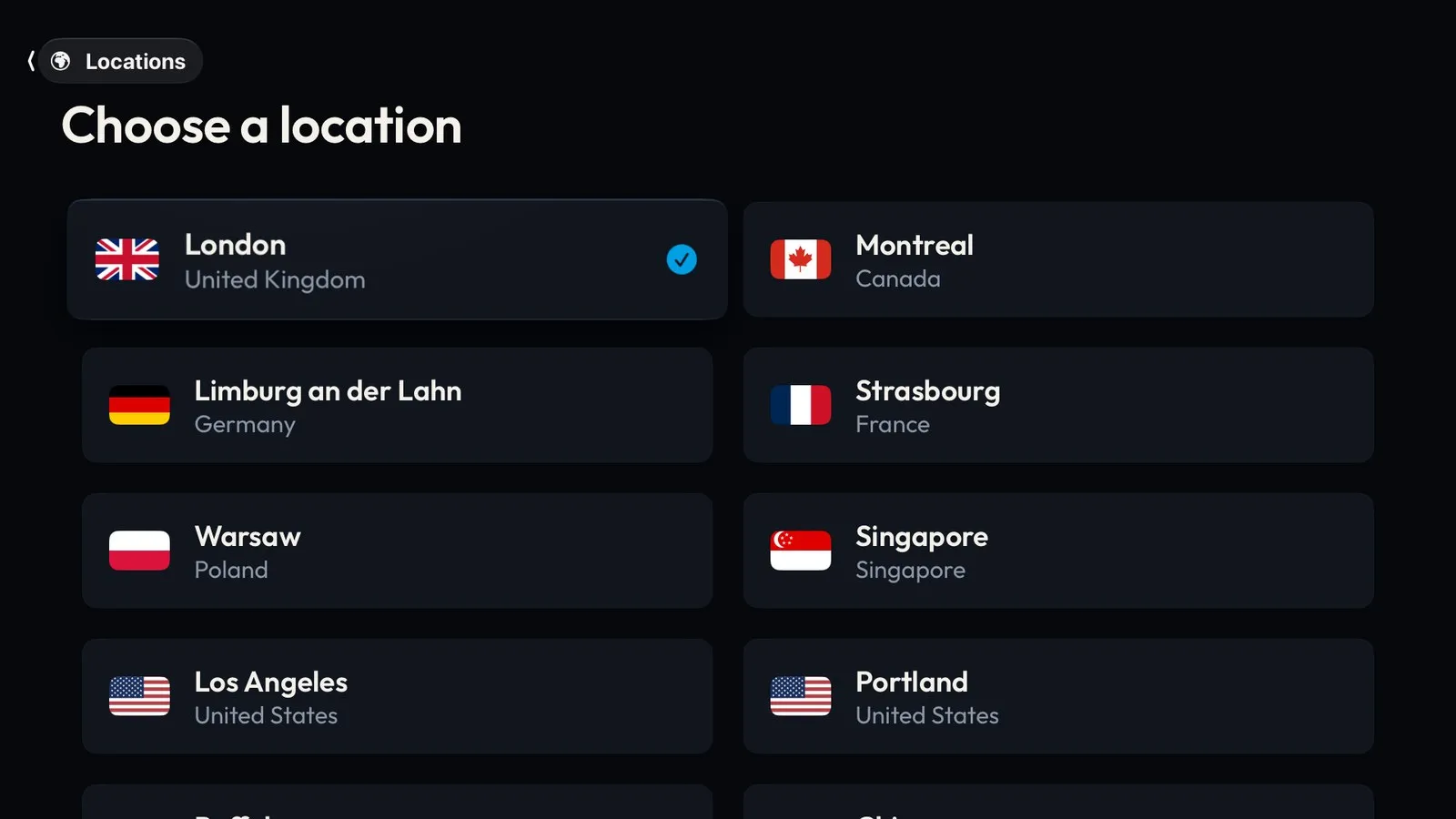
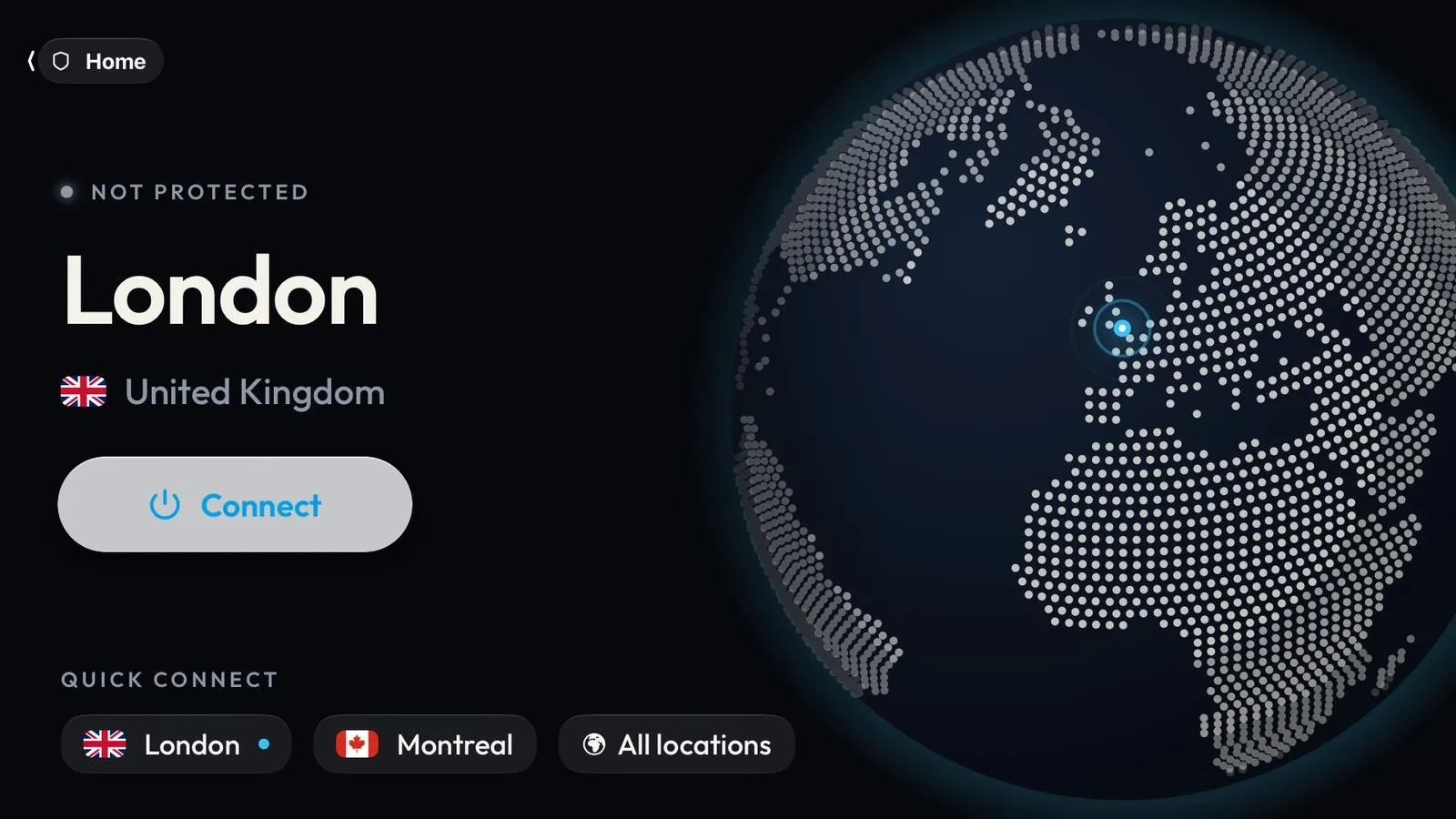
Choose a location. Pick one near you for the best speed, or the country your streaming service needs. You go back to Home.
4. Connect
Select Connect.
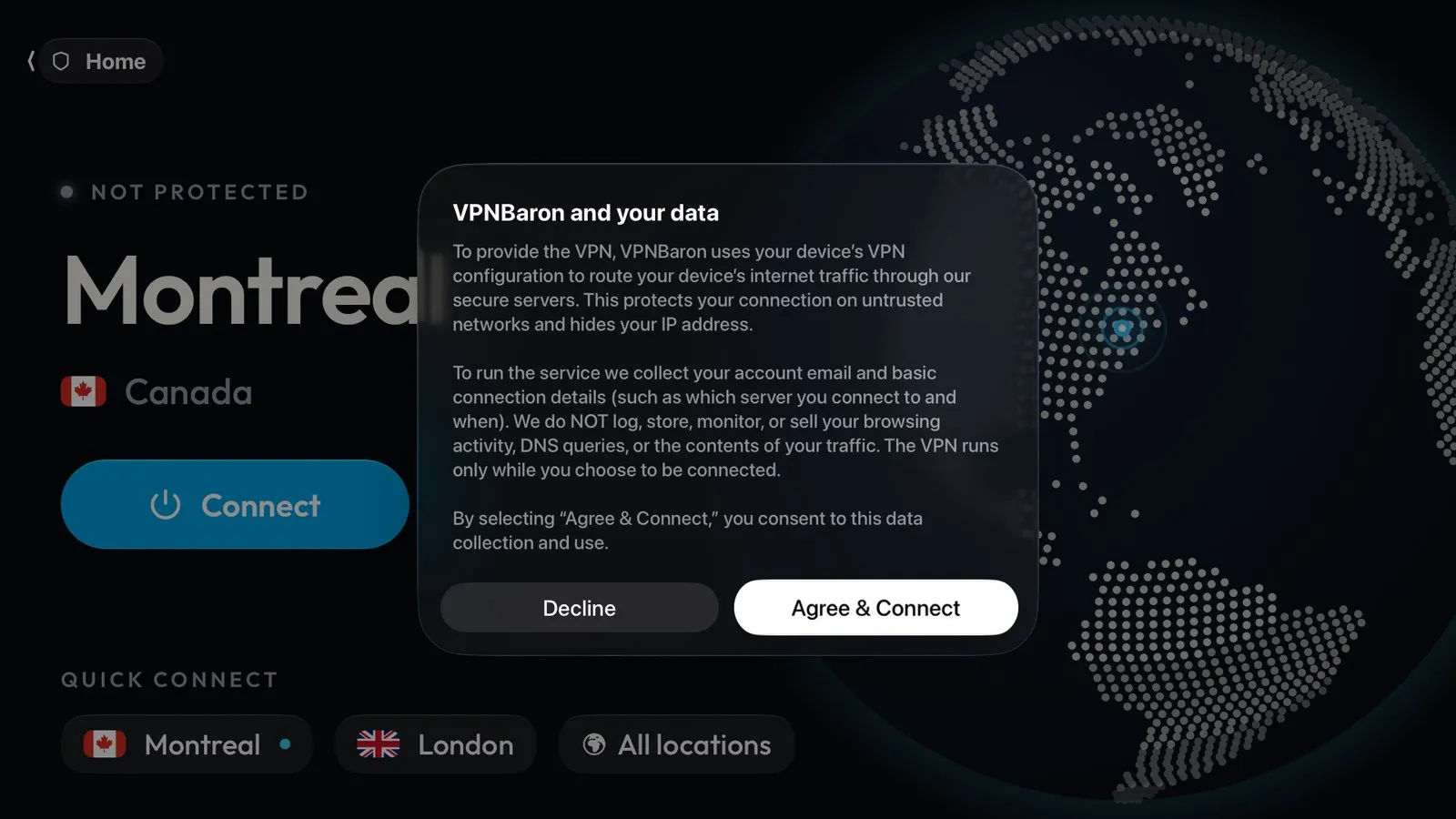
The first time, VPNBaron explains what data it needs to run the VPN. Select Agree & Connect. If Apple TV then asks to allow VPNBaron to add a VPN configuration, select Allow. You only see these the first time.
5. You’re protected
Home shows PROTECTED and your location, with “Your IP address is hidden” and the protocol underneath. Leave VPNBaron connected and open your streaming app.
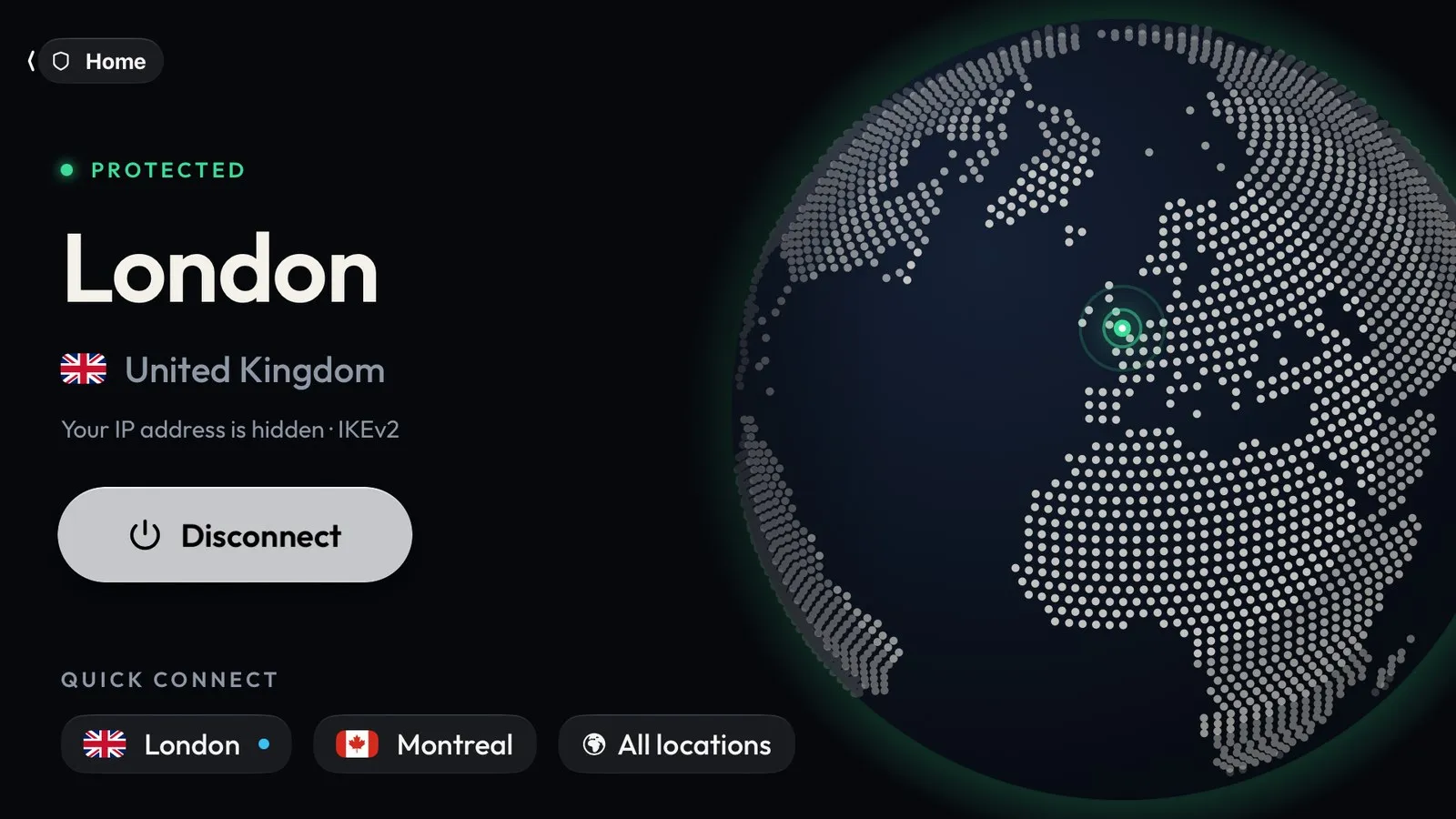
To disconnect, open VPNBaron and select Disconnect.
Quick Connect
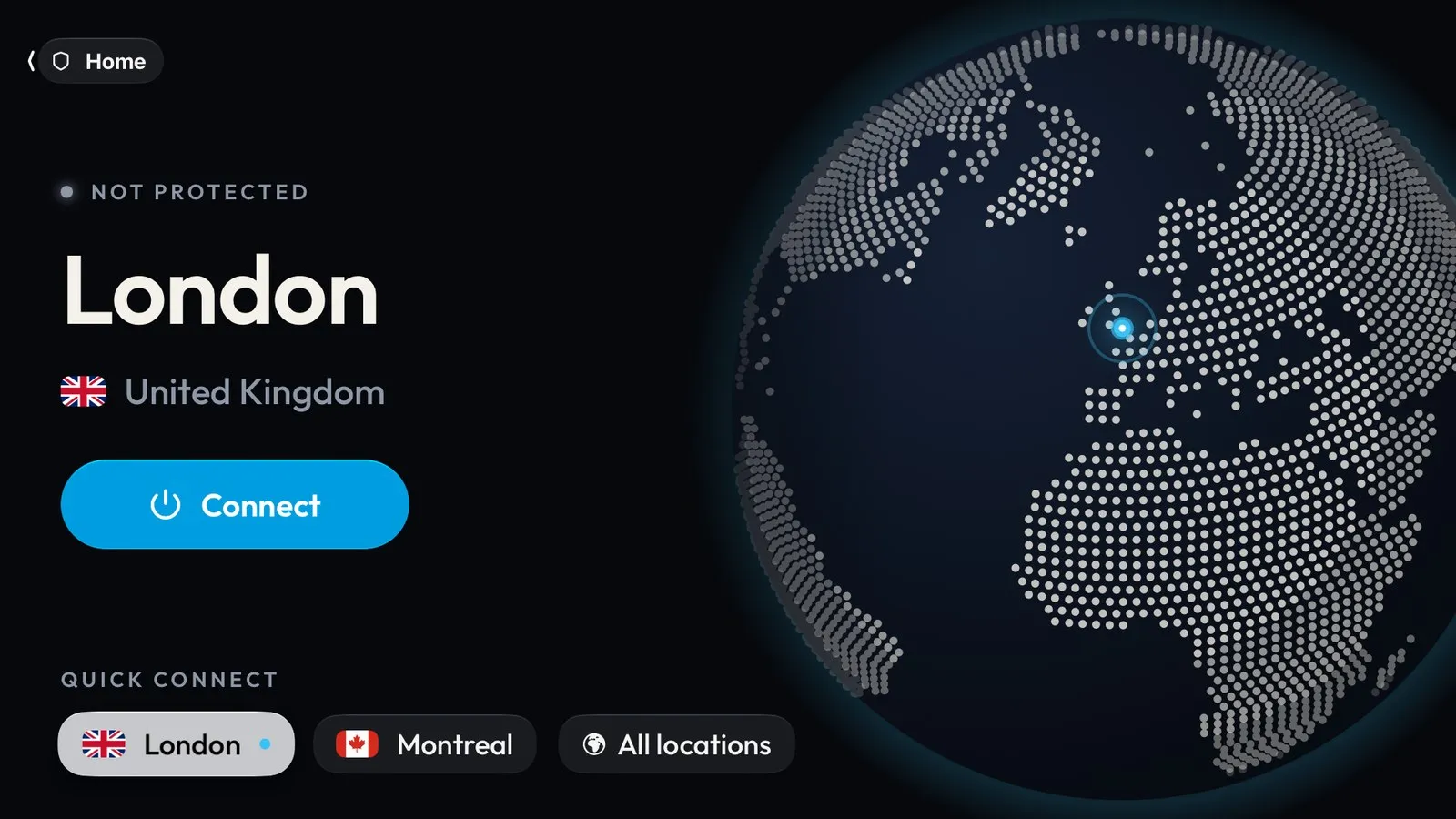
Below Connect, Quick Connect keeps your recent locations and All locations. Press down to reach them and select one. If you’re connected, VPNBaron moves the connection there; if not, select Connect.
Settings
Settings shows the protocol and your account and plan. Select See plans to change your plan, or Sign out.
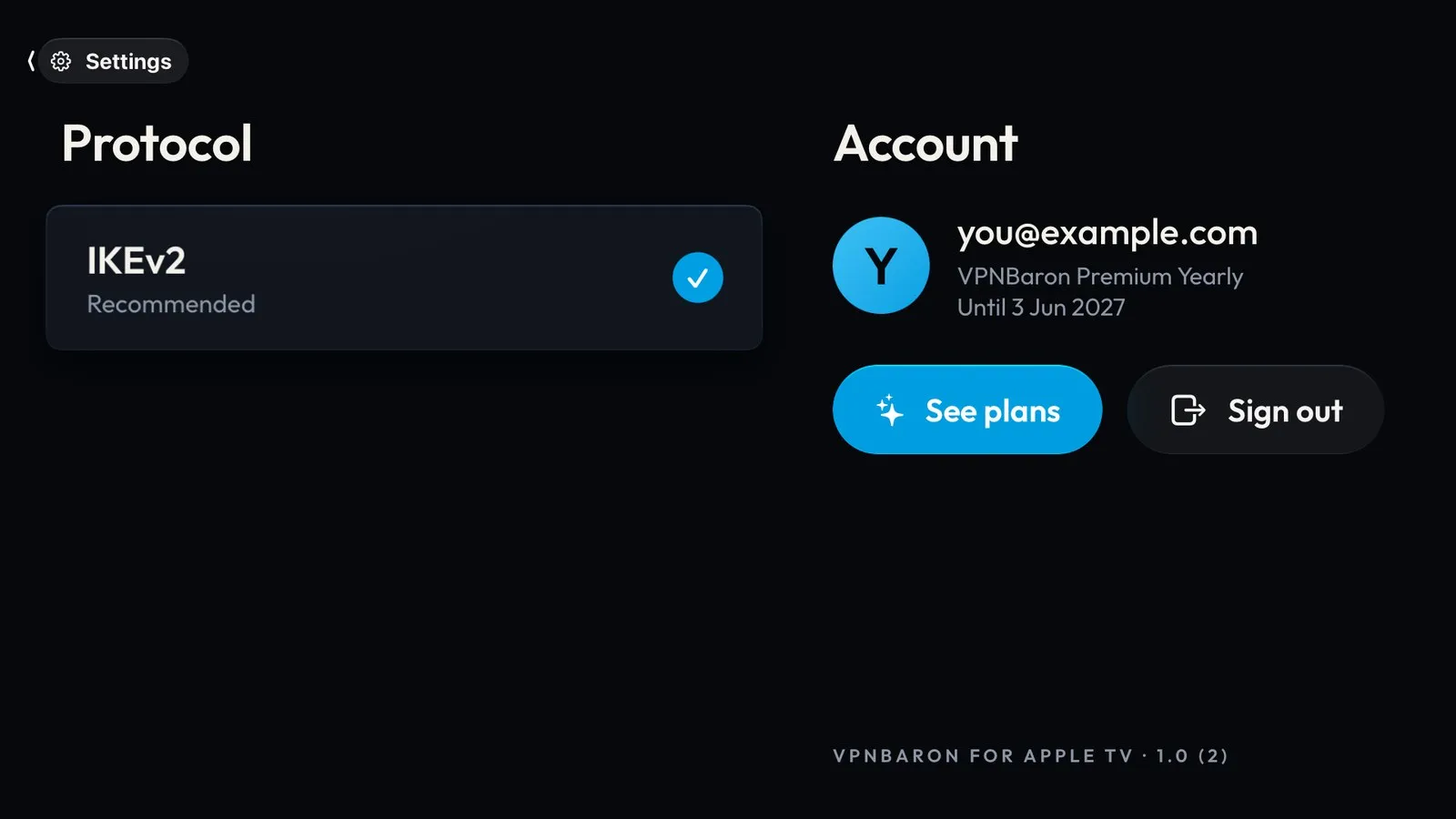
The Apple TV app connects with IKEv2, which works on home networks and most others.
If a network blocks VPNs
Some networks, such as hotels, offices and some countries, block ordinary VPN connections, including IKEv2. On those, the Apple TV app may not connect. VPNBaron’s stealth protocols, VLESS Reality and Hysteria2, get through such networks, but they’re in the VPNBaron apps for Windows, macOS, Linux, iPhone and Android, not on Apple TV.
Need help?
Contact support with your Apple TV model, its tvOS version, the location you chose and the exact message you see.